> ## Documentation Index
> Fetch the complete documentation index at: https://help.emotive.io/llms.txt
> Use this file to discover all available pages before exploring further.
# Connect Klaviyo <> Emotive CartAI
> Integrate Emotive CartAI to work seamlessly with Klaviyo.
This article will walk you through the steps needed to connect your Emotive CartAI with your Klaviyo account. Before getting started, make sure you've completed your [Emotive CartAI setup](https://emotiv.mintlify.app/docs/cart-ai/set-up-emotive-cart-ai).
## Connect Klaviyo
To get started:
* Log into your Klaviyo account.
* Navigate to your [API Keys page](https://www.klaviyo.com/settings/account/api-keys) in your Settings.
* Select **Create a Private API Key.**
* Name your new key "Emotive CartAI".
* Select **Full Access Key.**
* **Save** your changes.
* Copy your Emotive CartAI key.
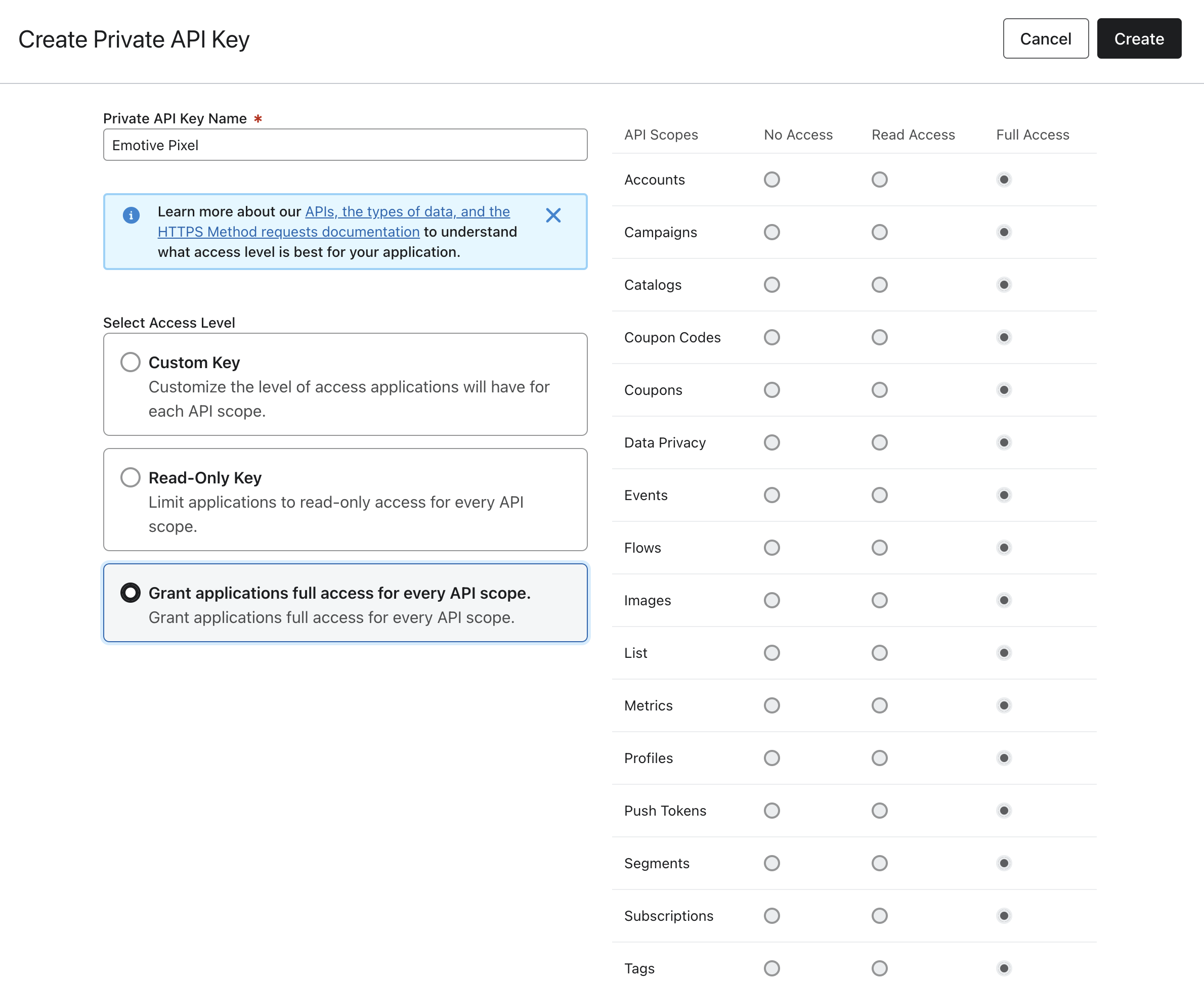 Once you've copied your new API Key in Klaviyo, head back to your Emotive dashboard.
* Navigate to the *Setup* page inside your CartAI tab.
* Select **Connect Klaviyo**.
* Paste your API Key that you copied from Klaviyo, and **Submit**.
## Set up UTMs in Klaviyo
Once you've connected your Klaviyo account in Emotive, you'll need to complete the setup by creating UTMs in Klaviyo.
To set up UTM Tracking in Klaviyo:
1. Log into your Klaviyo account.
2. Navigate to your [UTM Setup page](https://www.klaviyo.com/settings/other/utm-tracking) in your Settings.
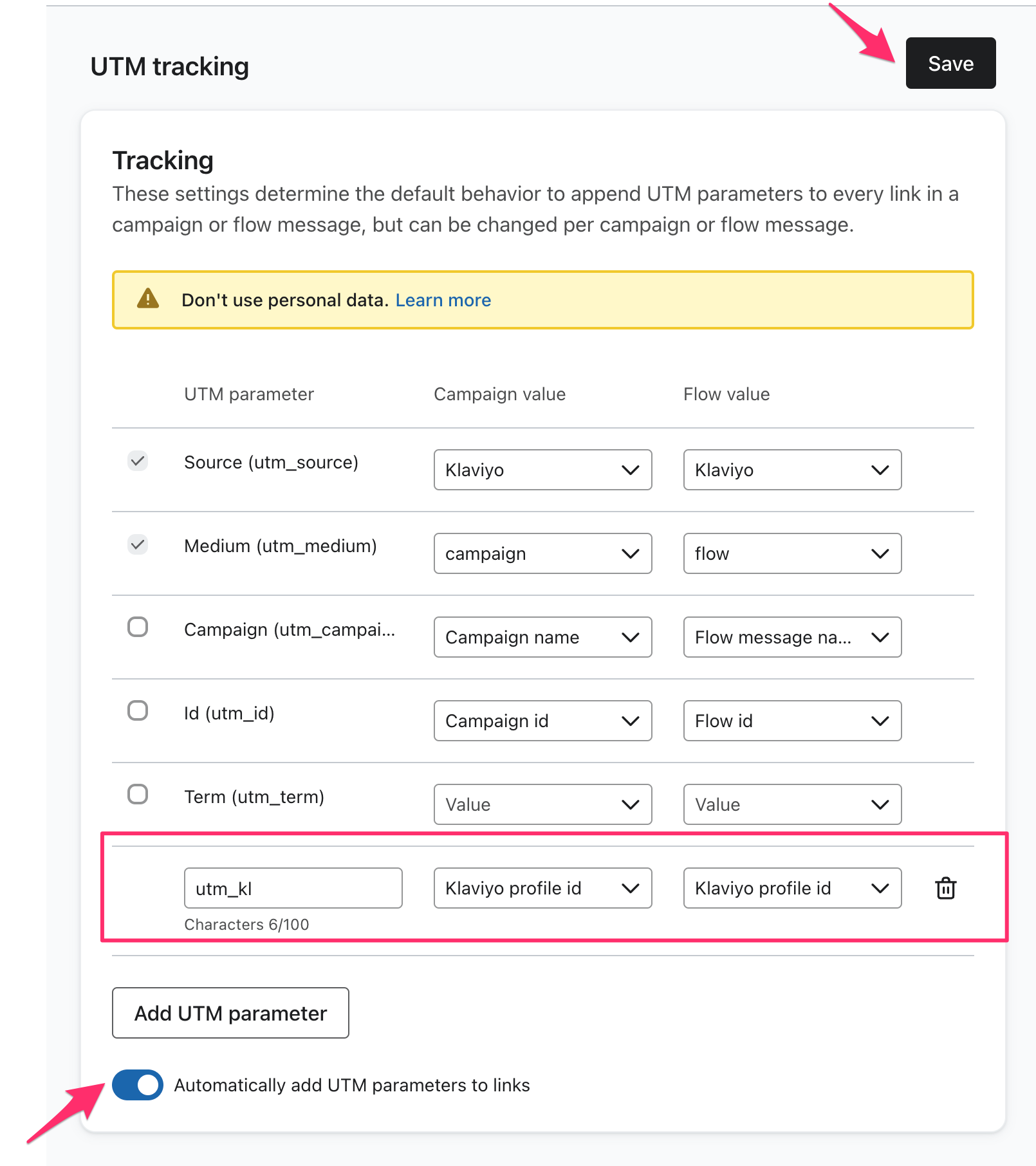
3. Add a new UTM Parameter: `utm_kl`
4. Select **Klaviyo Profile ID** for both the *Campaign* and *Flow* dropdown.
5. Toggle ON the *Automatically add UTM parameters to links* option.
6. Click on **Update UTM Tracking Settings.**
Once you've copied your new API Key in Klaviyo, head back to your Emotive dashboard.
* Navigate to the *Setup* page inside your CartAI tab.
* Select **Connect Klaviyo**.
* Paste your API Key that you copied from Klaviyo, and **Submit**.
## Set up UTMs in Klaviyo
Once you've connected your Klaviyo account in Emotive, you'll need to complete the setup by creating UTMs in Klaviyo.
To set up UTM Tracking in Klaviyo:
1. Log into your Klaviyo account.
2. Navigate to your [UTM Setup page](https://www.klaviyo.com/settings/other/utm-tracking) in your Settings.
3. Add a new UTM Parameter: `utm_kl`
4. Select **Klaviyo Profile ID** for both the *Campaign* and *Flow* dropdown.
5. Toggle ON the *Automatically add UTM parameters to links* option.
6. Click on **Update UTM Tracking Settings.**
 After \~24 hours, your CartAI metrics will start being tracked in Klaviyo. In order to set up Klaviyo email Flows for CartAI, contact your Customer Success Manager or send an email to [support@emotive.ai](mailto:support@emotive.ai) for assistance.