> ## Documentation Index
> Fetch the complete documentation index at: https://help.emotive.io/llms.txt
> Use this file to discover all available pages before exploring further.
# Set up Smart Reply
> Cut down on the amount of time and effort needed to answer customer questions.
Smart Reply provides conversational templates that help you better manage conversations with customers. Once you activate Smart Reply, Emotive Shopping Experts will start responding to your customers’ responses to **Flows**.
This feature saves your team time and effort by letting Emotive Shopping Experts respond to your customers. This reduces the amount of incoming questions and frees up resources that would be better focused elsewhere!
## Set up Smart Reply
To get started:
* Head to the [Smart Reply](https://www.emotiveapp.co/smart_reply) page in your Settings.
* Select any of the available topics:
* Greetings
* Discount Code
* Shipping
* Returns
* Click **Set up** to customize the response templates.
Smart Reply topics are based on the most common customer questions and responses we see coming through the Emotive platform.
* Each topic has sample language for you to use. Edit each response to fit your brand voice and policies.
* Click to toggle ON the topics / responses you want to use.
* Once you're happy with your edits, click **Activate**.
Once your Smart Reply topics are activated, Emotive Shopping Experts will start responding to your customers with these responses.
You are not able to edit the prompts beneath "**Customer Says..."** — you can only tailor your responses to said prompts.
## Managing your Smart Reply
To check on the statuses of your Smart Replies:
* Head to the [Smart Reply](https://www.emotiveapp.co/smart_reply) page in your Settings.
* View which Smart Replies are active with the purple badge next to the topic.
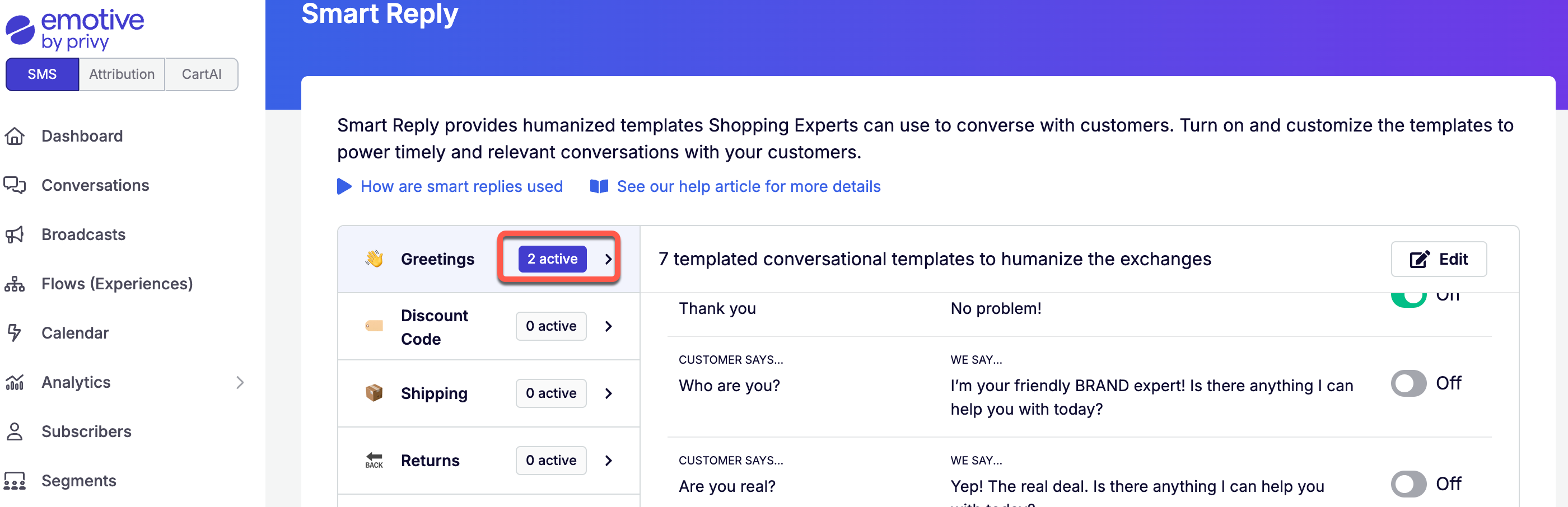 To edit your Smart Replies:
* Click into the desired topic on the left.
* Click **Edit** to change your responses.
* Toggle OFF responses that you no longer want to use.
* **Save** your changes.
To edit your Smart Replies:
* Click into the desired topic on the left.
* Click **Edit** to change your responses.
* Toggle OFF responses that you no longer want to use.
* **Save** your changes.