> ## Documentation Index
> Fetch the complete documentation index at: https://help.emotive.io/llms.txt
> Use this file to discover all available pages before exploring further.
# Collect SMS Opt-Ins at BigCommerce Checkout
> Grow your list by adding an SMS Opt-In checkbox in your BigCommerce Checkout.
Looking to get SMS opt-in from your BigCommerce Checkout page so you can grow your list and trigger Abandoned Checkout campaigns? We can help. Submit your request to your Customer Success Manager.
## Getting Set Up
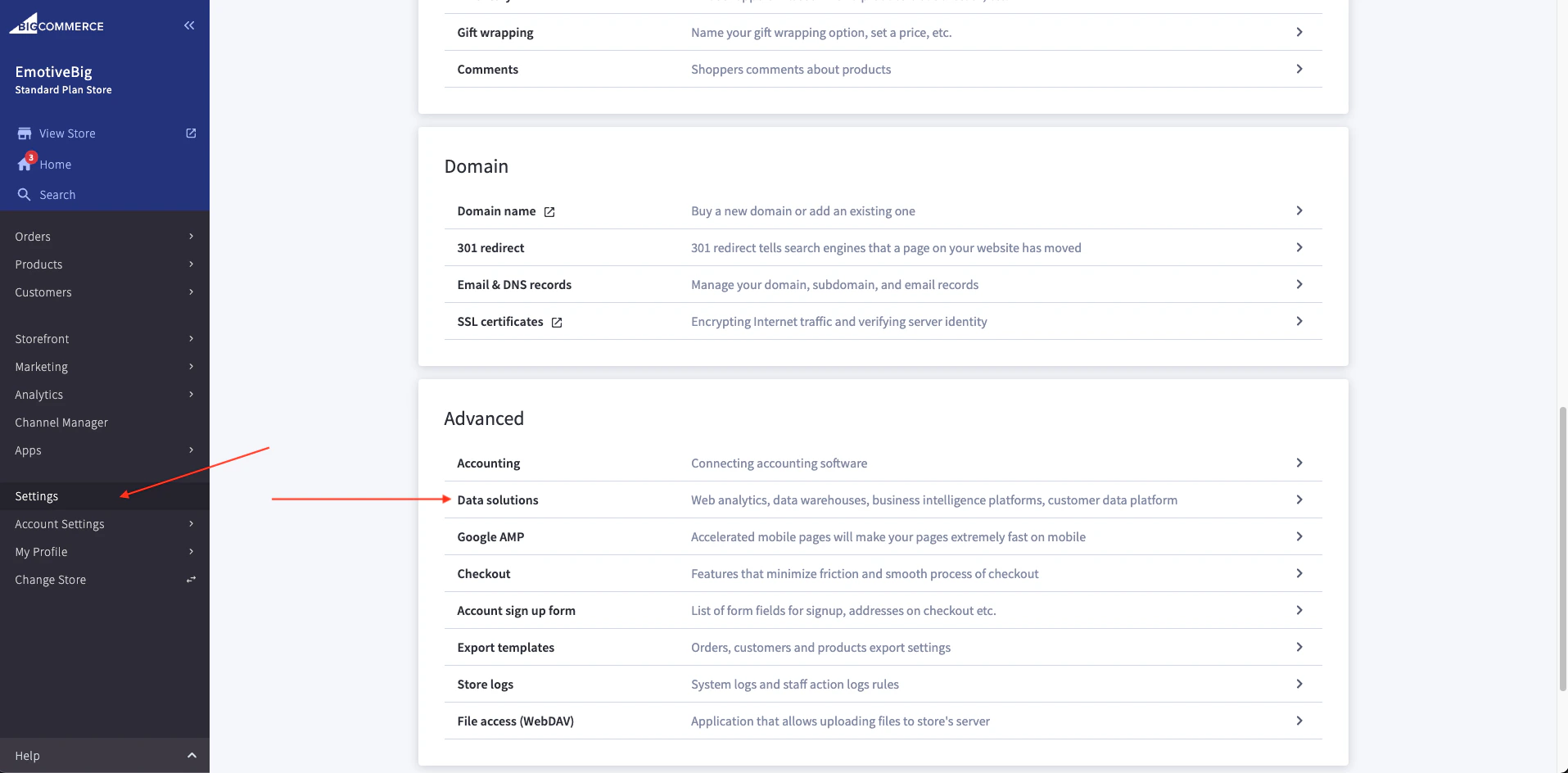
Log into your BigCommerce Portal and navigate to **Settings > Advanced > Data Solutions** to turn on your Site Verification Tags.
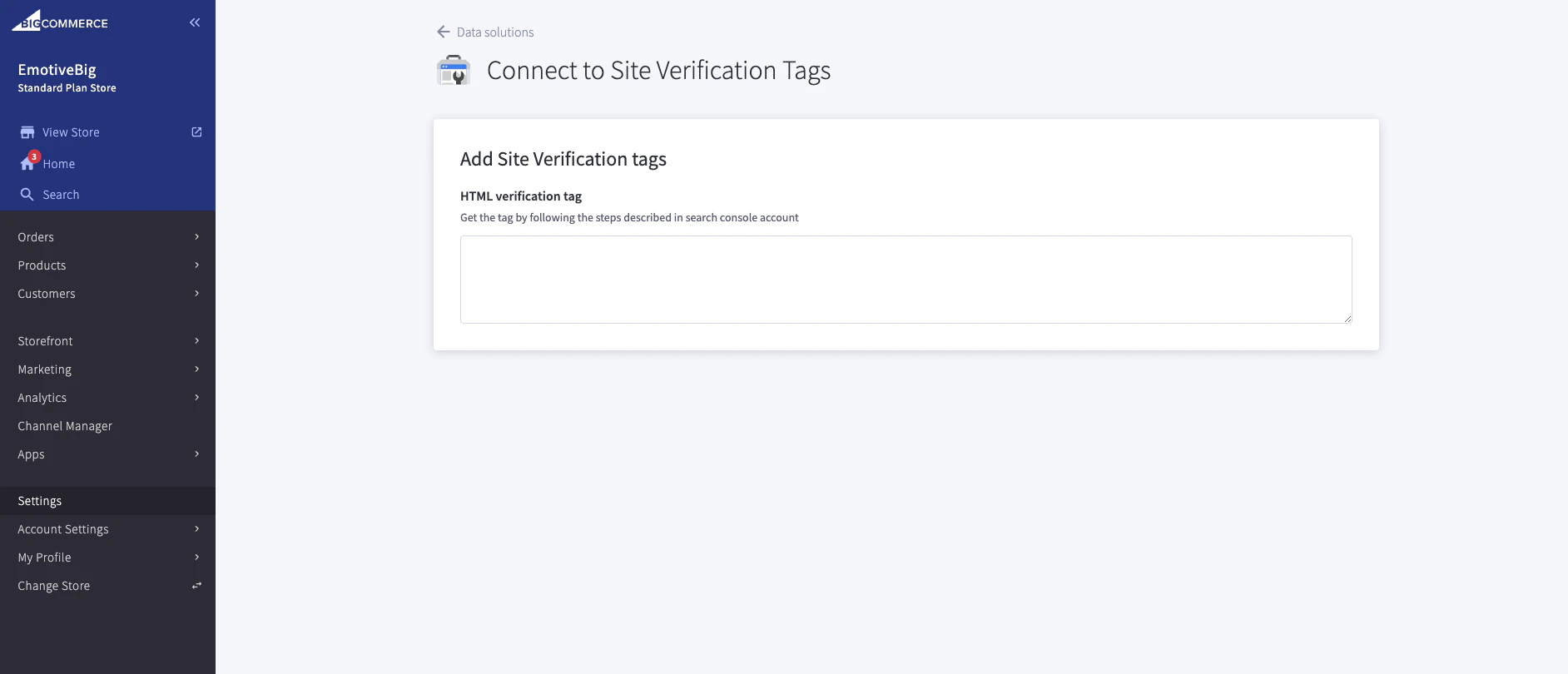
 Then, you will be provided a javascript specific to your site to paste into the Site Verification Tag Header.
 Once saved, you should find the SMS opt-in consent checkbox in your Checkout page. See below for example.
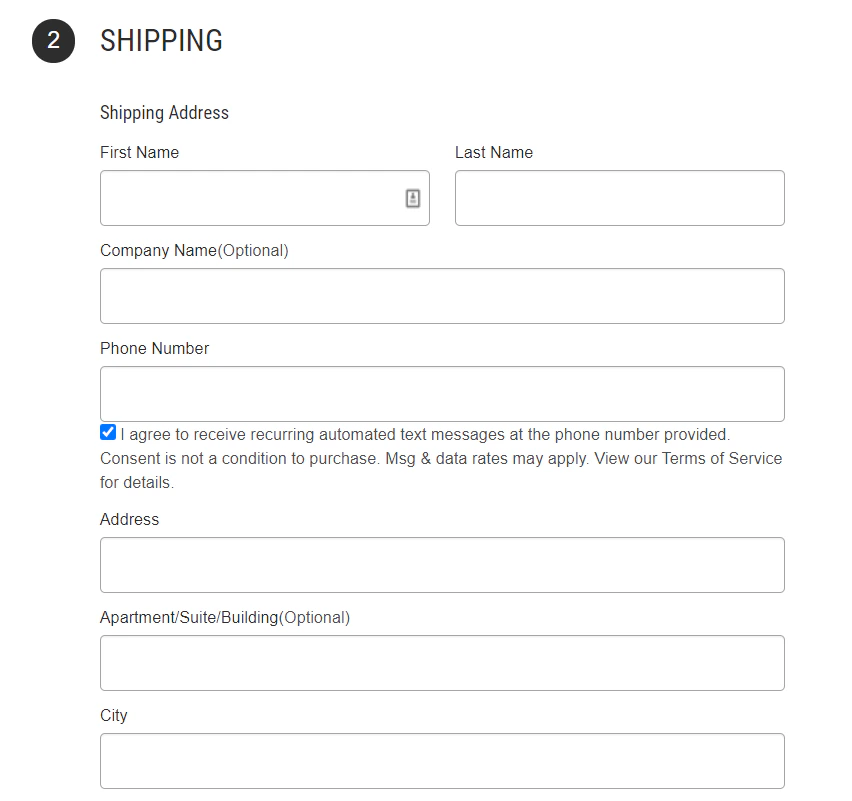 If your customer enters their phone number and has the checkbox marked, this will help grow your subscriber list.