> ## Documentation Index
> Fetch the complete documentation index at: https://help.emotive.io/llms.txt
> Use this file to discover all available pages before exploring further.
# Collect SMS Signups at WooCommerce Checkout
> Learn how to collect SMS Consent during checkout on your WooCommerce site.
Looking to get SMS opt-in from your WooCommerce Checkout page so you can grow your list and trigger Abandoned Checkout campaigns? We can help. Submit your request to your Customer Success Manager.
We will need your to have a Google Tag Manager account and installed the Google Tag Manager plugin in your Wordpress account. You may follow the steps below ahead of time.
## Create a Google Tag Manager Account
To create your GTM account:
* Visit [**https://marketingplatform.google.com/about/tag-manager/**](https://marketingplatform.google.com/about/tag-manager/).
* Click **Start for free**.
[Refer to this resource](https://support.google.com/tagmanager/answer/6103696?hl=en) with help setting up a new Google Tag Manager account.
Once your account is set up:
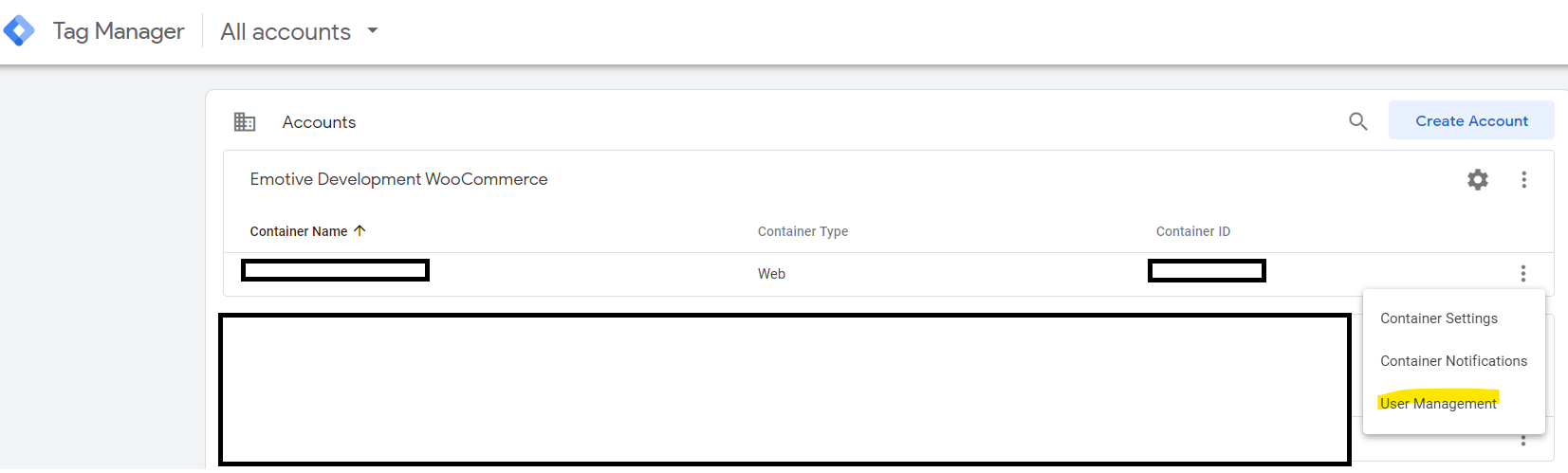
* Navigate to **Accounts**.
* Click on the ellipses (3 vertical dots), and select **User Management**.
 * Click on the plus sign and select **Add users**.
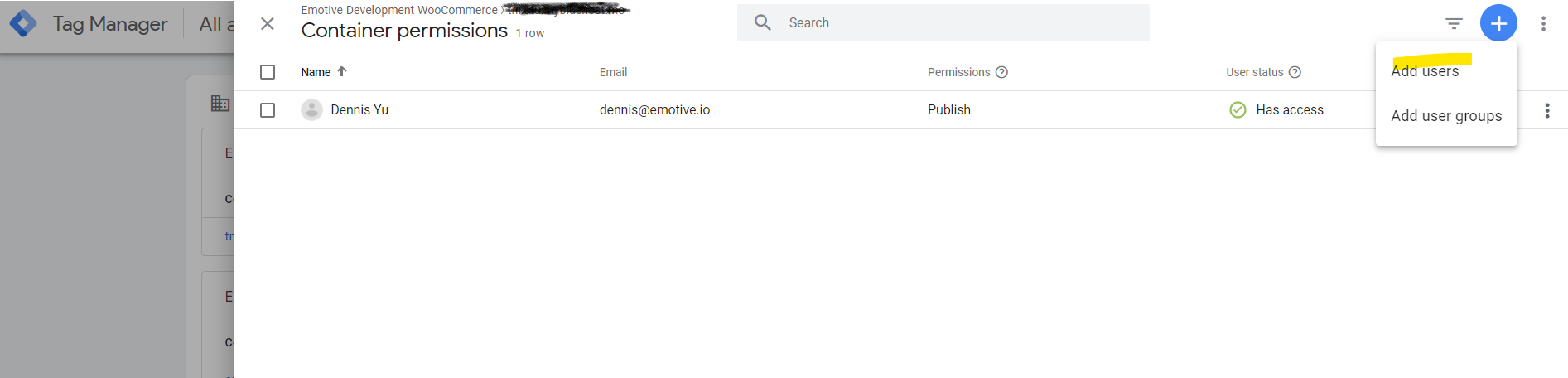 * Under *Email addresses*, type [**integrations@emotive.io**](mailto:integrations@emotive.io).
* Under *Container permissions*, select "Publish", "Approve", "Edit", and "Read".
* Finally, click **Invite** on the top right.
By completing these steps, it will enable our Product Support team to create new tags and triggers in your Google Tag Manager and test that your checkout information is passing into your Emotive App.
## Share Wordpress Admin Access
* Log into Wordpress and head to **User > Add New**.
* Under *Email addresses*, type [**integrations@emotive.io**](mailto:integrations@emotive.io).
* Under *Container permissions*, select "Publish", "Approve", "Edit", and "Read".
* Finally, click **Invite** on the top right.
By completing these steps, it will enable our Product Support team to create new tags and triggers in your Google Tag Manager and test that your checkout information is passing into your Emotive App.
## Share Wordpress Admin Access
* Log into Wordpress and head to **User > Add New**.
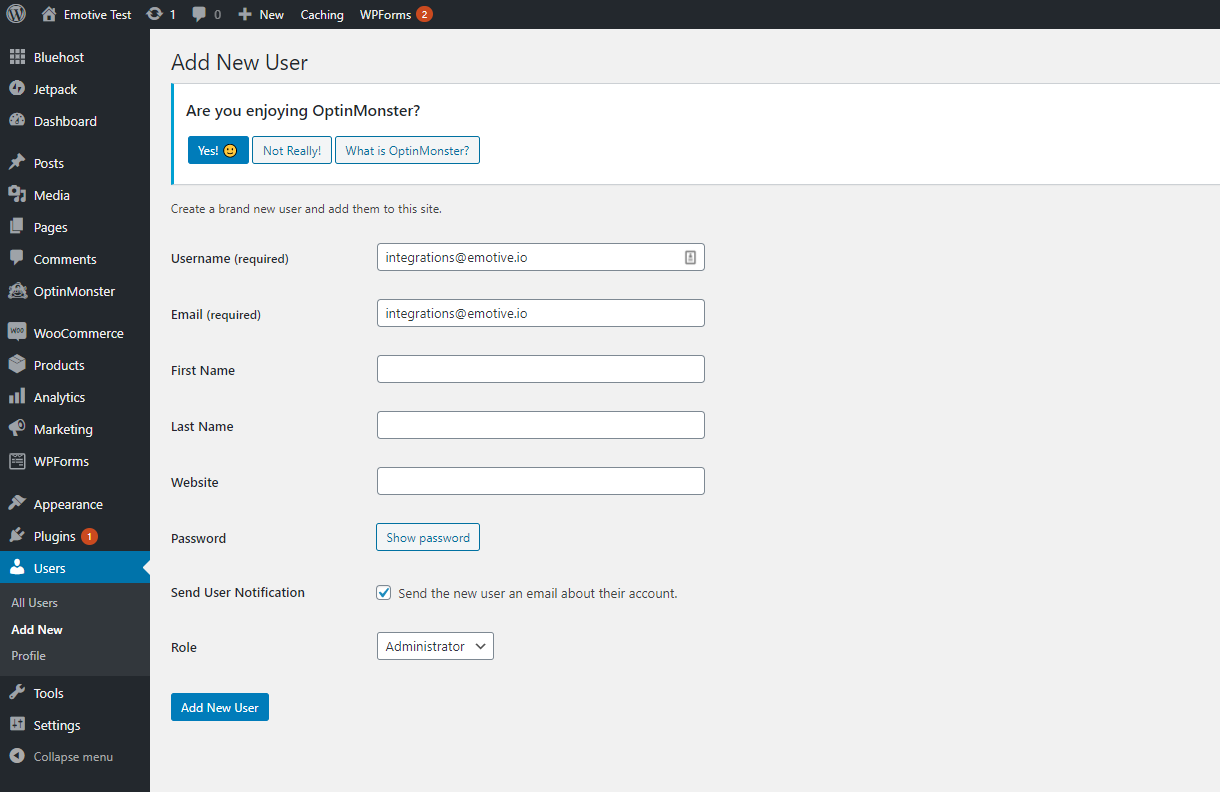 * Enter [**integrations@emotive.io**](mailto:integrations@emotive.io) for the *Username* and *Email* fields.
* Under *Role*, select **Administrator**.
* Click **Add New User**.
## Install Google Tag Manager on Wordpress
* Navigate to **Plugins > Add New**.
* Enter [**integrations@emotive.io**](mailto:integrations@emotive.io) for the *Username* and *Email* fields.
* Under *Role*, select **Administrator**.
* Click **Add New User**.
## Install Google Tag Manager on Wordpress
* Navigate to **Plugins > Add New**.
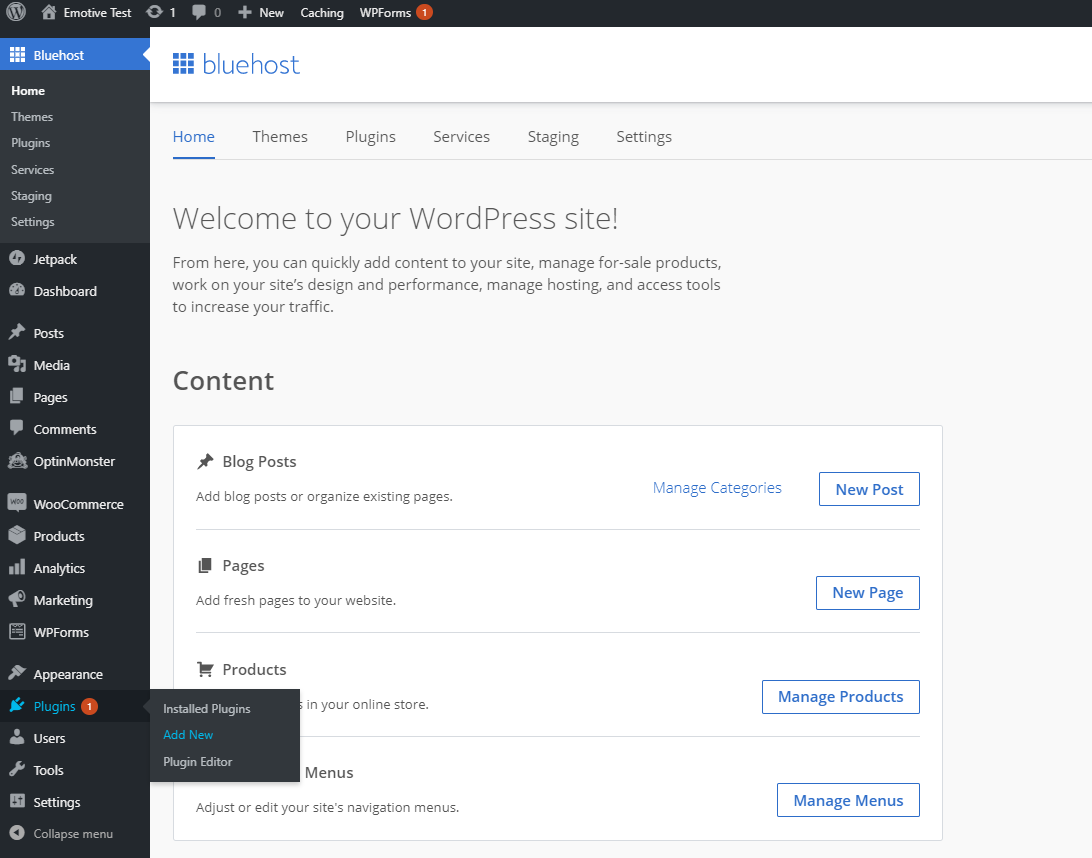 * Search for and locate **Google Tag Manager**.
* Install the plugin.
## What to expect
Once setup, you should find the SMS opt-in consent checkbox in your Checkout page. See below for an example:
* Search for and locate **Google Tag Manager**.
* Install the plugin.
## What to expect
Once setup, you should find the SMS opt-in consent checkbox in your Checkout page. See below for an example:
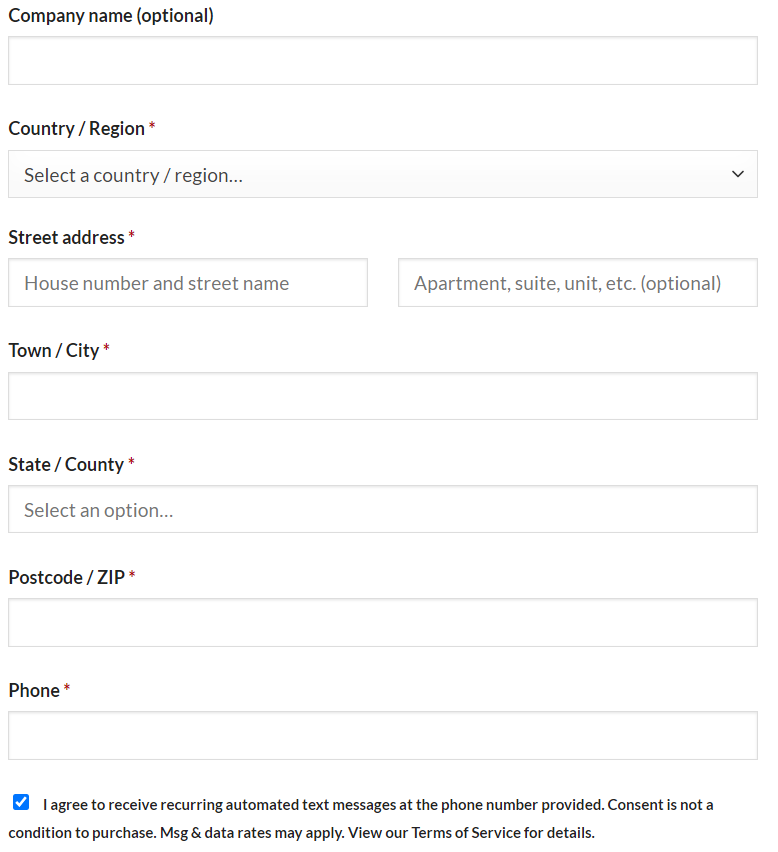 If your customer enters their phone number and has the checkbox marked, this will help grow your subscriber list.