> ## Documentation Index
> Fetch the complete documentation index at: https://help.emotive.io/llms.txt
> Use this file to discover all available pages before exploring further.
# Create a Webhook Manually in WooCommerce
> Learn how to create webhooks in Wordpress to use when integrating with Emotive.
## Create your Webhooks
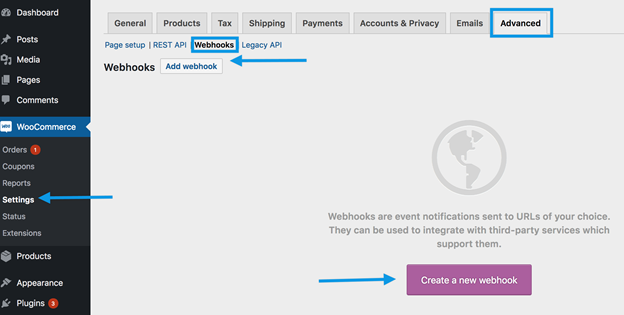
To add new webhooks:
* Log into your WordPress Dashboard.
* Navigate to **WooCommerce > Settings > Advanced > Webhooks**.
* Click **Add Webhook**.
 ## Configure your Webhooks
Emotive's integration requires 2 webhooks. One for Order Status Processing, and another for Order Status Completed. Follow the instructions below to get them configured:
### Webhook #1
* Name your webhook something easily identifiable, such as "Emotive Order Status Processing".
* Set the *Status* field to **Active**.
* Select the *Topic* to be **Action**.
* Set the *Action Event* to be **woocommerce\_order\_status\_processing**.
* Set *Delivery URL* to [**https://webhooks.emotiveapp.co/api/woocommerce/order/processing?brand\_id=\**](https://webhooks.emotiveapp.co/api/woocommerce/order/processing?brand_id=\)
* Contact Emotive to get your brand id, do not include these symbols "\<>".
* Click on \*\*Save Webhook \*\*at the bottom of the page.
### Webhook #2
* Name your webhook something easily identifiable, such as "Emotive Order Status Completed".
* Set the *Status* field to **Active**.
* Select the *Topic* to be **Action**.
* Set the *Action Event* to **woocommerce\_order\_status\_completed**.
* Set *Delivery URL* to [**https://webhooks.emotiveapp.co/api/woocommerce/order/completed?brand\_id=\**](https://webhooks.emotiveapp.co/api/woocommerce/order/completed?brand_id=\)
* Contact Emotive to get your brand id, do not include these symbols "\<>".
* Click on \*\*Save Webhook \*\*at the bottom of the page.
## Place a Test Order to Verify Installation
* Place an order on your WooCommerce site with a valid mobile phone number.
* Apply a 100% off coupon to place a \$0 order, if desired.
* Contact Emotive Support at [support@emotive.io](mailto:support@emotive.io) and ask if they received the order.
Here is email template to use when getting in touch with our Support Team:
Hi Emotive, we manually created the webhooks in our WooCommerce account. We placed a test order with the order id ***\***, could you confirm if you received this order in your end?
## Configure your Webhooks
Emotive's integration requires 2 webhooks. One for Order Status Processing, and another for Order Status Completed. Follow the instructions below to get them configured:
### Webhook #1
* Name your webhook something easily identifiable, such as "Emotive Order Status Processing".
* Set the *Status* field to **Active**.
* Select the *Topic* to be **Action**.
* Set the *Action Event* to be **woocommerce\_order\_status\_processing**.
* Set *Delivery URL* to [**https://webhooks.emotiveapp.co/api/woocommerce/order/processing?brand\_id=\**](https://webhooks.emotiveapp.co/api/woocommerce/order/processing?brand_id=\)
* Contact Emotive to get your brand id, do not include these symbols "\<>".
* Click on \*\*Save Webhook \*\*at the bottom of the page.
### Webhook #2
* Name your webhook something easily identifiable, such as "Emotive Order Status Completed".
* Set the *Status* field to **Active**.
* Select the *Topic* to be **Action**.
* Set the *Action Event* to **woocommerce\_order\_status\_completed**.
* Set *Delivery URL* to [**https://webhooks.emotiveapp.co/api/woocommerce/order/completed?brand\_id=\**](https://webhooks.emotiveapp.co/api/woocommerce/order/completed?brand_id=\)
* Contact Emotive to get your brand id, do not include these symbols "\<>".
* Click on \*\*Save Webhook \*\*at the bottom of the page.
## Place a Test Order to Verify Installation
* Place an order on your WooCommerce site with a valid mobile phone number.
* Apply a 100% off coupon to place a \$0 order, if desired.
* Contact Emotive Support at [support@emotive.io](mailto:support@emotive.io) and ask if they received the order.
Here is email template to use when getting in touch with our Support Team:
Hi Emotive, we manually created the webhooks in our WooCommerce account. We placed a test order with the order id ***\***, could you confirm if you received this order in your end?