> ## Documentation Index
> Fetch the complete documentation index at: https://help.emotive.io/llms.txt
> Use this file to discover all available pages before exploring further.
# Connect Freshdesk <> Emotive
> Learn how to sync data between Freshdesk and Emotive
## Features of the Integration
Our goal with our Freshdesk integration is to allow you to manage all of your Emotive conversations right from within Freshdesk.
* New conversations that happen in Emotive create tickets in Freshdesk
* Opt out shoppers directly from Freshdesk via keyword #optout or #opt-out
* All customer responses from Emotive are added to the same, open ticket in Freshdesk
* Conversations that Emotive starts with customers will sync to provide context for where the conversation was handed off to Freshdesk
* Responding to a ticket in Freshdesk sends a message via Emotive to the customer
* Closing a ticket in Freshdesk closes a Conversation in Emotive
## Install Freshdesk on Emotive
* Navigate to [Integrations](https://www.emotiveapp.co/settings/integrations).
* Locate **Freshdesk** and select **Add Integration**.
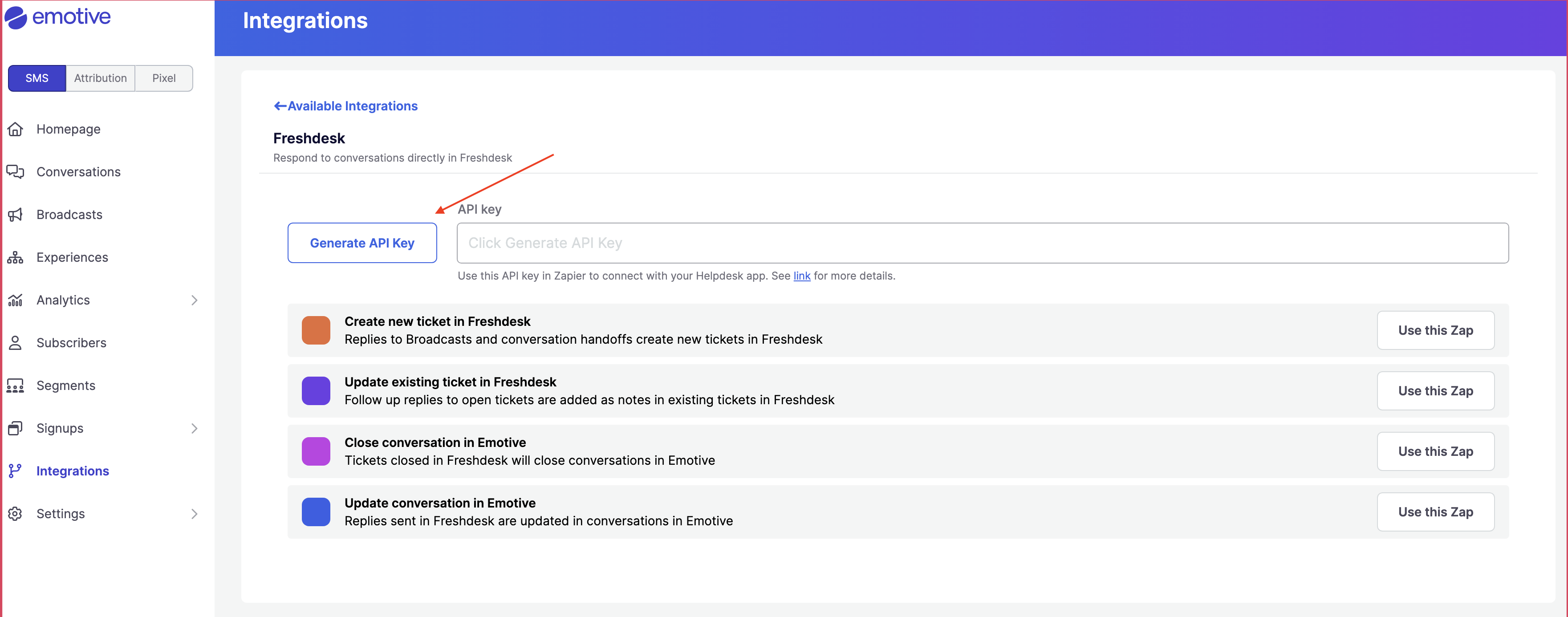
* Click **Generate API Key**.
* Copy the new API Key on this screen.
 ## Complete Install in Zapier
Below your new API Key in Emotive, you'll find all available Zap flows. Click on **Try thiz Zap** for each one.
## Complete Install in Zapier
Below your new API Key in Emotive, you'll find all available Zap flows. Click on **Try thiz Zap** for each one.
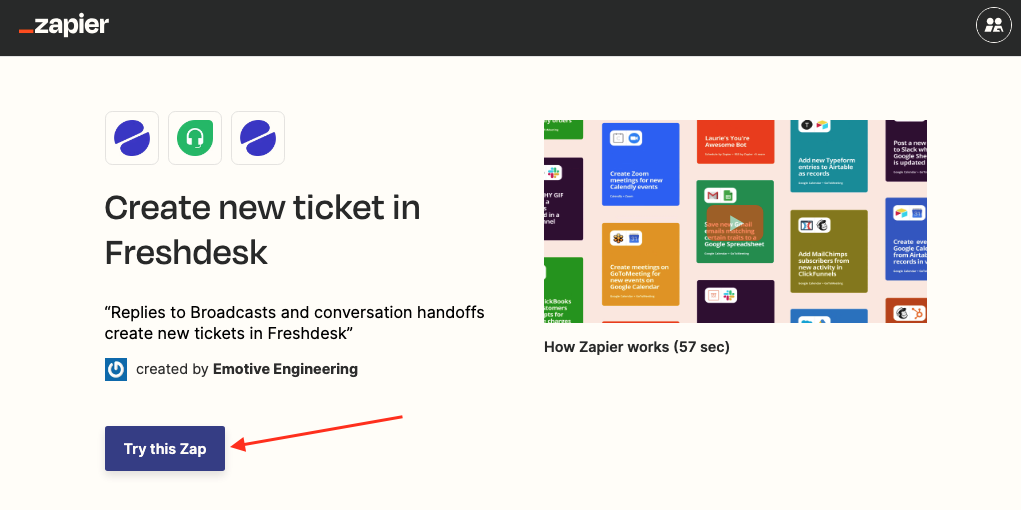 This will open a new Zap flow. To continue:
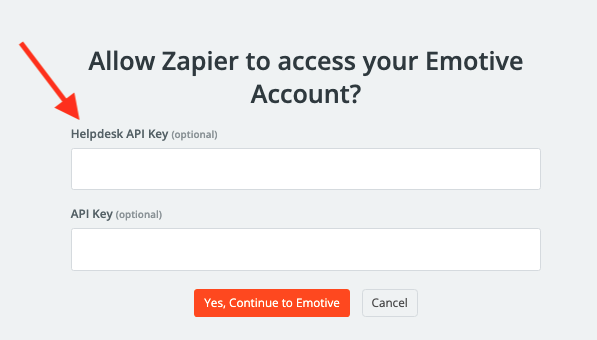
* Paste the API Key that you just generated in Emotive into the *Helpdesk API Key* field.
* Click **Yes, Continue to Emotive**.
* If needed, input your Freshdesk credentials to authenticate.
This will open a new Zap flow. To continue:
* Paste the API Key that you just generated in Emotive into the *Helpdesk API Key* field.
* Click **Yes, Continue to Emotive**.
* If needed, input your Freshdesk credentials to authenticate.
 That's it! Your Freshdesk account is now integrated with Emotive.