> ## Documentation Index
> Fetch the complete documentation index at: https://help.emotive.io/llms.txt
> Use this file to discover all available pages before exploring further.
# Connect Hubspot <> Emotive
> Learn how to sync data between Hubspot and Emotive
To connect your Hubspot account with Emotive, we will first need to install the app in Emotive, then complete the installation in Zapier.
## Install Hubspot on Emotive
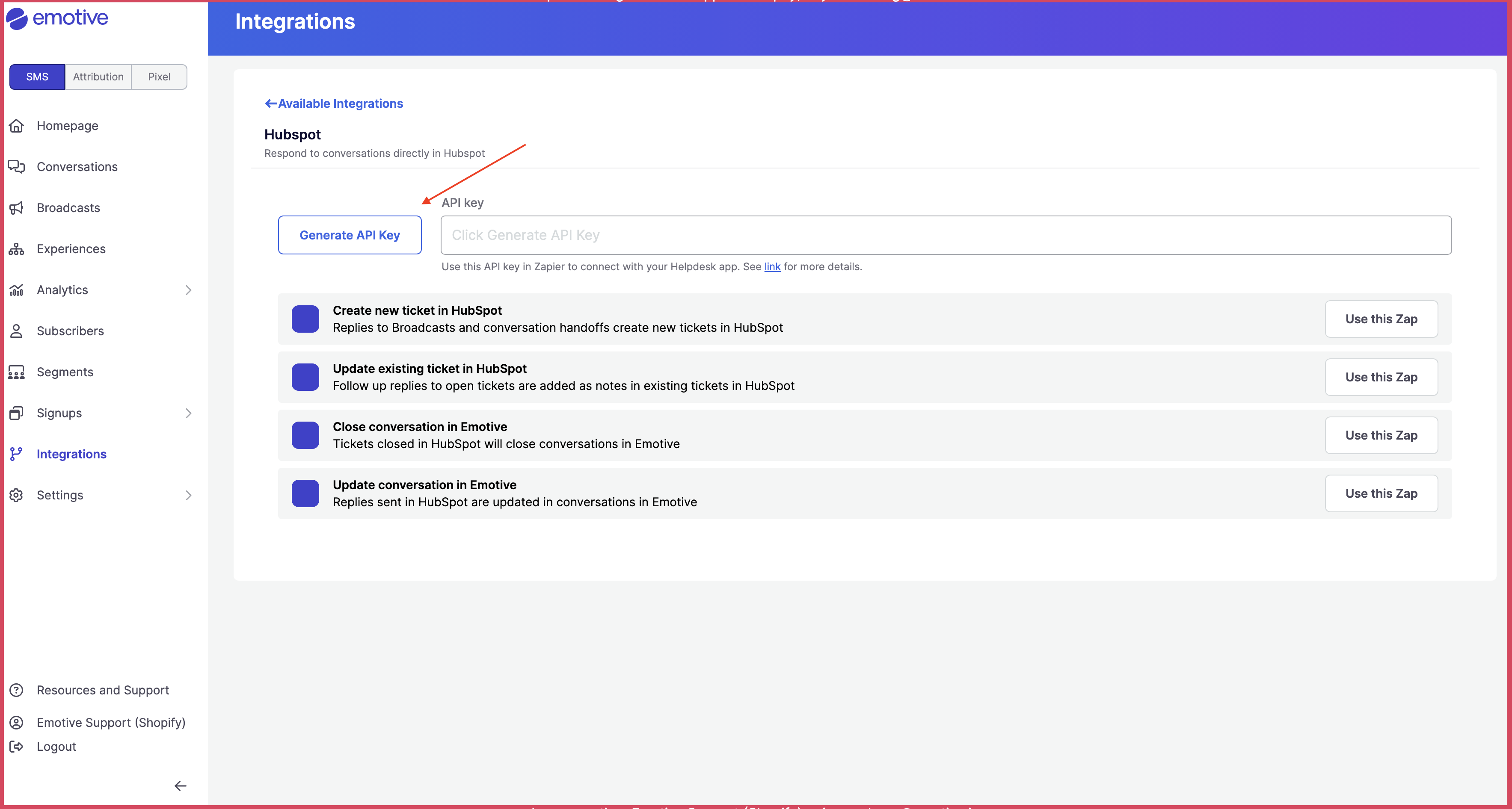
* Navigate to [Integrations](https://www.emotiveapp.co/settings/integrations).
* Locate **Hubspot** and select **Add Integration**.
* Click **Generate API Key**.
* Copy the new API Key on this screen.
 ## Complete Install on Zapier
Below your new API Key in Emotive, you'll find all available Zap flows. Click on **Try thiz Zap** for each one.
## Complete Install on Zapier
Below your new API Key in Emotive, you'll find all available Zap flows. Click on **Try thiz Zap** for each one.
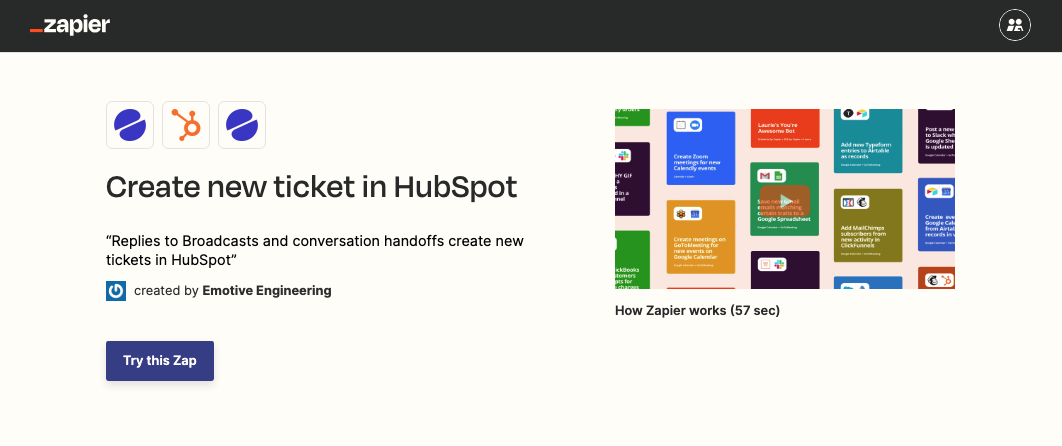 This will open a new Zap flow. To continue:
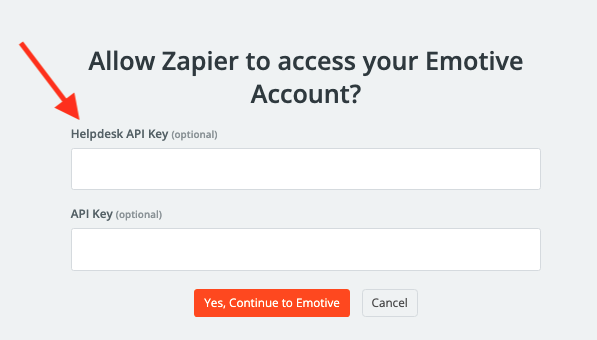
* Paste the API Key that you just generated in Emotive into the *Helpdesk API Key* field.
* Click **Yes, Continue to Emotive**.
* If needed, input your Hubspot credentials to authenticate.
This will open a new Zap flow. To continue:
* Paste the API Key that you just generated in Emotive into the *Helpdesk API Key* field.
* Click **Yes, Continue to Emotive**.
* If needed, input your Hubspot credentials to authenticate.
 That's it! Your Hubspot account is now integrated with Emotive.
## Sync Signups from Hubspot Forms
Before you get started with syncing SMS signups from Hubspot Forms to Emotive, you'll need to create a new List Growth API in Emotive, then install Hubspot Forms in your Emotive account.
### Create Your API Key in Emotive
1. Log into Emotive and navigate to [List Growth > Integrations](https://www.emotiveapp.co/list-growth/tools).
2. Click to add a new List Growth API.
3. Name your new API something easily identifiable, such as "List Growth API - Hubspot Forms Sync".
4. Under *Welcome Message*, select the Flow you want your new subscribers to receive after signing up.
5. Click **Next**.
6. Copy your new List Growth API's List ID as shown below.
### Install Hubspot Forms on Emotive
1. Navigate to [Integrations](https://www.emotiveapp.co/settings/integrations) in your Emotive dashboard.
2. Locate Hubspot Forms and select **Add Integration**.
3. Toggle ON "Hubspot Forms Sync #1".
4. Select your Hubspot Forms account, insert your credentials to connect.
5. Paste your \*\*List ID \*\*from your new Emotive List Growth API.
6. Click **Finish**.
That's it! Your Signups from your Hubspot Forms will now sync to Emotive.
That's it! Your Hubspot account is now integrated with Emotive.
## Sync Signups from Hubspot Forms
Before you get started with syncing SMS signups from Hubspot Forms to Emotive, you'll need to create a new List Growth API in Emotive, then install Hubspot Forms in your Emotive account.
### Create Your API Key in Emotive
1. Log into Emotive and navigate to [List Growth > Integrations](https://www.emotiveapp.co/list-growth/tools).
2. Click to add a new List Growth API.
3. Name your new API something easily identifiable, such as "List Growth API - Hubspot Forms Sync".
4. Under *Welcome Message*, select the Flow you want your new subscribers to receive after signing up.
5. Click **Next**.
6. Copy your new List Growth API's List ID as shown below.
### Install Hubspot Forms on Emotive
1. Navigate to [Integrations](https://www.emotiveapp.co/settings/integrations) in your Emotive dashboard.
2. Locate Hubspot Forms and select **Add Integration**.
3. Toggle ON "Hubspot Forms Sync #1".
4. Select your Hubspot Forms account, insert your credentials to connect.
5. Paste your \*\*List ID \*\*from your new Emotive List Growth API.
6. Click **Finish**.
That's it! Your Signups from your Hubspot Forms will now sync to Emotive.