> ## Documentation Index
> Fetch the complete documentation index at: https://help.emotive.io/llms.txt
> Use this file to discover all available pages before exploring further.
# Connect Klaviyo and Emotive
> Sync contacts, lists, and data between Emotive and Klaviyo.
## Install Klaviyo on Emotive
* Navigate to [Integrations](https://www.emotiveapp.co/settings/integrations).
* Locate **Klaviyo** and select **Add Integration**.
* Insert your Klaviyo Public API Key.
* Insert your Klaviyo Private API Key.
* Configure your preferences under the *Sync Data* section.
* Click **+ Import** if you'd like to import any Lists from Klaviyo.
* **Save** your changes.
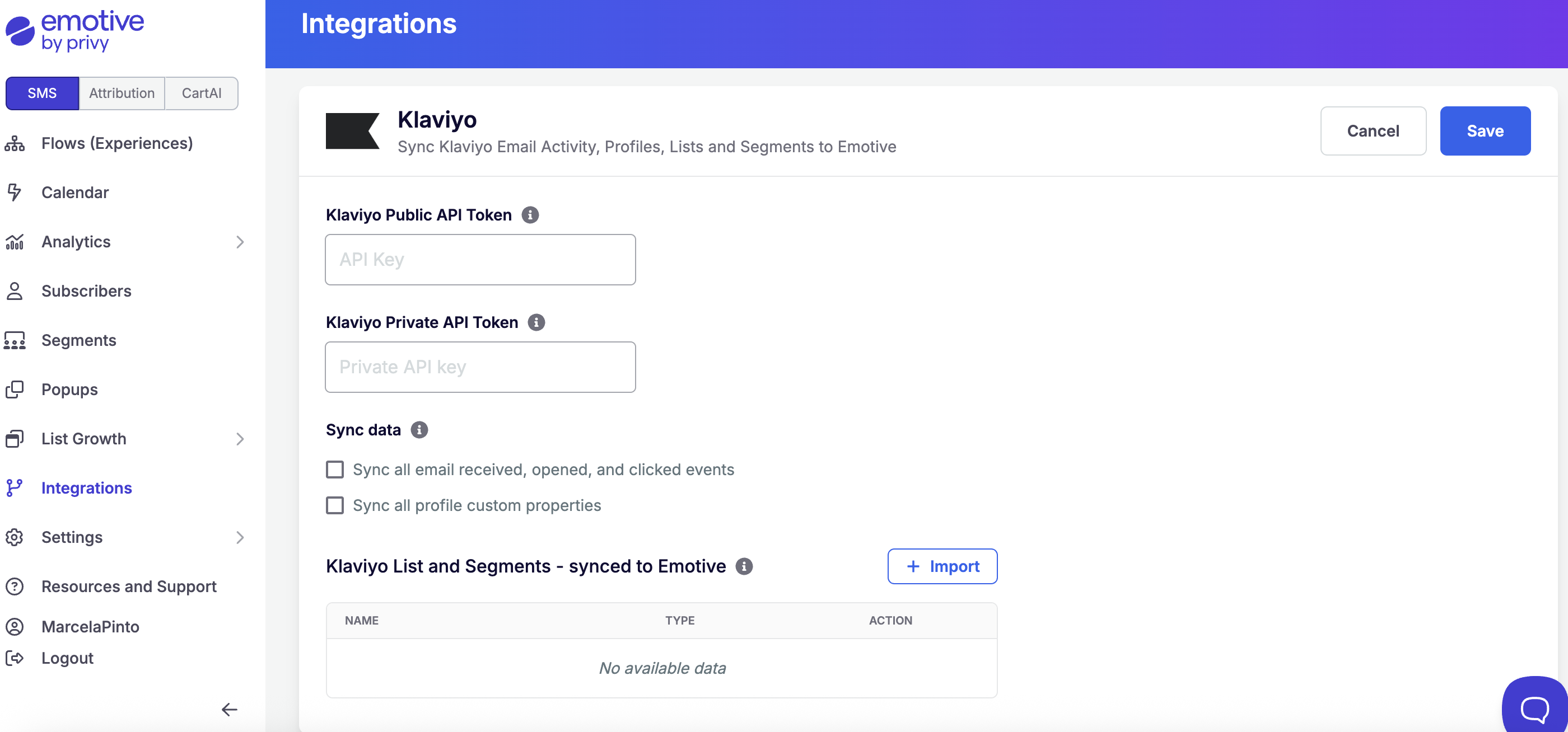 If you opt to sync any Klaviyo Lists to Emotive, they will appear in your Emotive segment list for both your Broadcasts and Flows.
## Syncing SMS Contacts from Klaviyo Forms
Before you get started with syncing SMS signups from Klaviyo to Emotive, you will need to:
1. Enable Klaviyo SMS
2. Create a Klaviyo List for Emotive Subscribers
### Create a Signup Flow in Klaviyo
* Log into Klaviyo and navigate to **Sign-up Forms**.
* Edit **Sign-up Forms**.
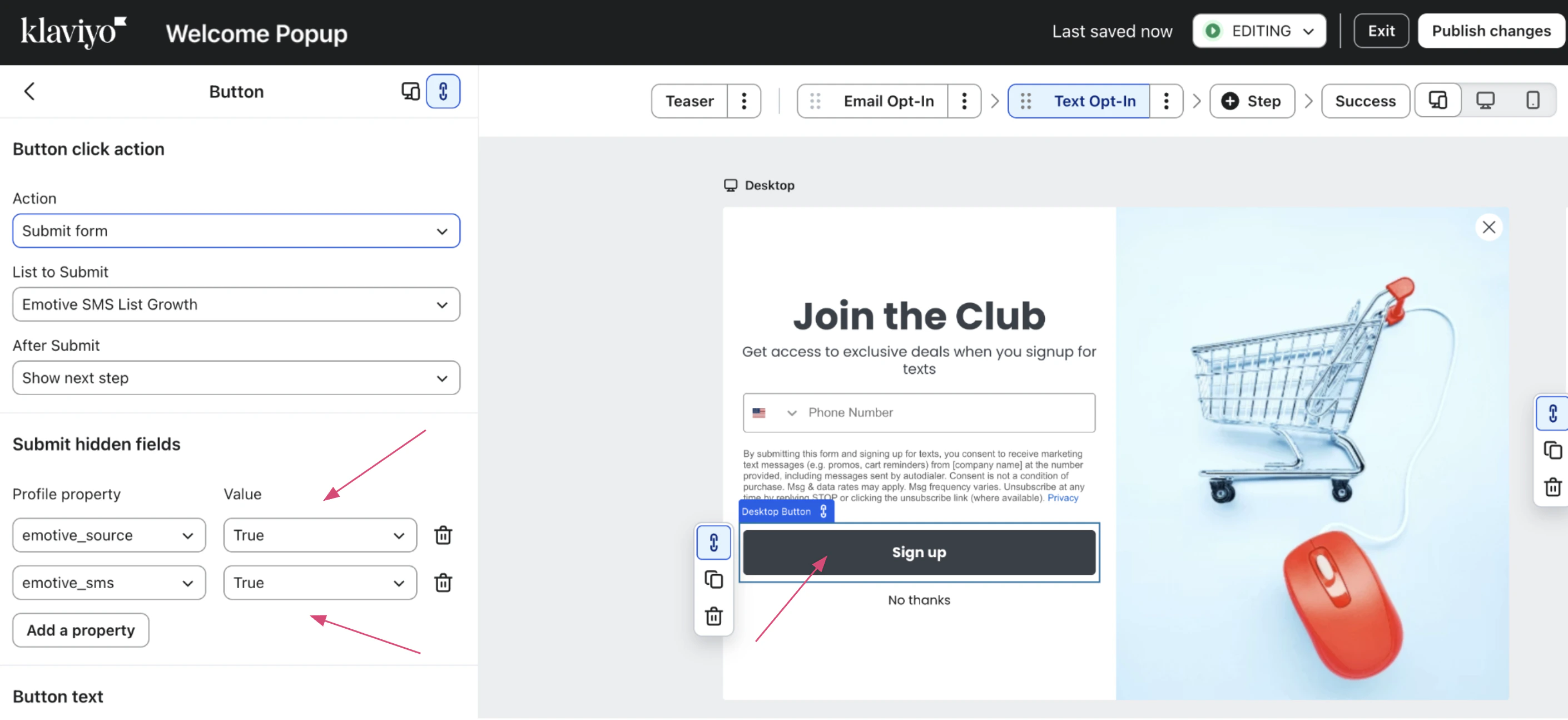
* Set up the phone number step's Button *Action* to "Submit Form".
* Your *List to Submit* should be the one you will connect to Emotive.
* Add 2 new *Profile Properties*.
* Name = "emotive\_source"
* Value = "true"
* Name = "emotive\_sms"
* Value = "true"
* **Publish** changes.
If you opt to sync any Klaviyo Lists to Emotive, they will appear in your Emotive segment list for both your Broadcasts and Flows.
## Syncing SMS Contacts from Klaviyo Forms
Before you get started with syncing SMS signups from Klaviyo to Emotive, you will need to:
1. Enable Klaviyo SMS
2. Create a Klaviyo List for Emotive Subscribers
### Create a Signup Flow in Klaviyo
* Log into Klaviyo and navigate to **Sign-up Forms**.
* Edit **Sign-up Forms**.
* Set up the phone number step's Button *Action* to "Submit Form".
* Your *List to Submit* should be the one you will connect to Emotive.
* Add 2 new *Profile Properties*.
* Name = "emotive\_source"
* Value = "true"
* Name = "emotive\_sms"
* Value = "true"
* **Publish** changes.
 ### Configure your List Settings
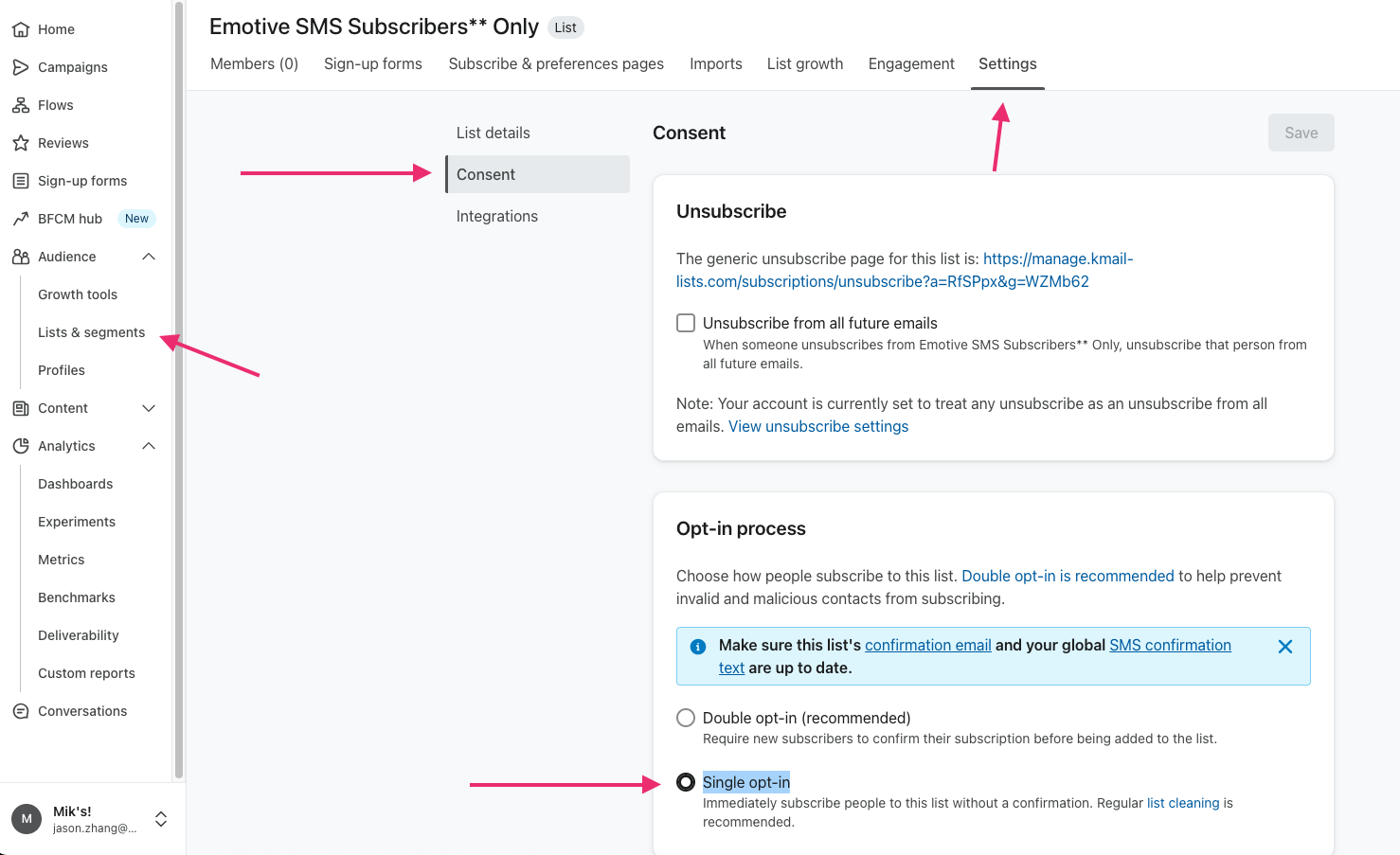
* Navigate to your **Lists & Segments** in Klaviyo.
* Edit your new Emotive subscribers **List.**
* Navigate to **Settings** > **Consent.**
* In your *Opt-In Process* settings, select **Single opt-in.**
* **Save** your changes.
### Configure your List Settings
* Navigate to your **Lists & Segments** in Klaviyo.
* Edit your new Emotive subscribers **List.**
* Navigate to **Settings** > **Consent.**
* In your *Opt-In Process* settings, select **Single opt-in.**
* **Save** your changes.
 ### Create a List Growth Integration
* Log into Emotive.
* Go to **List Growth > Integrations**.
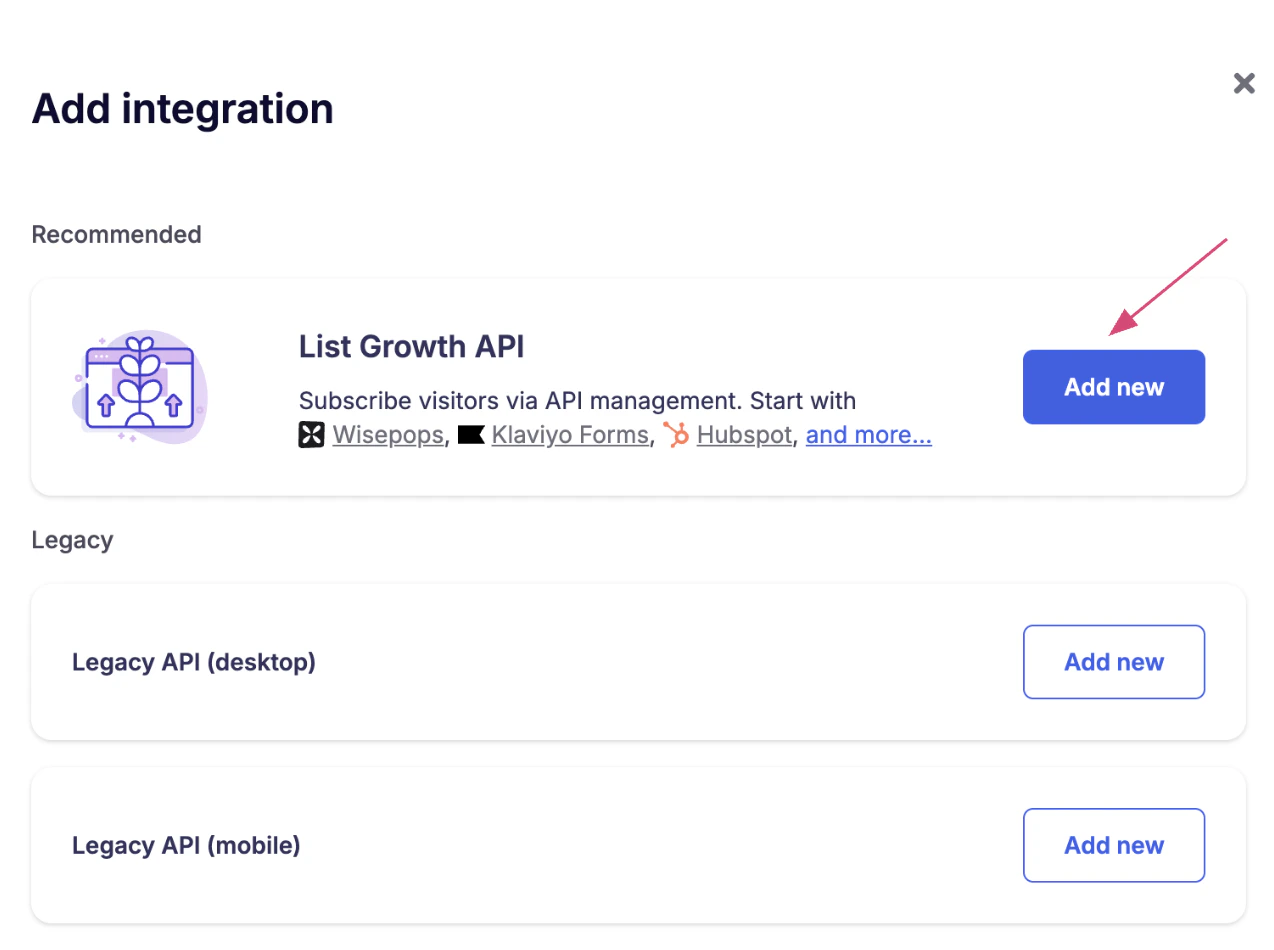
* Click on **Add New**.
* Select the first option and click on **Add New**.
### Create a List Growth Integration
* Log into Emotive.
* Go to **List Growth > Integrations**.
* Click on **Add New**.
* Select the first option and click on **Add New**.
 * Name your integration.
* Select the Welcome Flow in Emotive you want to be sent out when people subscribe. You can select this under the *Welcome Message* settings.
* **Save** your changes.
* Name your integration.
* Select the Welcome Flow in Emotive you want to be sent out when people subscribe. You can select this under the *Welcome Message* settings.
* **Save** your changes.
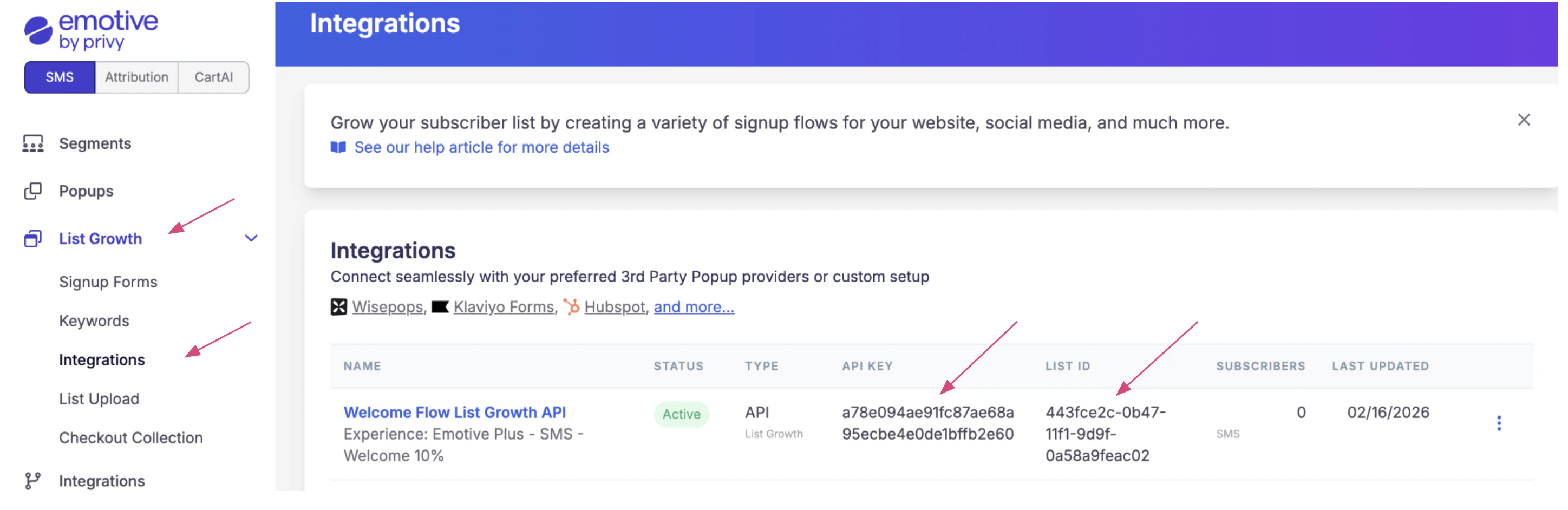
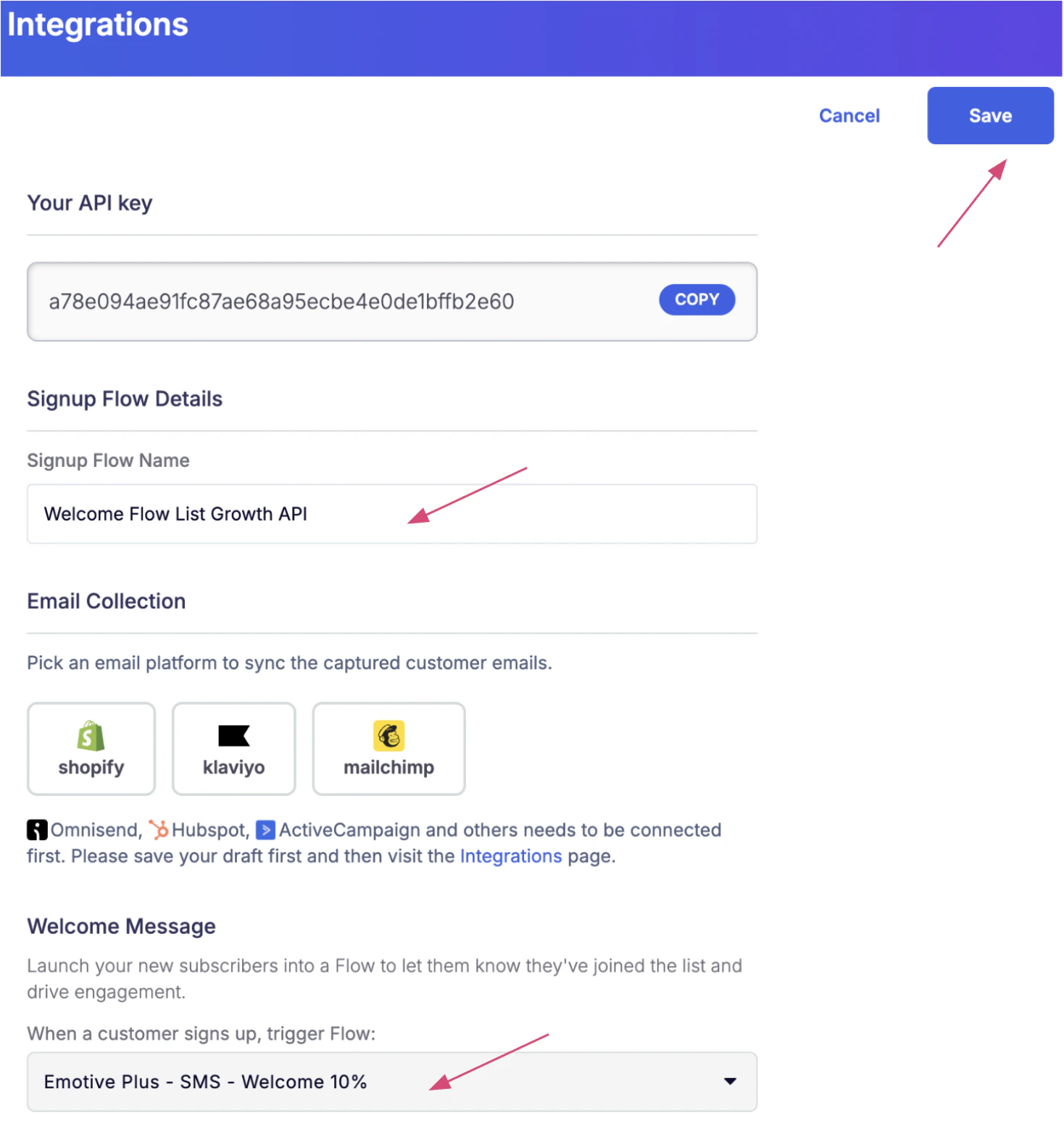 Once this is complete, you’ll have the information needed for Klaviyo to sync your subscribers to Emotive.
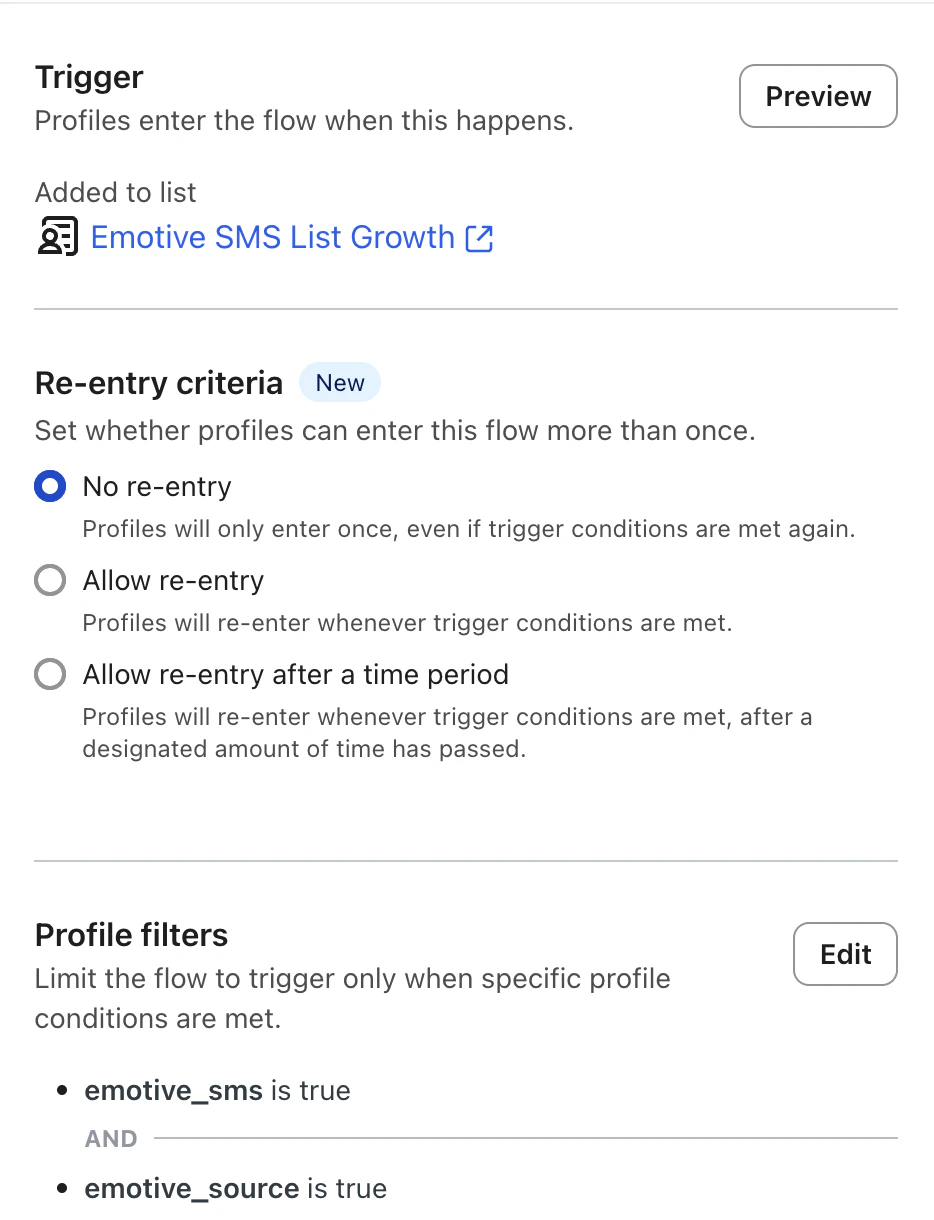
 ### Create a Flow in Klaviyo
* Navigate to **Flows**.
* Select **Create flow**.
* Select **Build your own**.
* Under your *Trigger*, select the same list you used in the phone collection step of your flow under your *Added to List* setting.
* Add the following Profile Filters:
* emotive\_source is "true"
* emotive\_sms is "true"
### Create a Flow in Klaviyo
* Navigate to **Flows**.
* Select **Create flow**.
* Select **Build your own**.
* Under your *Trigger*, select the same list you used in the phone collection step of your flow under your *Added to List* setting.
* Add the following Profile Filters:
* emotive\_source is "true"
* emotive\_sms is "true"
 * Add the following **Webhook** to send data to Emotive.
* Enter the following *Destination URL* = [**https://api-gw.emotiveapp.co/sensus-webhook/v1/subscriber**](https://api-gw.emotiveapp.co/sensus-webhook/v1/subscriber)
* Add the following *Header*:
* Key = "Authorization"
* Value = "Token api\_key"
* Add the following **Webhook** to send data to Emotive.
* Enter the following *Destination URL* = [**https://api-gw.emotiveapp.co/sensus-webhook/v1/subscriber**](https://api-gw.emotiveapp.co/sensus-webhook/v1/subscriber)
* Add the following *Header*:
* Key = "Authorization"
* Value = "Token api\_key"
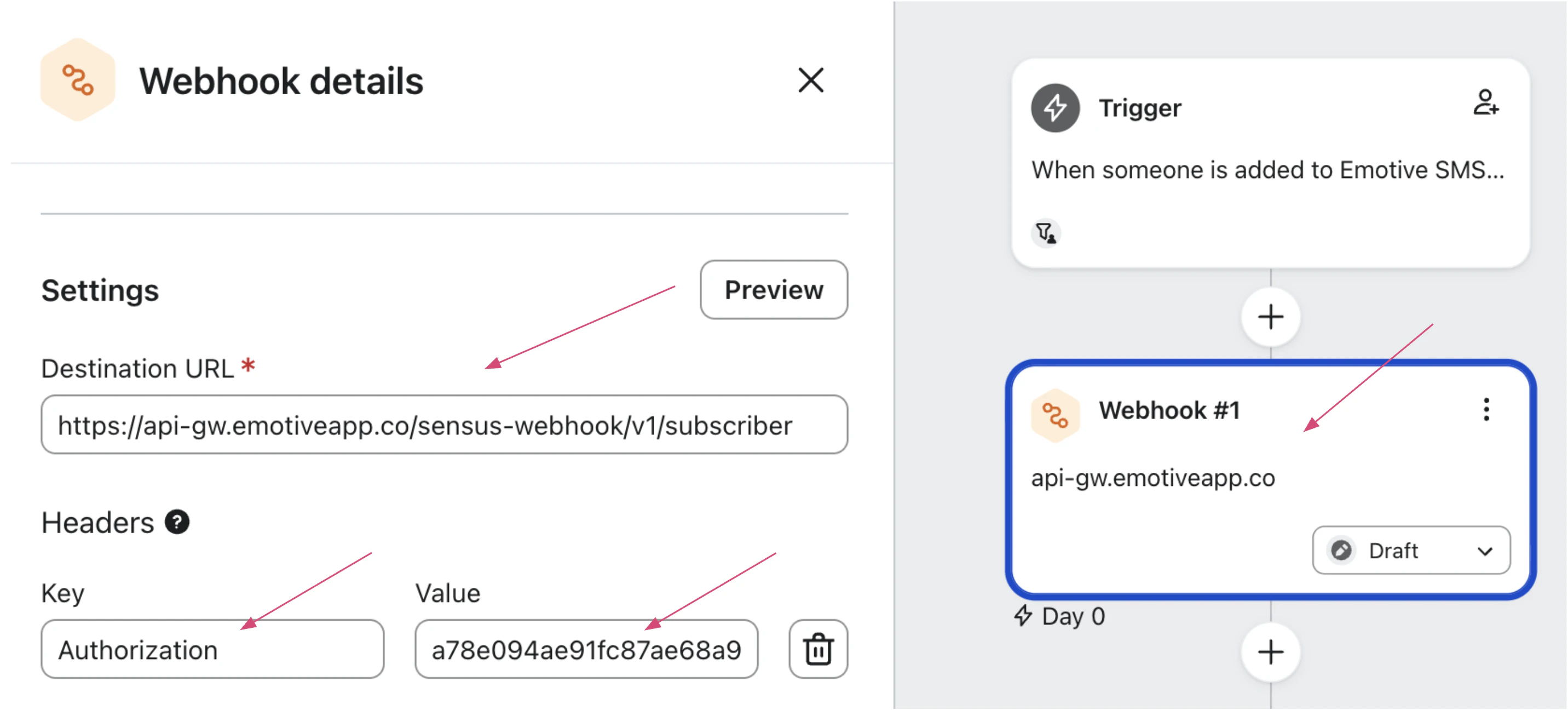 The API Key is associated with your List Growth Signup Flow in Emotive. This can be found in[List Growth > Integrations.](https://www.emotiveapp.co/list-growth/tools)
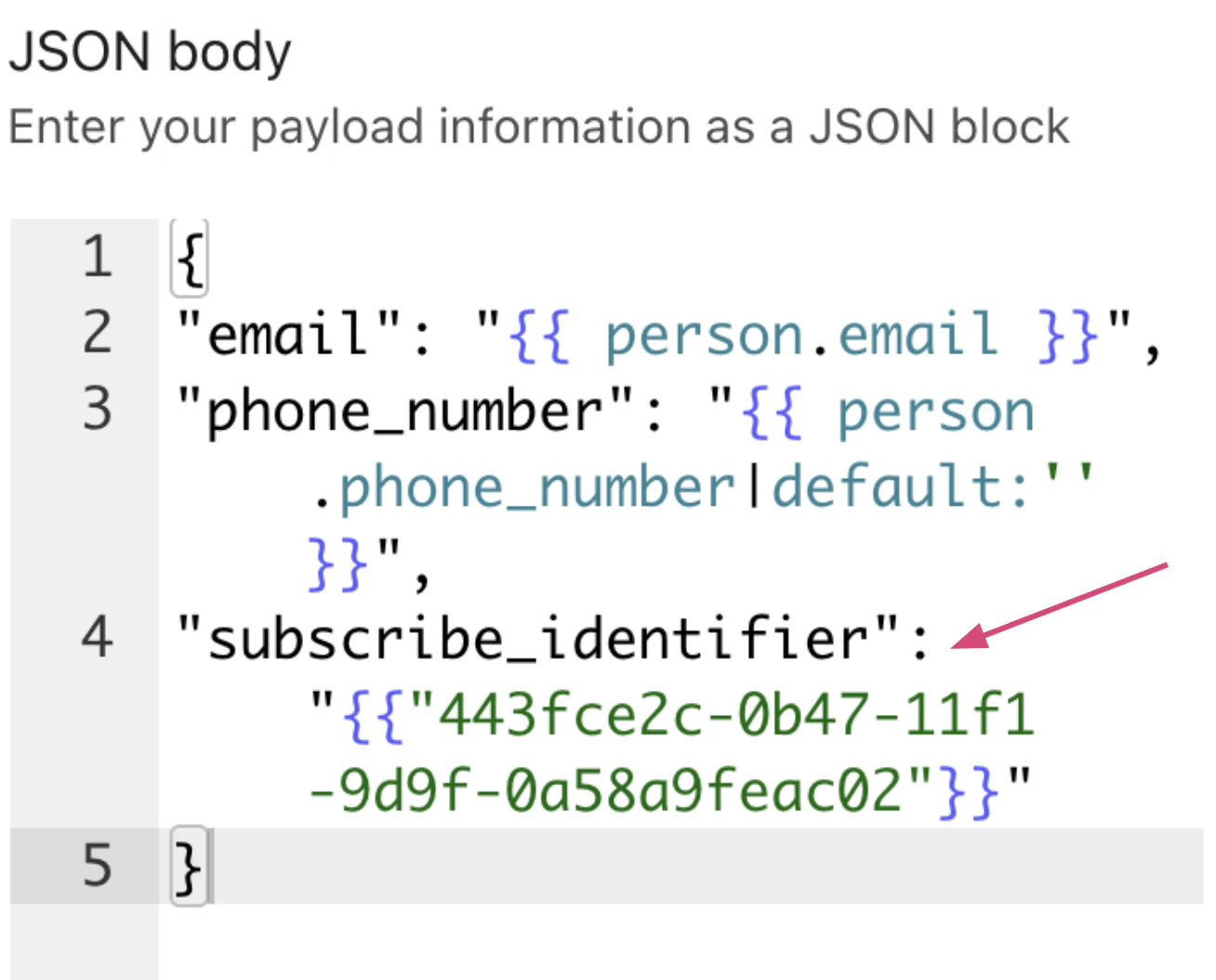
* Type in your payload in JSON body replacing the “list\_id” for the one found in Emotive:
```
{
"email": "{{ person.email }}",
"phone_number": "{{ person.phone_number|default:'' }}",
"subscribe_identifier": "{{list_id}}"
}
```
The list id is associated with your List Growth Signup Flow in Emotive. This can be found in[List Growth > Integrations.](https://www.emotiveapp.co/list-growth/tools) Make sure to paste it into Klaviyo between quotation marks “” without any spaces.
The API Key is associated with your List Growth Signup Flow in Emotive. This can be found in[List Growth > Integrations.](https://www.emotiveapp.co/list-growth/tools)
* Type in your payload in JSON body replacing the “list\_id” for the one found in Emotive:
```
{
"email": "{{ person.email }}",
"phone_number": "{{ person.phone_number|default:'' }}",
"subscribe_identifier": "{{list_id}}"
}
```
The list id is associated with your List Growth Signup Flow in Emotive. This can be found in[List Growth > Integrations.](https://www.emotiveapp.co/list-growth/tools) Make sure to paste it into Klaviyo between quotation marks “” without any spaces.
 * Click **Save** and Activate your Flow so that it is live.
Once this is complete, your signups will now sync to your Emotive account and enter your Signup Flow.
## FAQs
After you select a Klaviyo List to sync, we'll automatically create an Emotive segment on the [Segments](https://www.emotiveapp.co/segments/) page under *Third-Party Segments*.
They typically sync every hour, but it could take up to four hours for larger lists. Our sync starts immediately after selecting a list from the integrations page. Our syncs happen at the top of the hour.
Currently, it is not possible to manually sync a list.
We have no limits to the number of lists you would like to sync.
No, although larger list sizes will take longer to sync with Emotive.
We scan a Klaviyo list and extract all profiles that include a phone number. We then look at your customer list in Emotive and create a list of customers that are in both systems. This list will be available as segment logic to be used in Broadcasts and Sequences.
Due to the state of SMS marketing from a legal perspective we need to be very careful who we message for legal compliance with [**TCPA**](https://www.fcc.gov/tags/telephone-consumer-protection-act-tcpa). We will only message customers that have opted-in properly via Emotive to reduce liability exposure for your brand.
There are a few suggestions here. First, make sure that Klaviyo is integrated with your e-commerce platform so that customers that have consented to SMS marketing are added to both Emotive and Klaviyo. Second, if you already have a list of customers in Klaviyo that have phone numbers and have consented to marketing we can import them into Emotive.
Yes, Emotive will make both Klaviyo segments and lists available to sync.
* Click **Save** and Activate your Flow so that it is live.
Once this is complete, your signups will now sync to your Emotive account and enter your Signup Flow.
## FAQs
After you select a Klaviyo List to sync, we'll automatically create an Emotive segment on the [Segments](https://www.emotiveapp.co/segments/) page under *Third-Party Segments*.
They typically sync every hour, but it could take up to four hours for larger lists. Our sync starts immediately after selecting a list from the integrations page. Our syncs happen at the top of the hour.
Currently, it is not possible to manually sync a list.
We have no limits to the number of lists you would like to sync.
No, although larger list sizes will take longer to sync with Emotive.
We scan a Klaviyo list and extract all profiles that include a phone number. We then look at your customer list in Emotive and create a list of customers that are in both systems. This list will be available as segment logic to be used in Broadcasts and Sequences.
Due to the state of SMS marketing from a legal perspective we need to be very careful who we message for legal compliance with [**TCPA**](https://www.fcc.gov/tags/telephone-consumer-protection-act-tcpa). We will only message customers that have opted-in properly via Emotive to reduce liability exposure for your brand.
There are a few suggestions here. First, make sure that Klaviyo is integrated with your e-commerce platform so that customers that have consented to SMS marketing are added to both Emotive and Klaviyo. Second, if you already have a list of customers in Klaviyo that have phone numbers and have consented to marketing we can import them into Emotive.
Yes, Emotive will make both Klaviyo segments and lists available to sync.