> ## Documentation Index
> Fetch the complete documentation index at: https://help.emotive.io/llms.txt
> Use this file to discover all available pages before exploring further.
# Connect Privy <> Emotive
> Learn how to sync signups from Privy into Emotive.
## Features of the Integration
The Privy \<> Emotive integration allows you to sync SMS contacts collected via Privy Display, and:
* Choose which Welcome Flow they should enter after signup
* Sync the master or unique coupon code generated at signup
* Sync custom properties collected at time of signup
## Create your List Growth API in Emotive
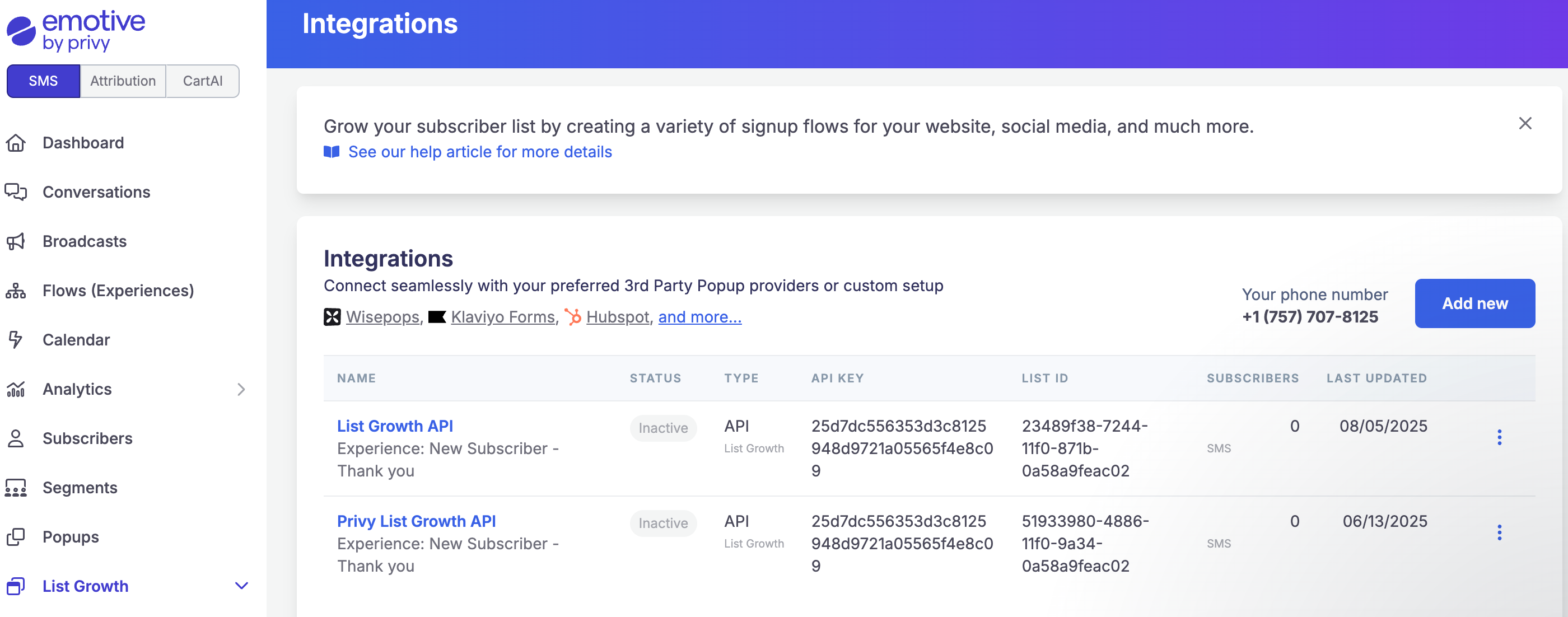
* Navigate to **List Growth** and head to your [Integrations](https://www.emotiveapp.co/list-growth/tools) page.
* Click **Add new**.
* Select **Add new List Growth API**.
* Name your new API something easy to identify, such as "List Growth API - Privy".
* Select which Flow you'd like your new Jotform signups to enter.
* Click **Next**.
* Copy your new API's "List ID".
 ## Install Emotive on Privy
To link your Privy account with your Emotive account:
* Log into Privy.
* Click on Settings on the lower left of your dashboard. Select the **Integrations** option from the left menu.
* Select **Emotive** from the list of *Available Integrations*.
* Enter your email address and your "List ID" from Emotive, then click **Link Account**.
## Syncing Signups to Emotive
To add a sync rule to a display so that the collected contacts sync to Emotive:
1. Log into Privy.
2. Navigate to **Convert** > **All Displays**.
3. Select the display you’d like to sync and navigate to the **Settings** step of the display builder.
4. Click to expand **Advanced Settings** at the bottom left of the page. Scroll to the **Sync Integrations** section.
5. Select **Emotive** from the dropdown menu, configure the presented options, and **Save**.
For more guidance on syncing information from Privy, check out [this guide](https://help.privy.com/docs/learn/integrations/emotive).
That's it! Your Privy signups will now sync to Emotive moving forward.
## Install Emotive on Privy
To link your Privy account with your Emotive account:
* Log into Privy.
* Click on Settings on the lower left of your dashboard. Select the **Integrations** option from the left menu.
* Select **Emotive** from the list of *Available Integrations*.
* Enter your email address and your "List ID" from Emotive, then click **Link Account**.
## Syncing Signups to Emotive
To add a sync rule to a display so that the collected contacts sync to Emotive:
1. Log into Privy.
2. Navigate to **Convert** > **All Displays**.
3. Select the display you’d like to sync and navigate to the **Settings** step of the display builder.
4. Click to expand **Advanced Settings** at the bottom left of the page. Scroll to the **Sync Integrations** section.
5. Select **Emotive** from the dropdown menu, configure the presented options, and **Save**.
For more guidance on syncing information from Privy, check out [this guide](https://help.privy.com/docs/learn/integrations/emotive).
That's it! Your Privy signups will now sync to Emotive moving forward.