> ## Documentation Index
> Fetch the complete documentation index at: https://help.emotive.io/llms.txt
> Use this file to discover all available pages before exploring further.
# Connect Zoho-desk <> Emotive
> Sync data and information from Zoho-desk to Emotive.
To connect your Zoho-desk account with Emotive, we will first need to install the app in Emotive, then complete the installation in Zapier.
## Install Zoho-desk on Emotive
* Navigate to [Integrations](https://www.emotiveapp.co/settings/integrations).
* Locate **Zoho-desk** and select **Add Integration**.
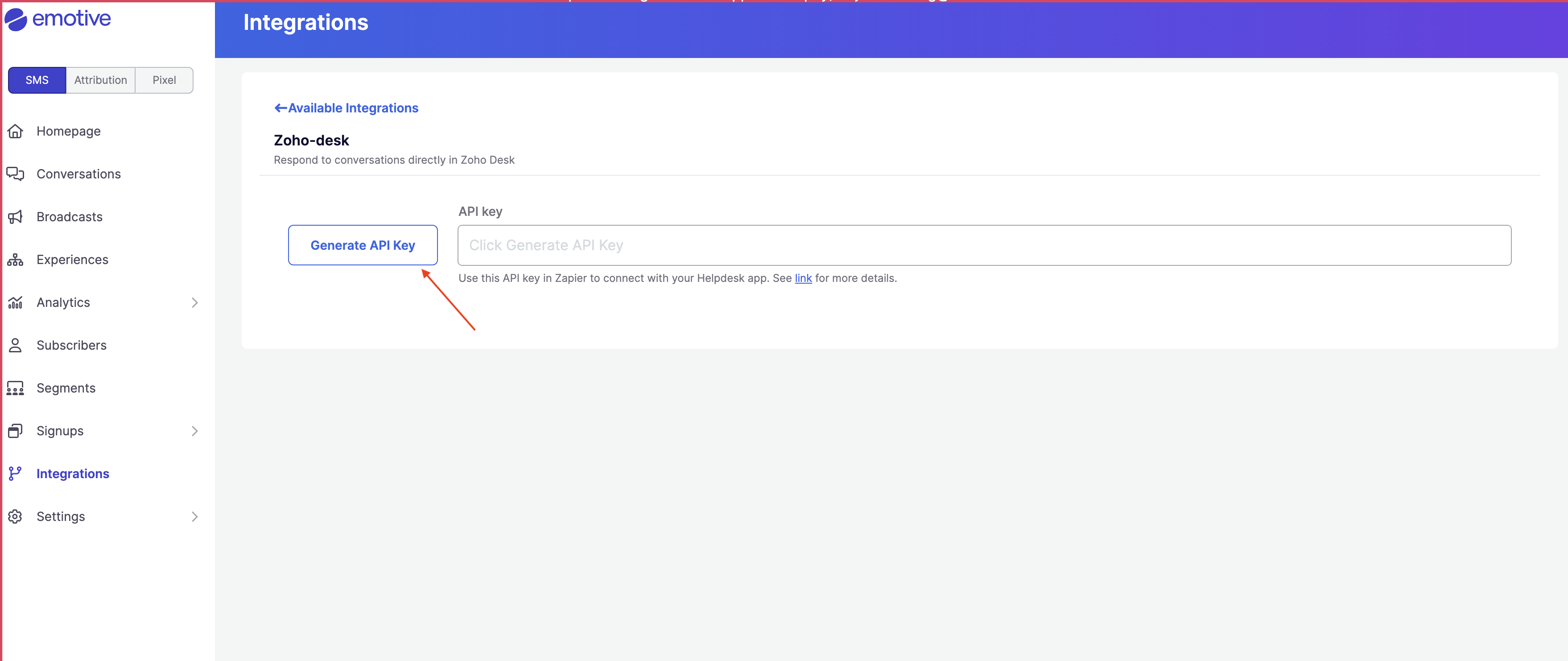
* Click **Generate API Key**.
* Copy the new API Key on this screen.
 ## Complete Install in Zapier
You will need to click into each link below to setup the templates for Zoho-desk in Zapier
* [**Zapier - Create new ticket in zoho-desk**](https://zapier.com/shared/create-new-ticket-in-zoho-desk/80e618deb4bc3624209ace78684fe7ec9b308343)
* [**Zapier - Update existing ticket in Zoho Desk**](https://zapier.com/shared/update-existing-ticket-in-zoho-desk/31b9e819c5df139eb1bd811ff5650dcf5b8da93b)
* [**Zapier - Send ticket note to Emotive**](https://zapier.com/shared/send-ticket-note-to-emotive/4b0e1f8b34c9f0af56d87548dd910110d795bcaa)
* [**Zapier - Close conversation in Emotive**](https://zapier.com/shared/close-conversation-in-emotive/716a2662c2845fdac4d23645996ac3c7e18f69a1)
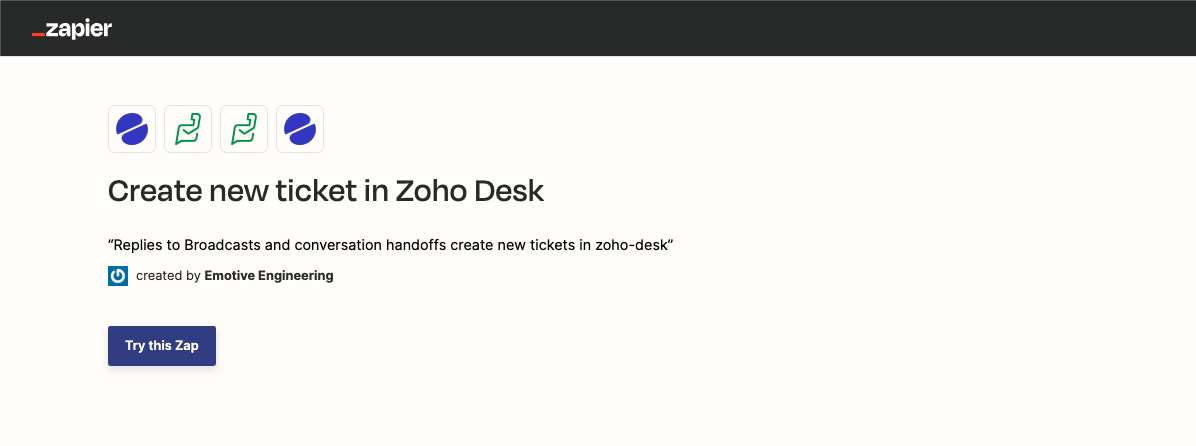
Click on **Try thiz Zap** as shown below.
## Complete Install in Zapier
You will need to click into each link below to setup the templates for Zoho-desk in Zapier
* [**Zapier - Create new ticket in zoho-desk**](https://zapier.com/shared/create-new-ticket-in-zoho-desk/80e618deb4bc3624209ace78684fe7ec9b308343)
* [**Zapier - Update existing ticket in Zoho Desk**](https://zapier.com/shared/update-existing-ticket-in-zoho-desk/31b9e819c5df139eb1bd811ff5650dcf5b8da93b)
* [**Zapier - Send ticket note to Emotive**](https://zapier.com/shared/send-ticket-note-to-emotive/4b0e1f8b34c9f0af56d87548dd910110d795bcaa)
* [**Zapier - Close conversation in Emotive**](https://zapier.com/shared/close-conversation-in-emotive/716a2662c2845fdac4d23645996ac3c7e18f69a1)
Click on **Try thiz Zap** as shown below.
 This will open a new Zap flow. To continue:
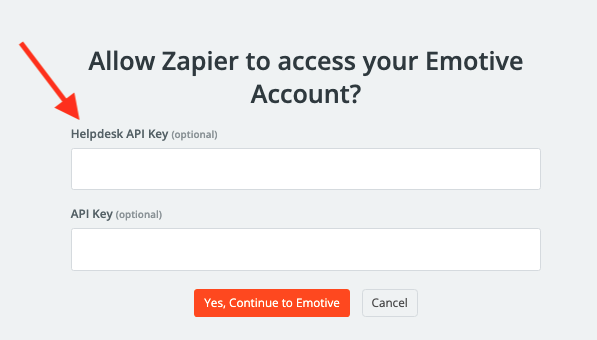
* Paste the API Key that you just generated in Emotive into the *Helpdesk API Key* field.
* Click **Yes, Continue to Emotive**.
* If needed, input your Zoho-desk credentials to authenticate.
This will open a new Zap flow. To continue:
* Paste the API Key that you just generated in Emotive into the *Helpdesk API Key* field.
* Click **Yes, Continue to Emotive**.
* If needed, input your Zoho-desk credentials to authenticate.
 That's it! Your Zoho-desk account is now integrated with Emotive.