> ## Documentation Index
> Fetch the complete documentation index at: https://help.emotive.io/llms.txt
> Use this file to discover all available pages before exploring further.
# Connect ActiveCampaign <> Emotive
> Sync email signups from Emotive to your ActiveCampaign account.
If you use ActiveCampaign for email and Emotive for SMS, you can collect signups using Emotive Popups and sync them directly to your ActiveCampaign account.
## Access your ActiveCampaign Credentials
Before installing ActiveCampaign into Emotive, you'll need to access both your API Key and your List ID in your ActiveCampaign account.
**Finding your API Key:**
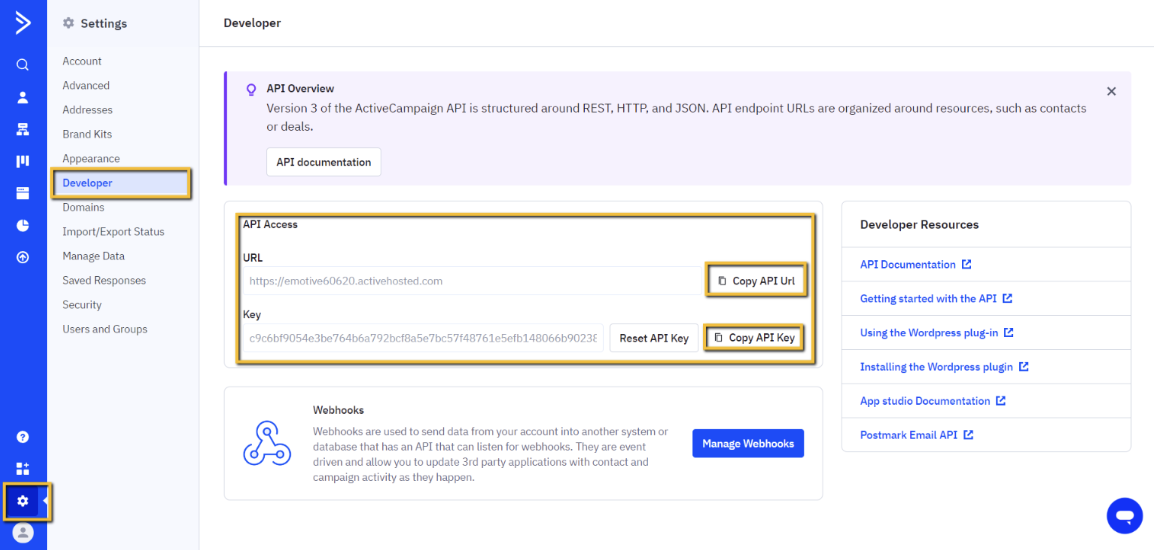
* Log into ActiveCampaign and navigate to your **Settings**.
* Click on **Developer** in the left menu.
* Copy your API URL and API Key from this page.
 **Finding your List ID:**
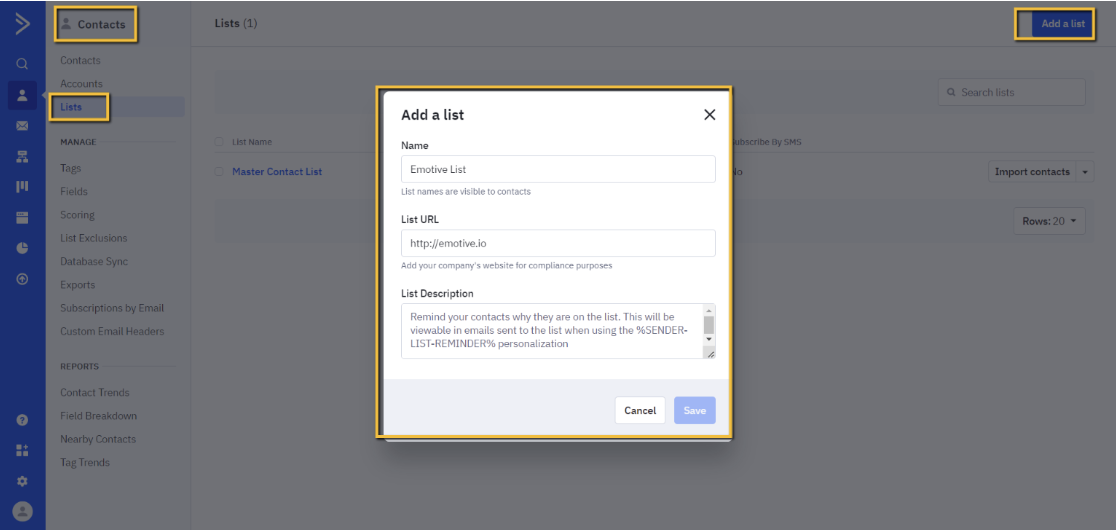
* Head to your **Contacts** page in your ActiveCampaign dashboard.
* Select **Lists**.
* If needed, **create a new list** (e.g., "Emotive List").
**Finding your List ID:**
* Head to your **Contacts** page in your ActiveCampaign dashboard.
* Select **Lists**.
* If needed, **create a new list** (e.g., "Emotive List").
 * Once you've located or created a list, check your browser's URL for the List ID.
* Copy the List ID number from the URL.
## Connect your ActiveCampaign Account
Now that you have your credentials handy, it's time to install ActiveCampaign into Emotive:
* Navigate to [Integrations](https://www.emotiveapp.co/settings/integrations) in your Emotive dashboard.
* Locate ActiveCampaign and select **Add Integration**.
* Select **Install**.
* Input your API URL, API Key, and List ID, and Tag ID.
* Once you've located or created a list, check your browser's URL for the List ID.
* Copy the List ID number from the URL.
## Connect your ActiveCampaign Account
Now that you have your credentials handy, it's time to install ActiveCampaign into Emotive:
* Navigate to [Integrations](https://www.emotiveapp.co/settings/integrations) in your Emotive dashboard.
* Locate ActiveCampaign and select **Add Integration**.
* Select **Install**.
* Input your API URL, API Key, and List ID, and Tag ID.
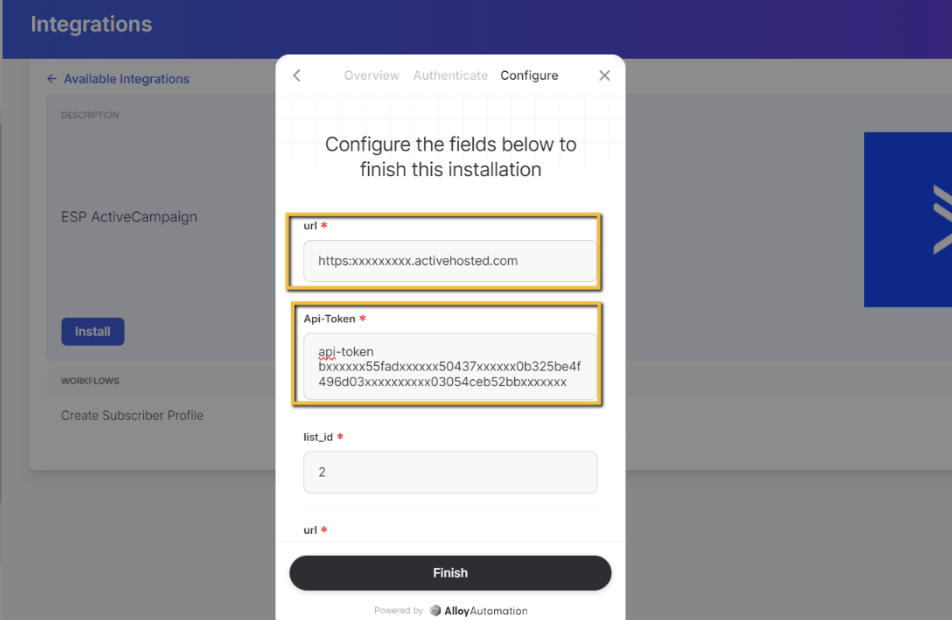 * Click **Finish** to complete the installation.
## Sync Signups to ActiveCampaign
To sync new signups to ActiveCampaign:
* Navigate to your [Popups](https://www.emotiveapp.co/list-growth) in your Emotive dashboard.
* Head to the *Configure* step of the desired popup.
* Select **ActiveCampaign** from your integrations and **Save**.
You've now successfully integrated ActiveCampaign with Emotive, and new signups will automatically sync to ActiveCampaign.
* Click **Finish** to complete the installation.
## Sync Signups to ActiveCampaign
To sync new signups to ActiveCampaign:
* Navigate to your [Popups](https://www.emotiveapp.co/list-growth) in your Emotive dashboard.
* Head to the *Configure* step of the desired popup.
* Select **ActiveCampaign** from your integrations and **Save**.
You've now successfully integrated ActiveCampaign with Emotive, and new signups will automatically sync to ActiveCampaign.