> ## Documentation Index
> Fetch the complete documentation index at: https://help.emotive.io/llms.txt
> Use this file to discover all available pages before exploring further.
# Connect BayEngage <> Emotive
> Sync data between your BayEngage and Emotive accounts.
Follow the steps in this help article to integrate your BayEngage and Emotive accounts.
## Connect your BayEngage Account
* Navigate to [Integrations](https://www.emotiveapp.co/settings/integrations) in your Emotive dashboard.
* Locate BayEngage and select **Add Integration**.
* Select **Install** and **Confirm** your decision.
* Click **Continue** to begin authenticating your account.
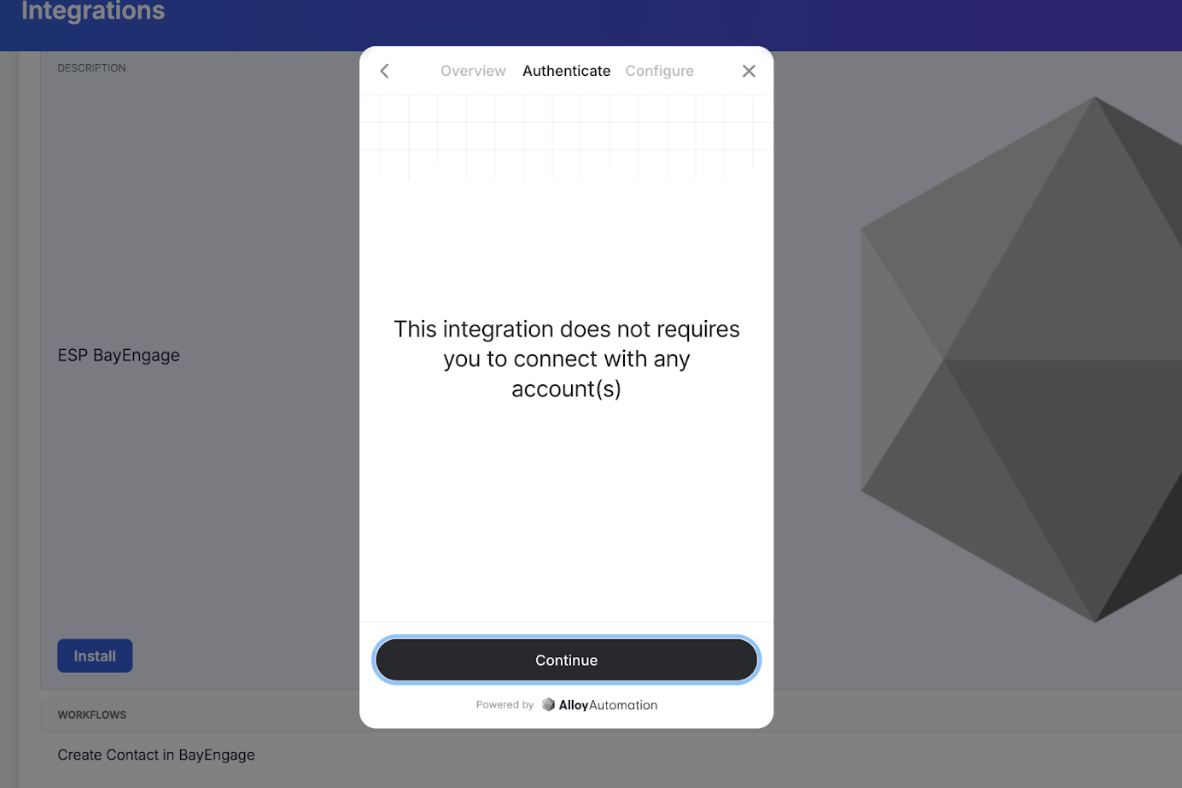 On the following prompt, you will be asked to input the following 3 credentials. Click to find instructions on how to access each of these in your BayEngage account:
* Log into your BayEngage account.
* From the left menu, navigate to **Apps** > **Custom Integrations**.
* Generate and copy your *Client Secret (private key).*
On the following prompt, you will be asked to input the following 3 credentials. Click to find instructions on how to access each of these in your BayEngage account:
* Log into your BayEngage account.
* From the left menu, navigate to **Apps** > **Custom Integrations**.
* Generate and copy your *Client Secret (private key).*
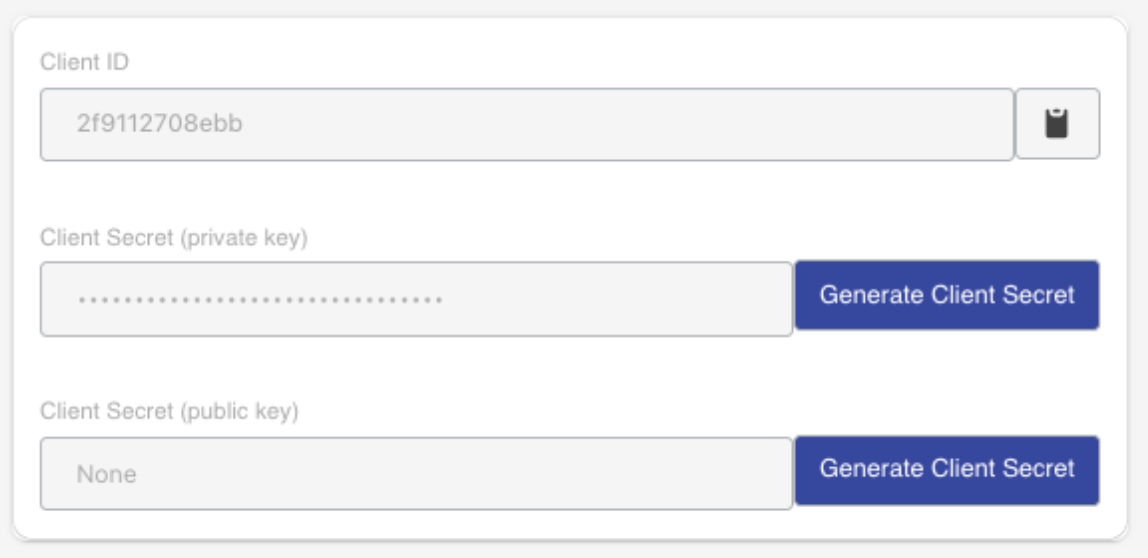 * Paste into the *x\_client\_secret* field in Emotive.
* Log into your BayEngage account.
* From the left menu, navigate to **Apps** > **Custom Integrations**.
* Generate and copy your *Client Secret (public key).*
* Paste into the *x\_public\_id* field in Emotive.
* Log into BayEngage and head to your **Lists & Segments**.
* Click on **Create Contact List** and name it “Emotive Subscribers” for easy identification.
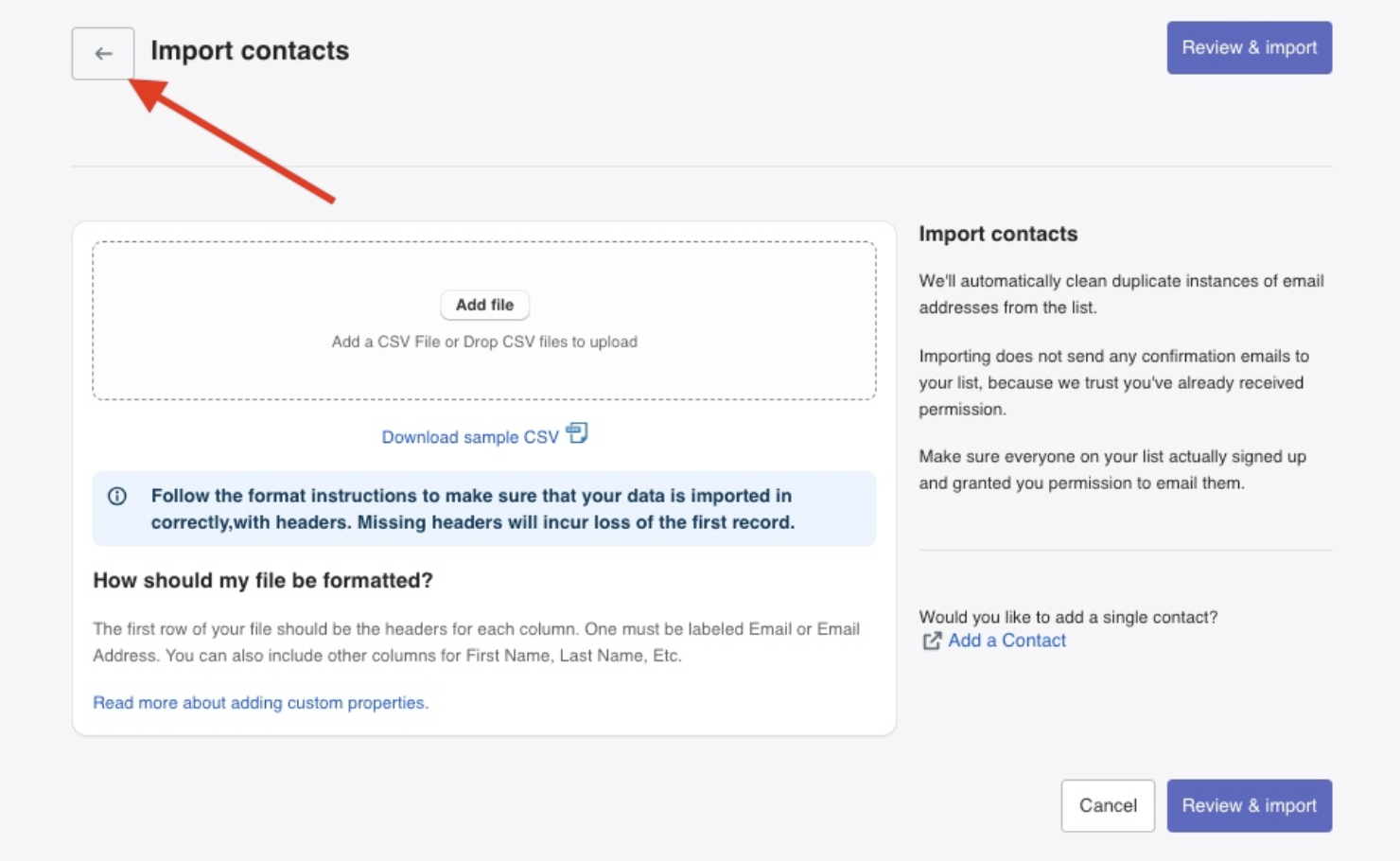
* When prompted to import contacts, click the **Back** button.
* Paste into the *x\_client\_secret* field in Emotive.
* Log into your BayEngage account.
* From the left menu, navigate to **Apps** > **Custom Integrations**.
* Generate and copy your *Client Secret (public key).*
* Paste into the *x\_public\_id* field in Emotive.
* Log into BayEngage and head to your **Lists & Segments**.
* Click on **Create Contact List** and name it “Emotive Subscribers” for easy identification.
* When prompted to import contacts, click the **Back** button.
 * Go to this list's *Settings* and copy the **List ID**, as shown below.
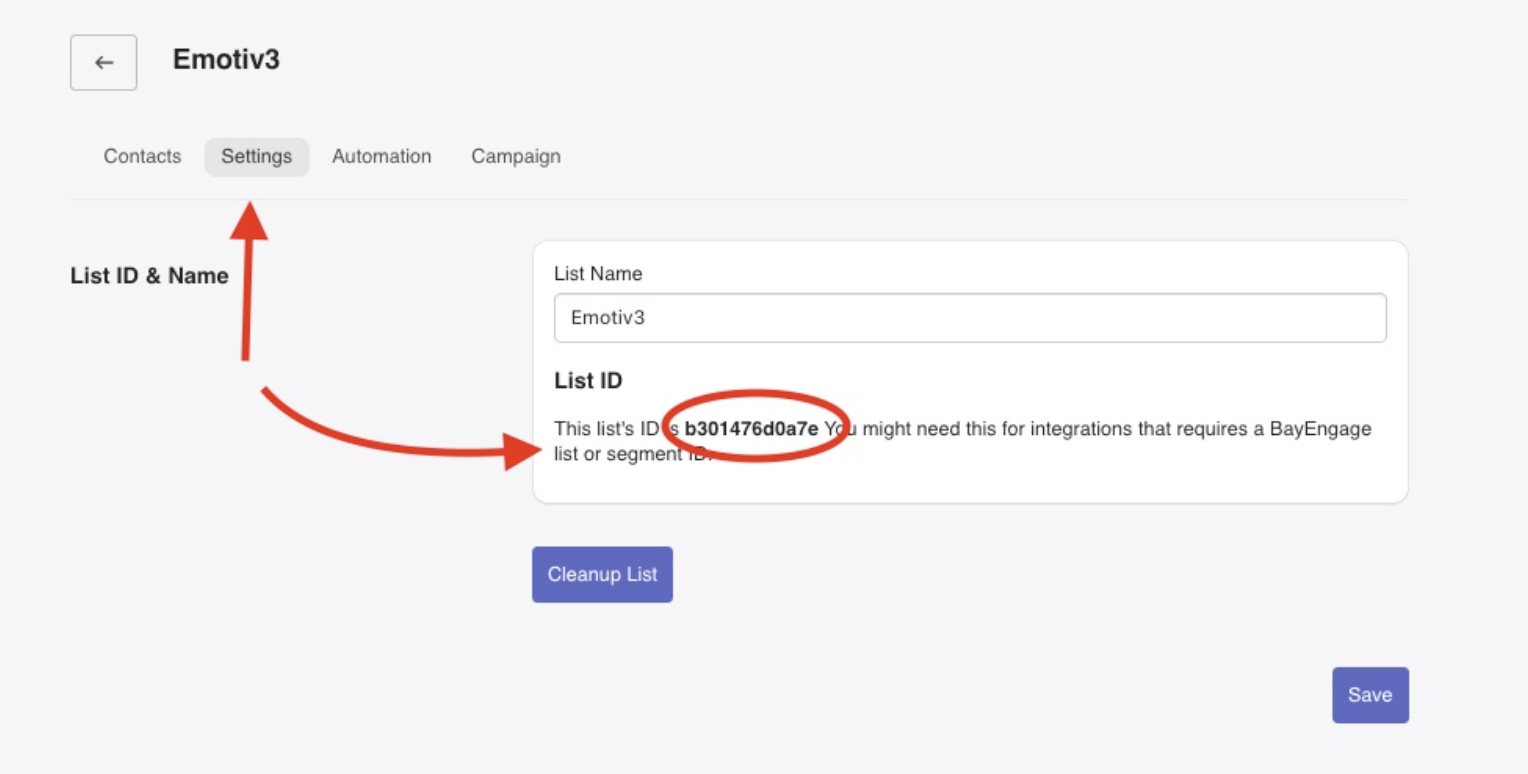 * Paste into the *list\_id* field in Emotive.
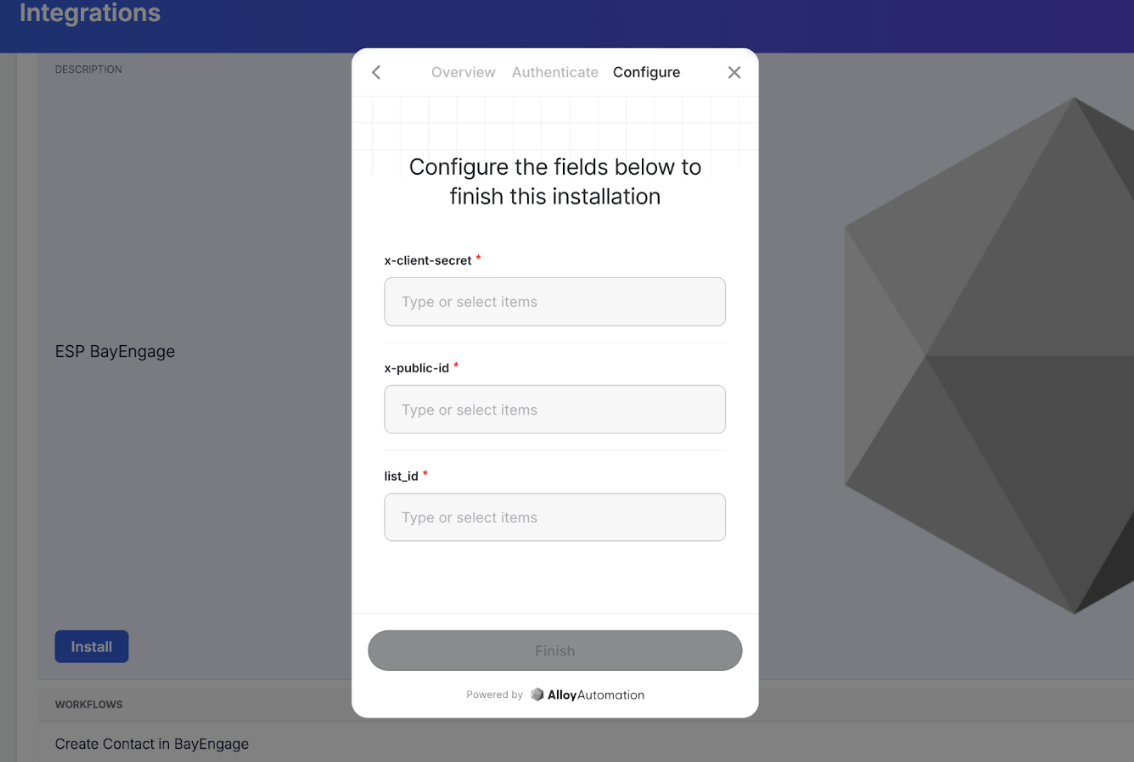 Once you've pasted each of these credentials into Emotive, click **Finish**.
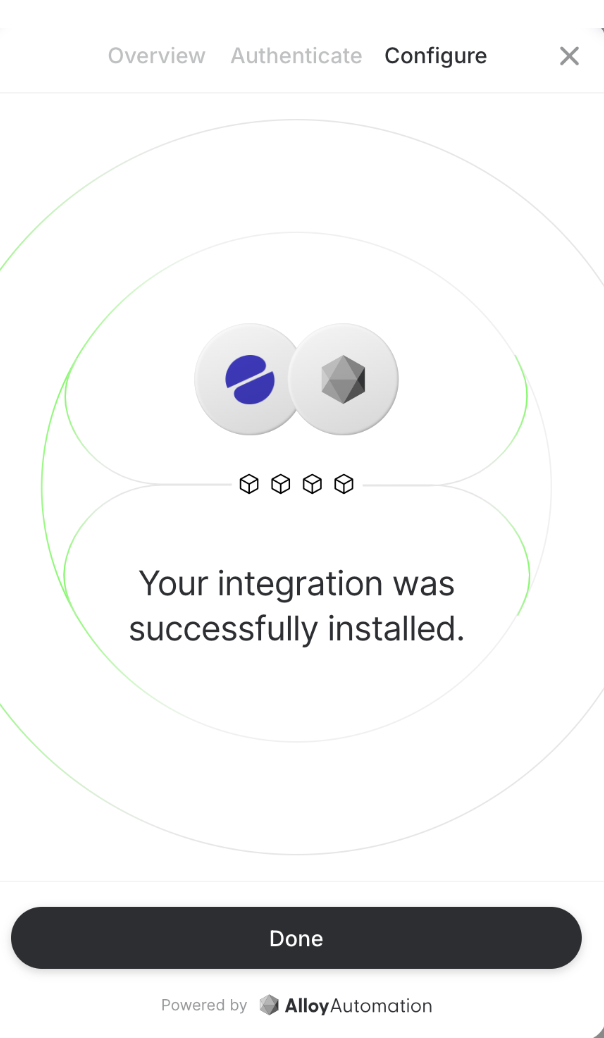 Your BayEngage and Emotive accounts are now successfully connected!