> ## Documentation Index
> Fetch the complete documentation index at: https://help.emotive.io/llms.txt
> Use this file to discover all available pages before exploring further.
# Connect GetResponse <> Emotive
> Sync data between your GetResponse and Emotive accounts.
Follow this guide to integrate your GetResponse and Emotive accounts.
Connect your GetResponse Account
* Navigate to [Integrations](https://www.emotiveapp.co/settings/integrations) in your Emotive dashboard.
* Locate GetResponse and select **Add Integration**.
* Select **Install** on the following prompts.
* Click **Continue** when prompted.
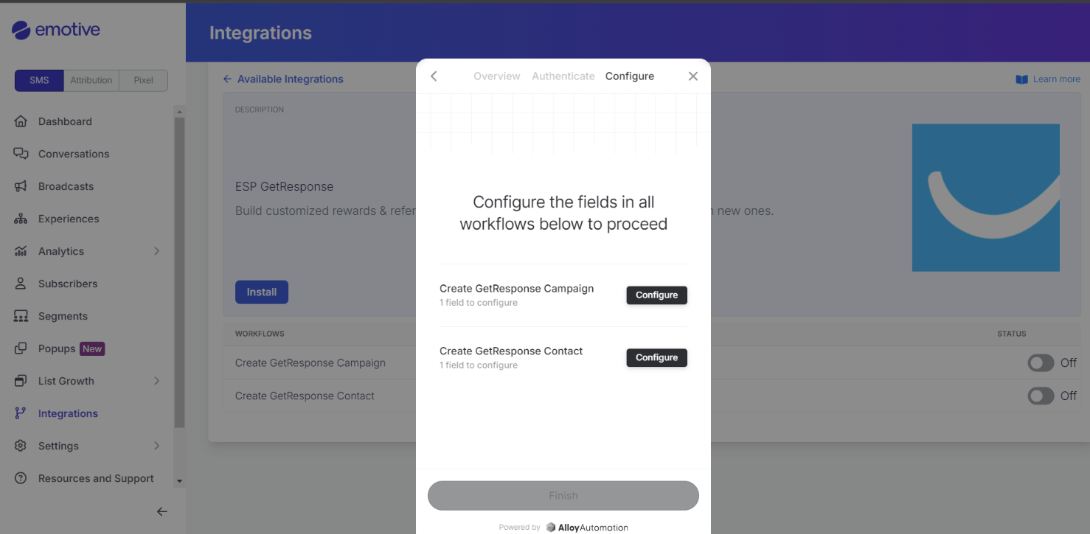
To proceed, you will need to configure the fields in all workflows by providing your GetResponse API Key.
 ## Generating your GetResponse API Key
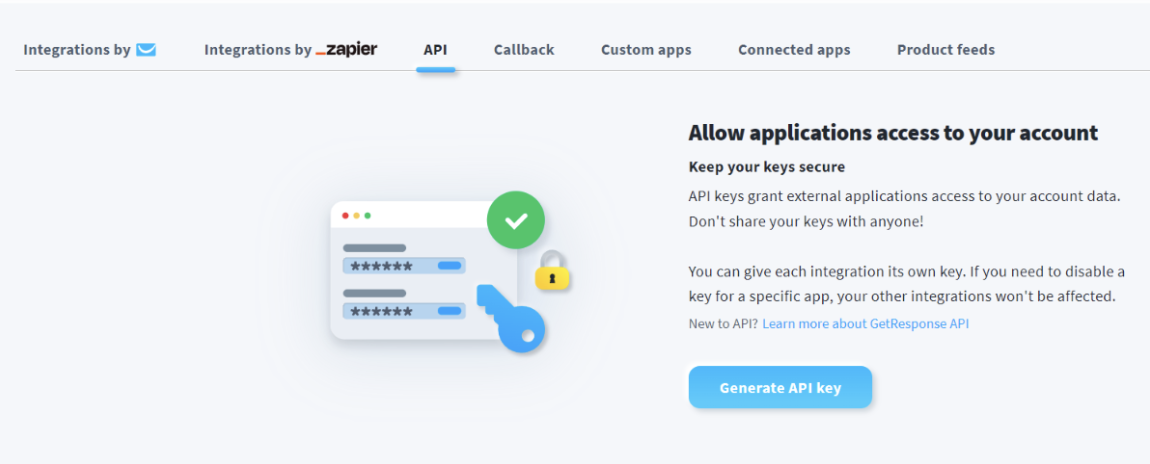
* Log in to your GetResponse account and navigate to **Menu > Integrations & API > API**.
* Click **Generate API Key** (if it's your first time) and name it "Emotive" to help you identify it later.
* Copy the **API Key**.
## Generating your GetResponse API Key
* Log in to your GetResponse account and navigate to **Menu > Integrations & API > API**.
* Click **Generate API Key** (if it's your first time) and name it "Emotive" to help you identify it later.
* Copy the **API Key**.
 ## Complete your Installation
Once you've generated and copied your API Key from GetResponse, you'll need to complete your installation in Emotive.
* Head back to your Emotive dashboard.
* Click **Configure** for each field and paste your API key in the format **api-key \** as shown in the image below.
## Complete your Installation
Once you've generated and copied your API Key from GetResponse, you'll need to complete your installation in Emotive.
* Head back to your Emotive dashboard.
* Click **Configure** for each field and paste your API key in the format **api-key \** as shown in the image below.
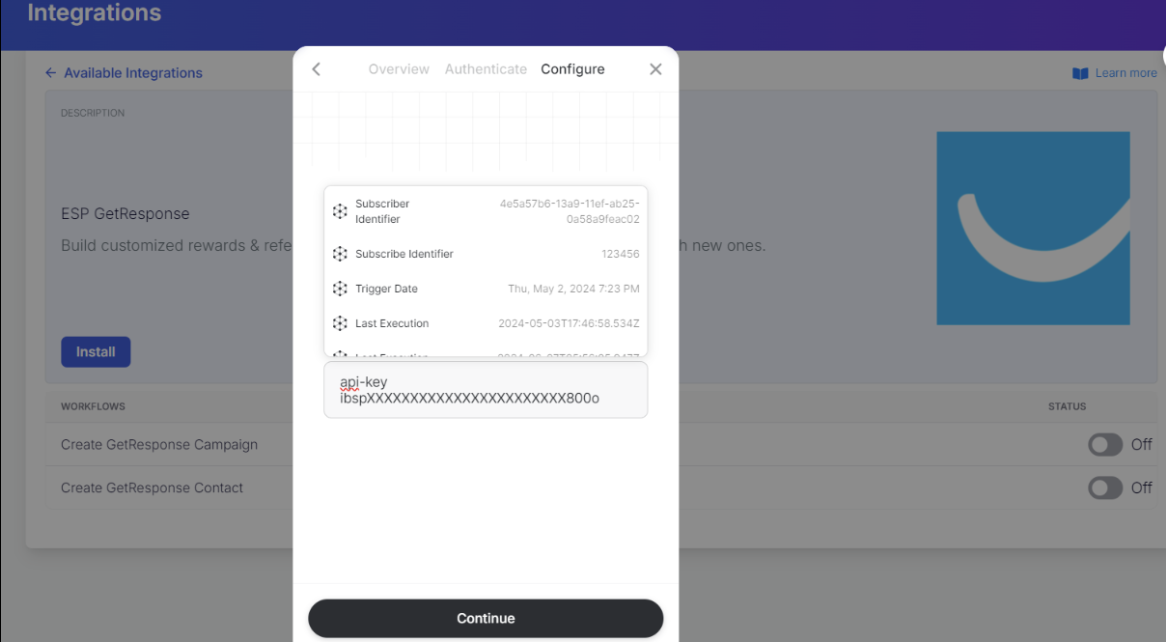 Once you've entered your API Key in each field, click **Continue** and **Finish.**
You've now successfully integrated GetResponse with Emotive!
Once you've entered your API Key in each field, click **Continue** and **Finish.**
You've now successfully integrated GetResponse with Emotive!