> ## Documentation Index
> Fetch the complete documentation index at: https://help.emotive.io/llms.txt
> Use this file to discover all available pages before exploring further.
# Connect Wisepop <> Emotive
> Learn how to connect your Wisepop Popups to sync subscriber data to Emotive.
If you use Wisepop for your popups and Emotive for SMS, you can integrate your accounts to share important subscriber data.
## Create a List Growth API
* Navigate to List Growth in your Emotive dashboard.
* Head to your List Growth [Integrations](https://www.emotiveapp.co/list-growth/tools) page.
* Click **Add New**.
* Click to add a new List Growth API.
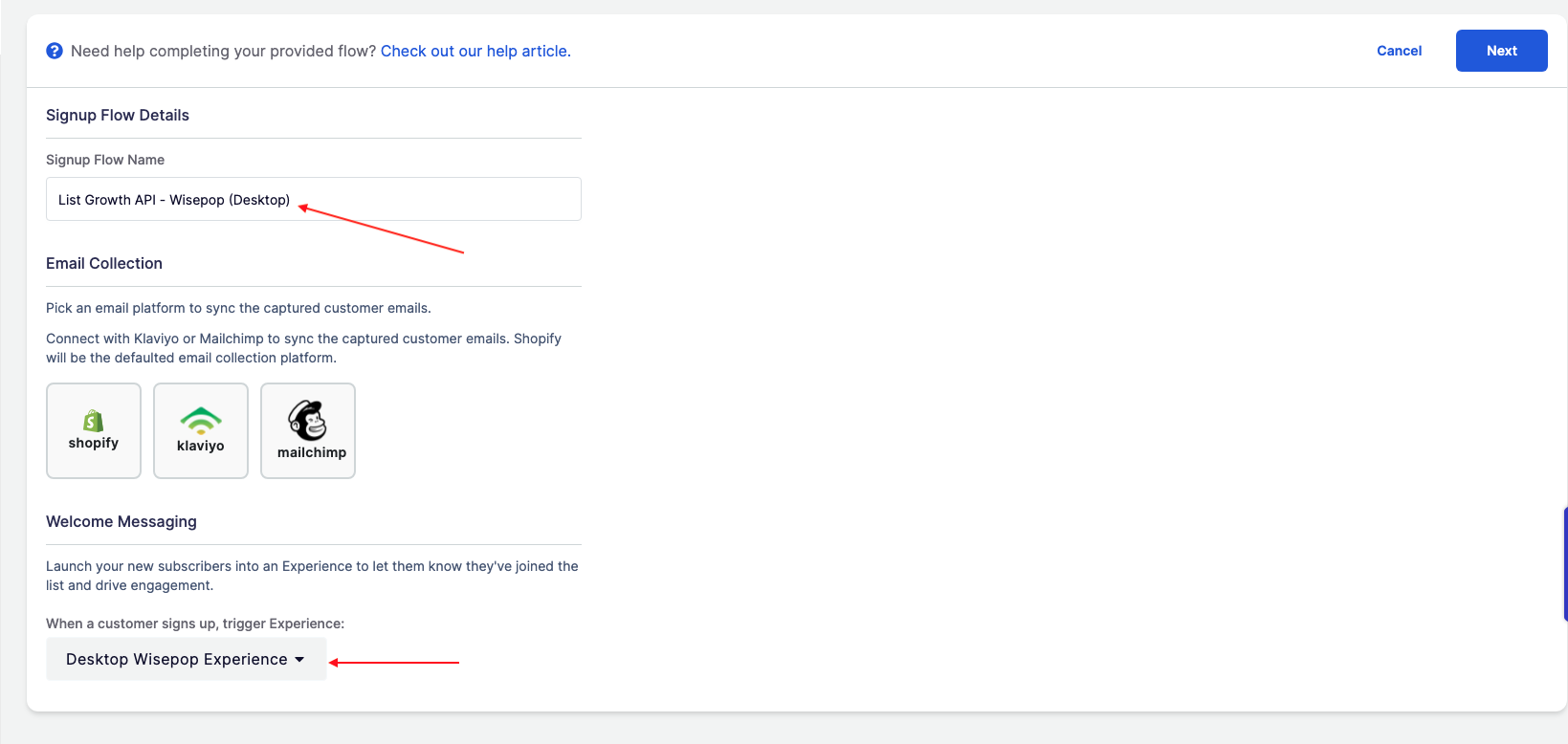
* Input a name for your List Growth API.
* Choose a Flow to connect the List Growth API to.
* Select **Next** to Save.
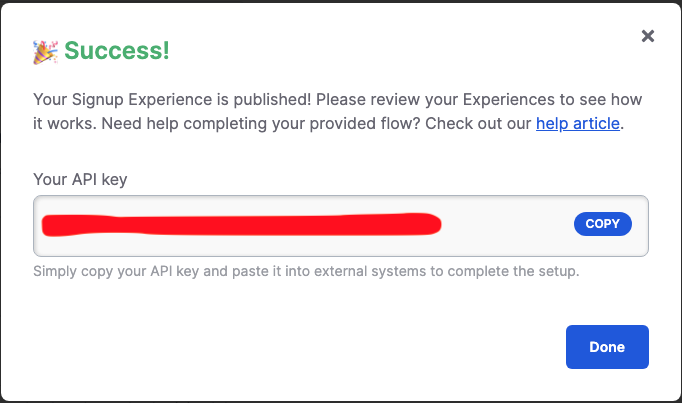
 * Copy the API Key.
 ## Connect your Wisepop Popup
Now that you've created your Emotive List Growth API, let's make sure the phone numbers collected on your popup will sync over to Emotive.
* Log into your Wisepop dashboard and navigate to **Popups**.
* Select the popup you'd like to sync with Emotive.
* Select the Phone Field on your popup.
* Click to **Connect** the Phone Field and select **Emotive**.
* Input your Emotive API key from your new List Growth API.
* Select **Submit**.
* Select the Emotive List that you'd like your popup to sync to.
The Emotive list name will be displayed as the same name you chose for your List Growth API.
Your Wisepop integration is now complete, and new signups on your Wisepop popup will now sync automatically to Emotive.
## Wisepop List API Migration Guide
For migrating existing Wisepops, you need to have the following information handy:
**From Wisepop:**
* Popup Name
* API Key (from the api\_key field)
* Klaviyo / Mailchimp List name
**From Emotive:**
* Signup Flow name (use the api\_key from Wisepops to find this)
* Signup Experience name (use the Signup Flow to find this information)
* Klaviyo/Mailchimp API Key (can be pulled from the Integrations page)
**To migrate existing Wisepop popups:**
* Head to your List Growth Integrations in Emotive.
* Create a new List Growth API — choose a name that is easy to identify.
* Choose the Flow that is already being used with the existing Wisepop popup.
* Setup your email provider integration (Klaviyo/Mailchimp).
* **Save** to publish the Signup flow
* Next, log into Wisepop.
* Add the Emotive Integration.
* Select the List Growth API that you just created.
* Remove the API Key hidden field, and is\_mobile hidden field (if present).
* **Save** the changes in Wisepops, and **Publish.**
## Connect your Wisepop Popup
Now that you've created your Emotive List Growth API, let's make sure the phone numbers collected on your popup will sync over to Emotive.
* Log into your Wisepop dashboard and navigate to **Popups**.
* Select the popup you'd like to sync with Emotive.
* Select the Phone Field on your popup.
* Click to **Connect** the Phone Field and select **Emotive**.
* Input your Emotive API key from your new List Growth API.
* Select **Submit**.
* Select the Emotive List that you'd like your popup to sync to.
The Emotive list name will be displayed as the same name you chose for your List Growth API.
Your Wisepop integration is now complete, and new signups on your Wisepop popup will now sync automatically to Emotive.
## Wisepop List API Migration Guide
For migrating existing Wisepops, you need to have the following information handy:
**From Wisepop:**
* Popup Name
* API Key (from the api\_key field)
* Klaviyo / Mailchimp List name
**From Emotive:**
* Signup Flow name (use the api\_key from Wisepops to find this)
* Signup Experience name (use the Signup Flow to find this information)
* Klaviyo/Mailchimp API Key (can be pulled from the Integrations page)
**To migrate existing Wisepop popups:**
* Head to your List Growth Integrations in Emotive.
* Create a new List Growth API — choose a name that is easy to identify.
* Choose the Flow that is already being used with the existing Wisepop popup.
* Setup your email provider integration (Klaviyo/Mailchimp).
* **Save** to publish the Signup flow
* Next, log into Wisepop.
* Add the Emotive Integration.
* Select the List Growth API that you just created.
* Remove the API Key hidden field, and is\_mobile hidden field (if present).
* **Save** the changes in Wisepops, and **Publish.**