Connect Klaviyo
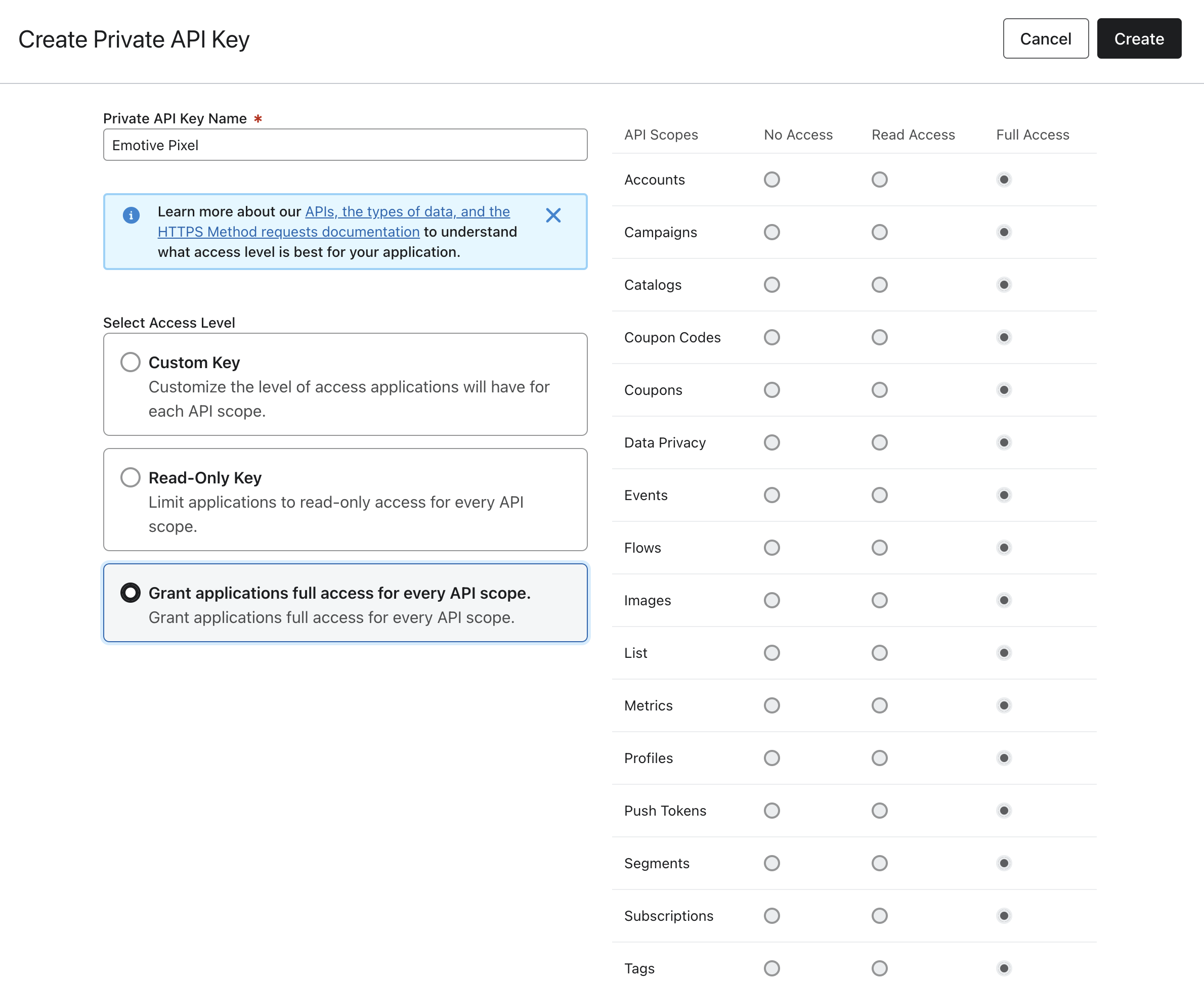
To get started:- Log into your Klaviyo account.
- Navigate to your API Keys page in your Settings.
- Select Create a Private API Key.
- Name your new key “Emotive CartAI”.
- Select Full Access Key.
- Save your changes.
- Copy your Emotive CartAI key.
- Navigate to the Setup page inside your CartAI tab.
- Select Connect Klaviyo.
- Paste your API Key that you copied from Klaviyo, and Submit.
Set up UTMs in Klaviyo
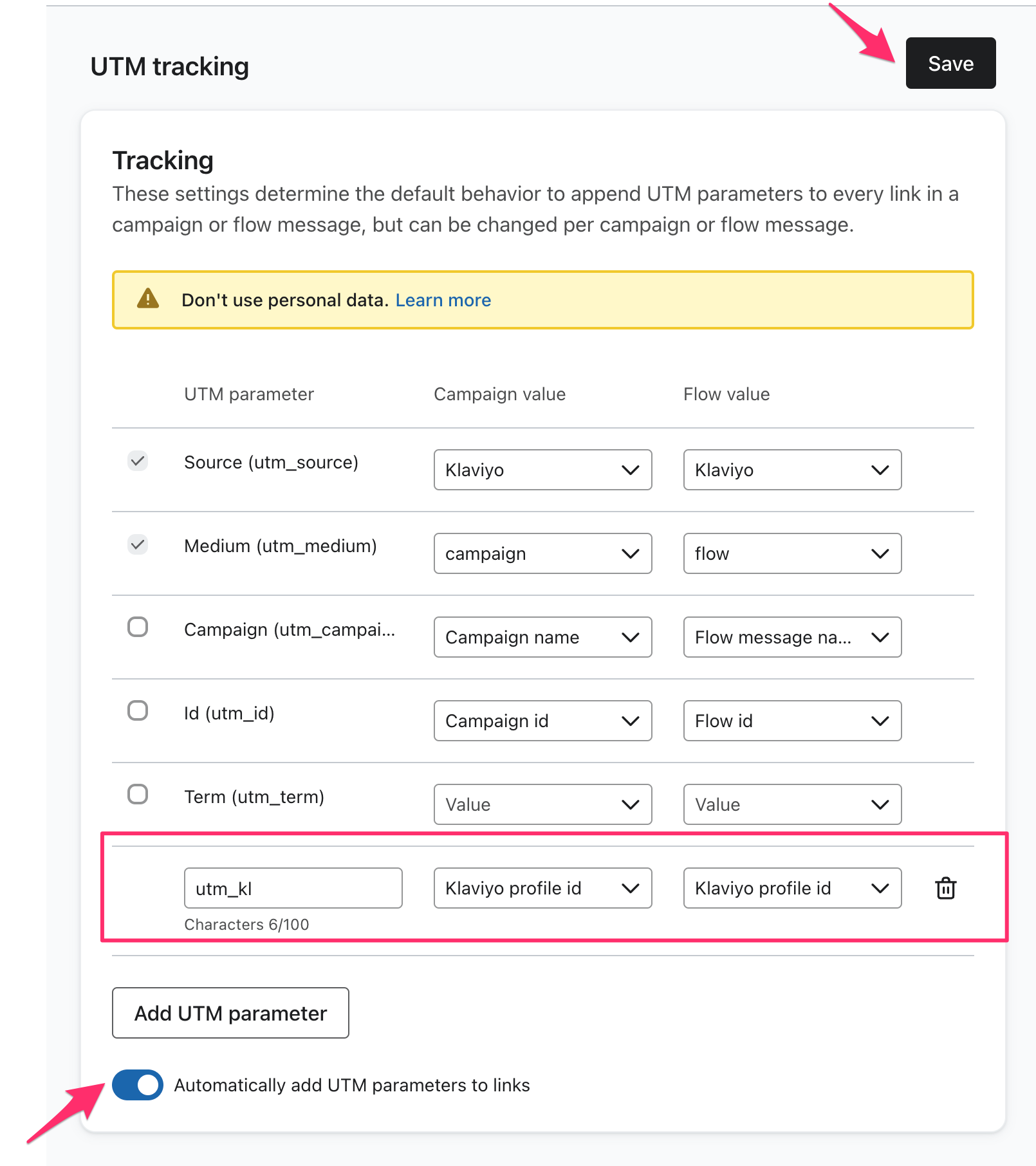
Once you’ve connected your Klaviyo account in Emotive, you’ll need to complete the setup by creating UTMs in Klaviyo. To set up UTM Tracking in Klaviyo:- Log into your Klaviyo account.
- Navigate to your UTM Setup page in your Settings.
- Add a new UTM Parameter:
utm_kl - Select Klaviyo Profile ID for both the Campaign and Flow dropdown.
- Toggle ON the Automatically add UTM parameters to links option.
- Click on Update UTM Tracking Settings.