

Install Hubspot on Emotive
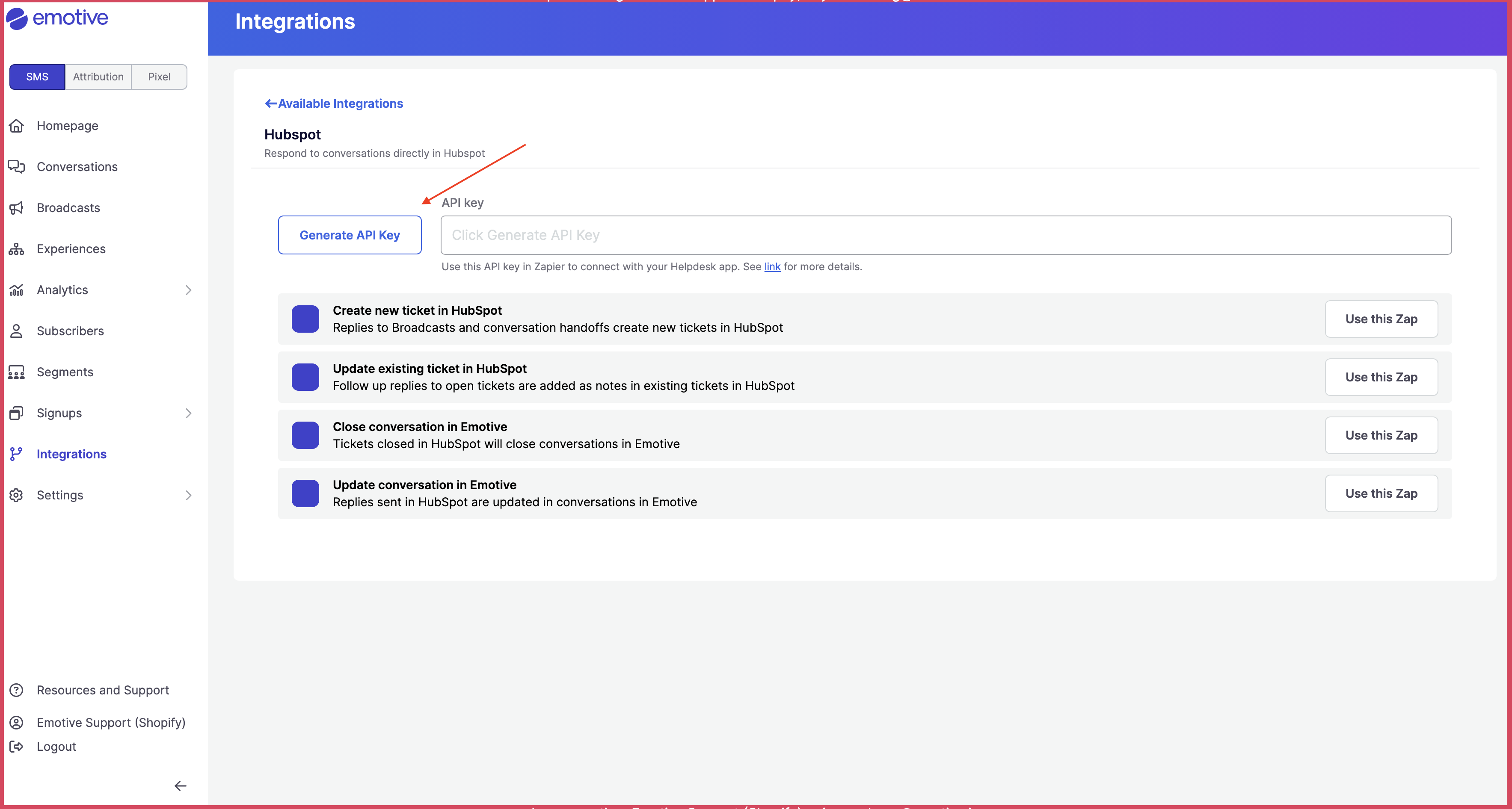
- Navigate to Integrations.
- Locate Hubspot and select Add Integration.
- Click Generate API Key.
- Copy the new API Key on this screen.
Complete Install on Zapier
Below your new API Key in Emotive, you’ll find all available Zap flows. Click on Try thiz Zap for each one.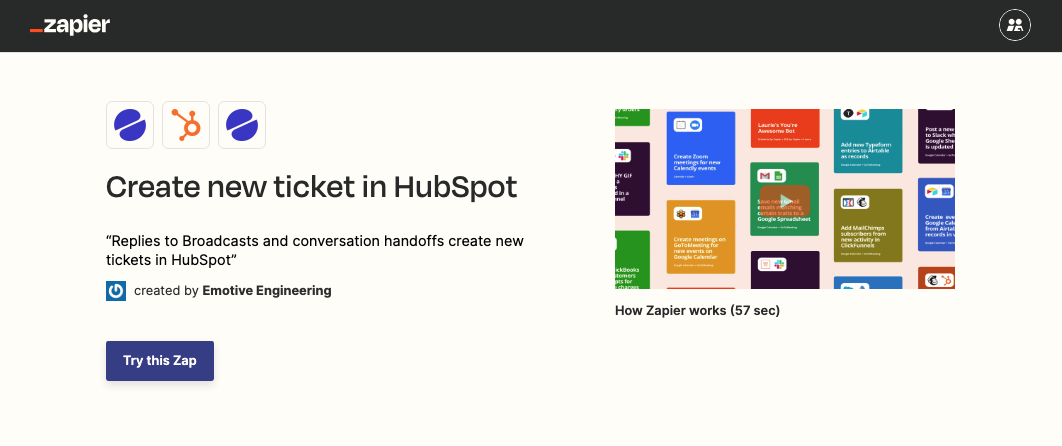
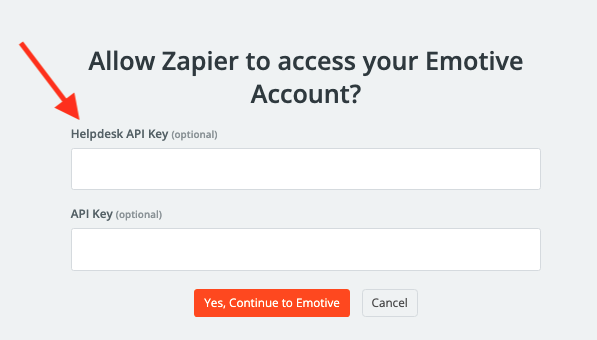
- Paste the API Key that you just generated in Emotive into the Helpdesk API Key field.
- Click Yes, Continue to Emotive.
- If needed, input your Hubspot credentials to authenticate.
Sync Signups from Hubspot Forms
Before you get started with syncing SMS signups from Hubspot Forms to Emotive, you’ll need to create a new List Growth API in Emotive, then install Hubspot Forms in your Emotive account.Create Your API Key in Emotive
- Log into Emotive and navigate to List Growth > Integrations.
- Click to add a new List Growth API.
- Name your new API something easily identifiable, such as “List Growth API - Hubspot Forms Sync”.
- Under Welcome Message, select the Flow you want your new subscribers to receive after signing up.
- Click Next.
- Copy your new List Growth API’s List ID as shown below.
Install Hubspot Forms on Emotive
- Navigate to Integrations in your Emotive dashboard.
- Locate Hubspot Forms and select Add Integration.
- Toggle ON “Hubspot Forms Sync #1”.
- Select your Hubspot Forms account, insert your credentials to connect.
- Paste your **List ID **from your new Emotive List Growth API.
- Click Finish.