Create your List Growth API in Emotive
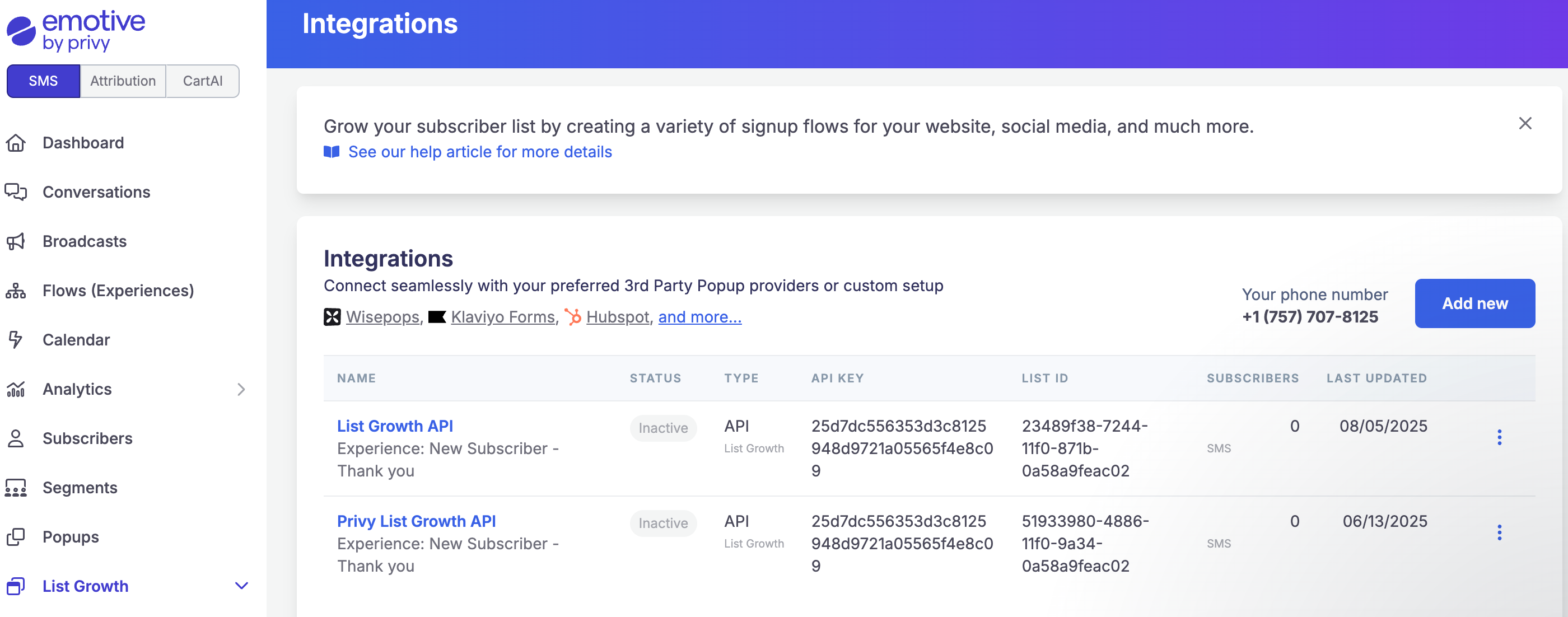
- Navigate to List Growth and head to your Integrations page.
- Click Add new.
- Select Add new List Growth API.
- Name your new API something easy to identify, such as “List Growth API - Jotform”.
- Select which Flow you’d like your new Jotform signups to enter.
- Click Next.
- Copy your new API’s “List ID”.
Install Jotform on Emotive
- Navigate to Integrations.
- Locate Jotform and select Add Integration.
- Click Install.
- Enter your Emotive List ID (from the previous section) into the modal and click Finish.
Obtain a Webhook URL
Once you have created your new List Growth API and installed Jotform on Emotive, you will need to reach out to Support@emotive.io to obtain your webhook URL.Complete Jotform Setup
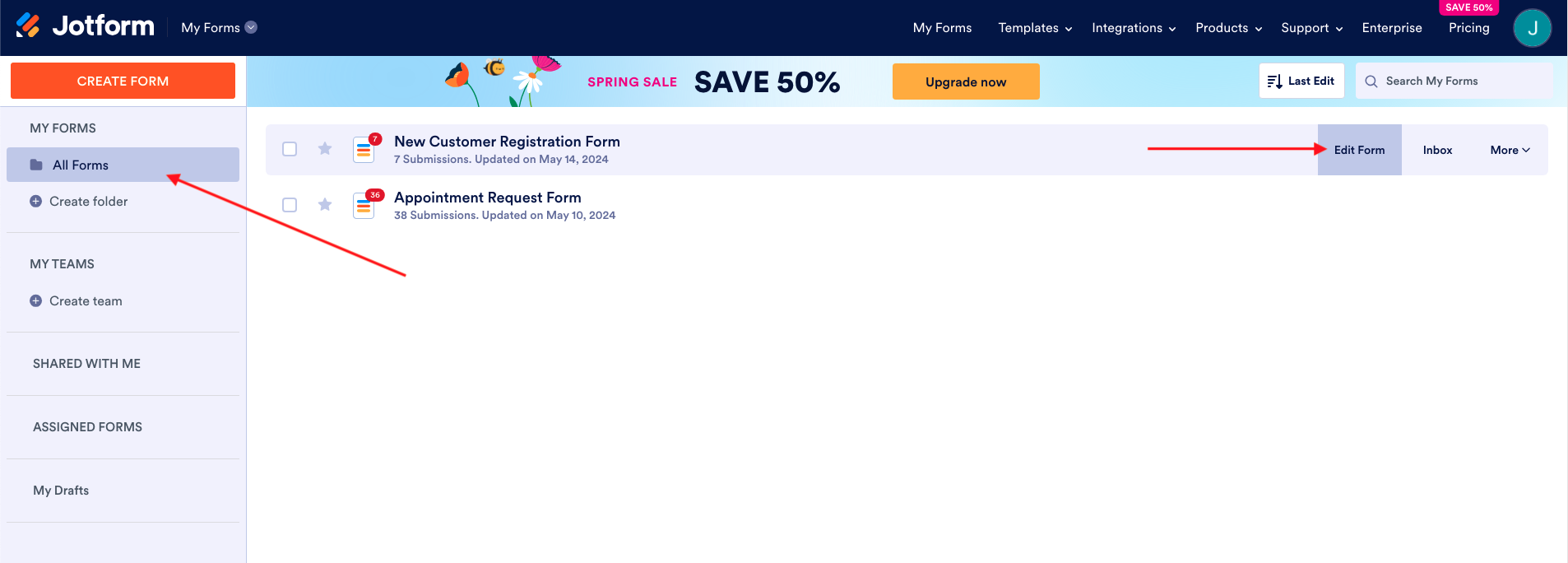
- Log into Jotform and navigate to All Forms.
- Edit the form you’ll be using to sync subscriber data to Emotive.
- Update your form elements.
Update your Webhook Settings
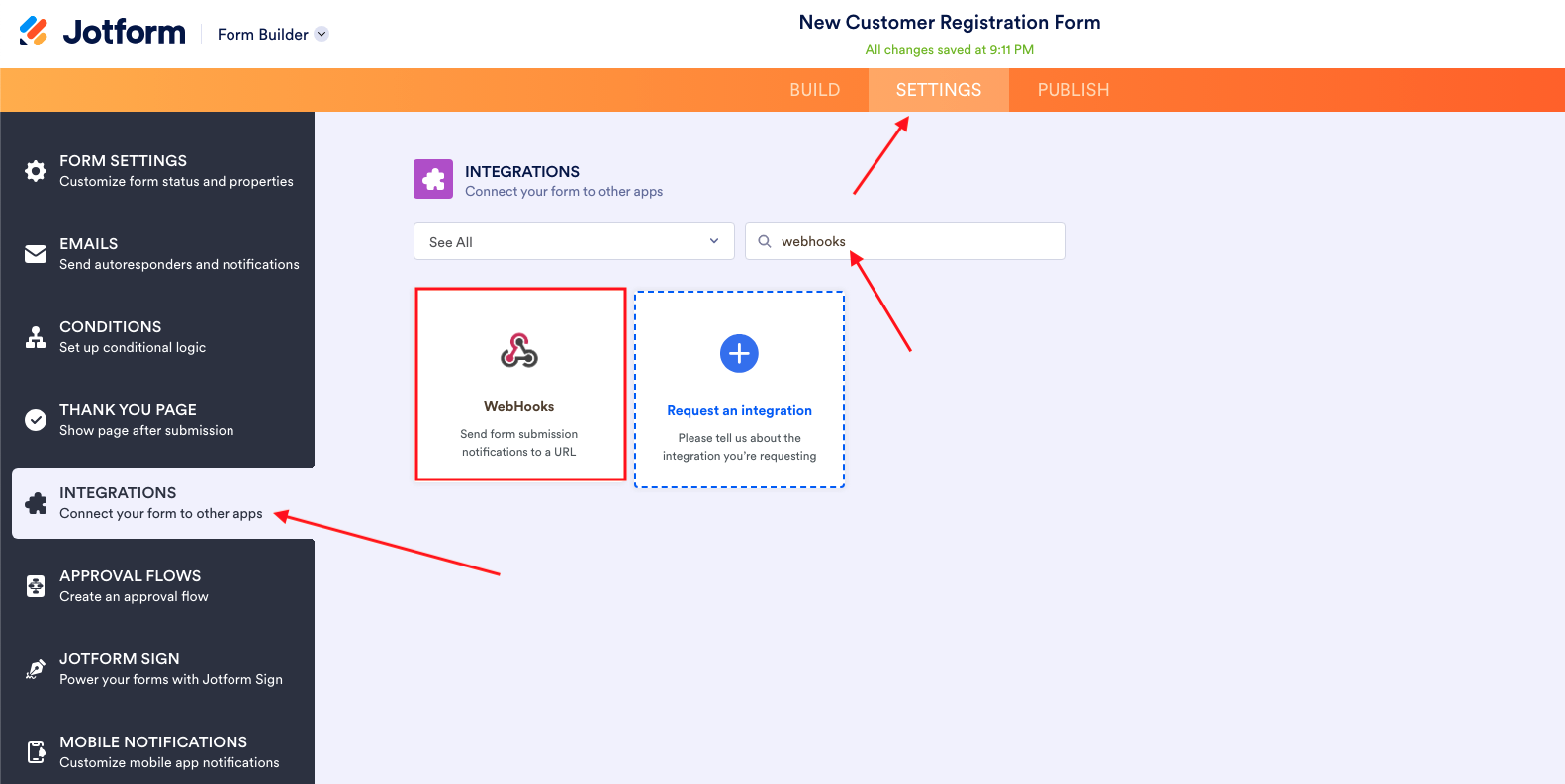
- Head to Settings > Integrations.
- Search for and select WebHooks.
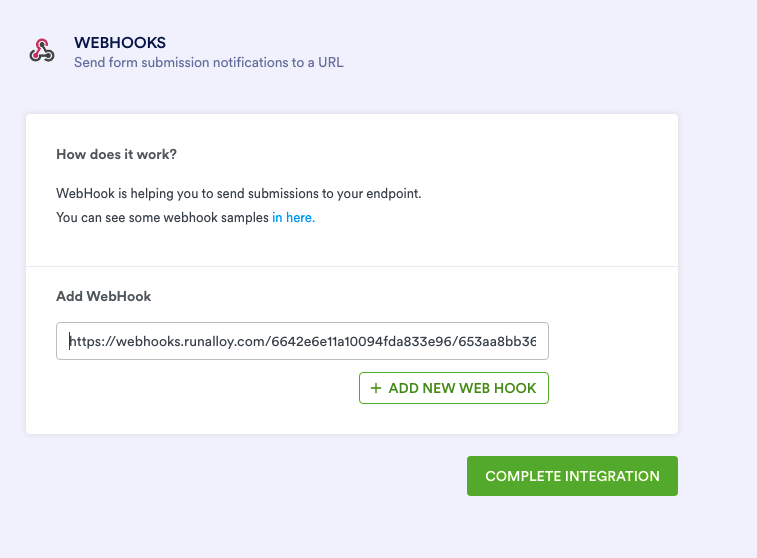
- Paste the webhook URL provided by the Emotive support team.
- Select Complete Integration.