We will need your to have a Google Tag Manager account and installed the Google Tag Manager plugin in your Wordpress account. You may follow the steps below ahead of time.
Create a Google Tag Manager Account
To create your GTM account:- Visit https://marketingplatform.google.com/about/tag-manager/.
- Click Start for free.
- Navigate to Accounts.
- Click on the ellipses (3 vertical dots), and select User Management.
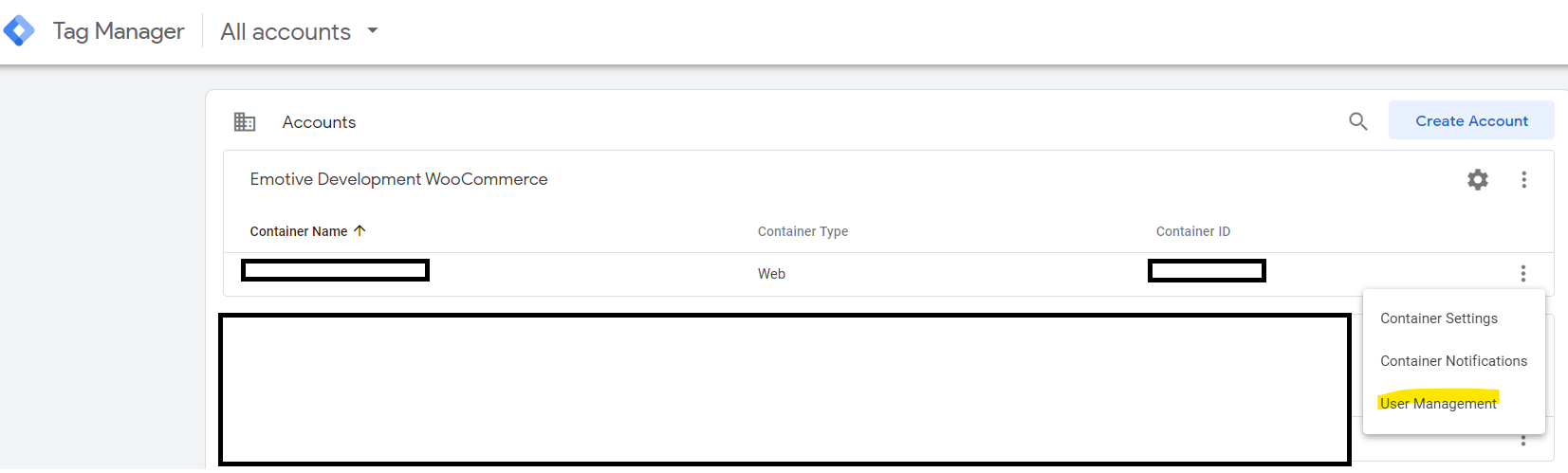
- Click on the plus sign and select Add users.
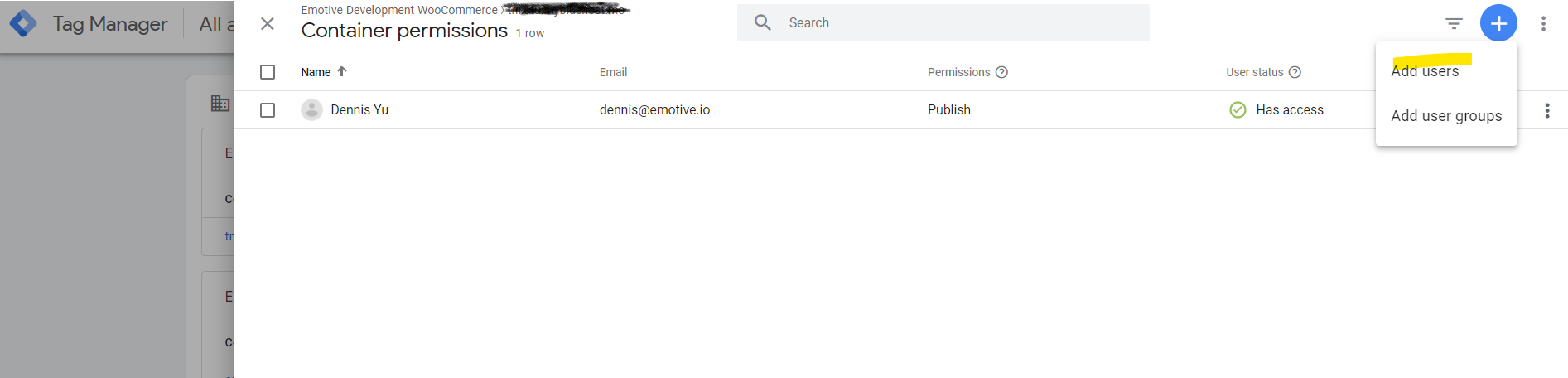
- Under Email addresses, type integrations@emotive.io.
- Under Container permissions, select “Publish”, “Approve”, “Edit”, and “Read”.
- Finally, click Invite on the top right.
Share Wordpress Admin Access
- Log into Wordpress and head to User > Add New.
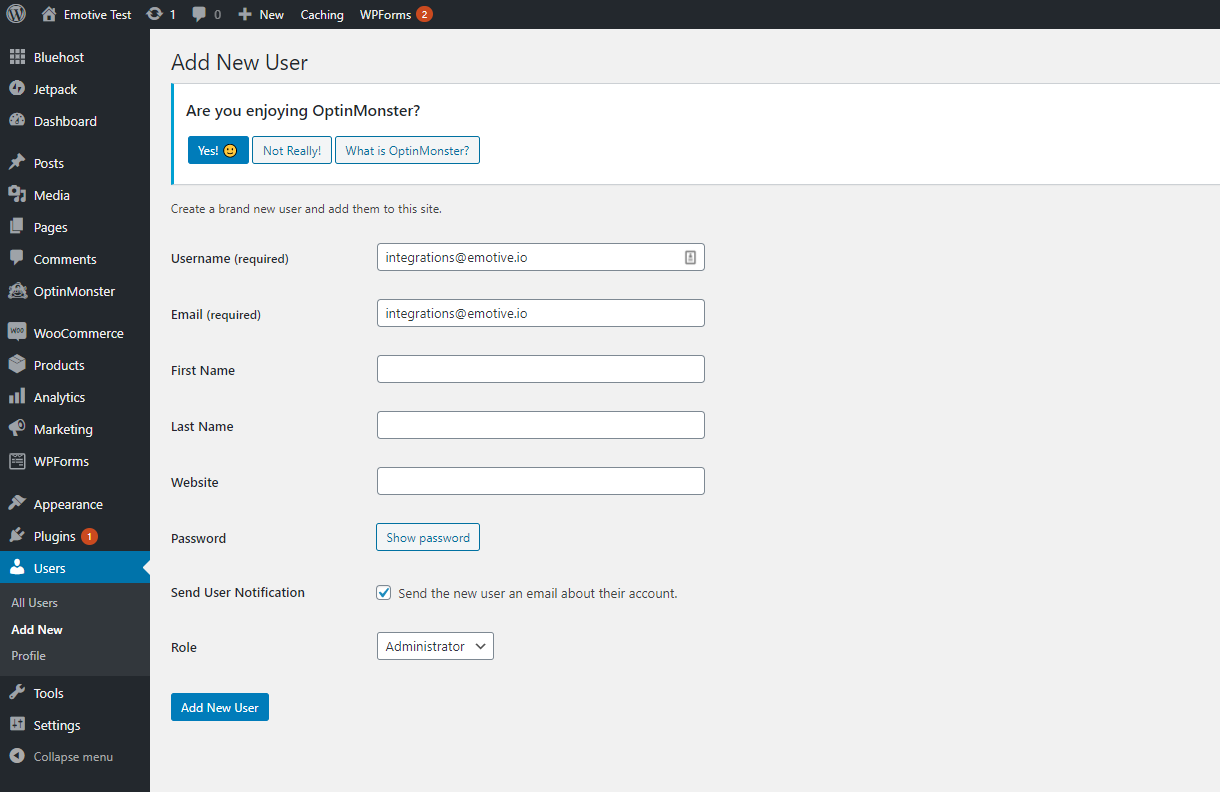
- Enter integrations@emotive.io for the Username and Email fields.
- Under Role, select Administrator.
- Click Add New User.
Install Google Tag Manager on Wordpress
- Navigate to Plugins > Add New.

- Search for and locate Google Tag Manager.
- Install the plugin.
What to expect
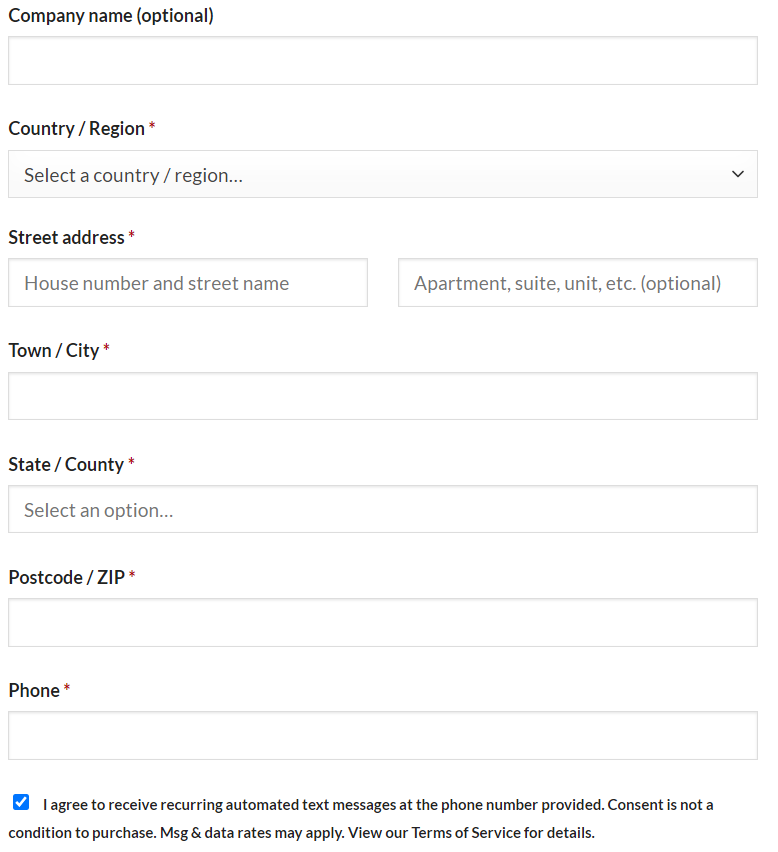
Once setup, you should find the SMS opt-in consent checkbox in your Checkout page. See below for an example: