

Access your ActiveCampaign Credentials
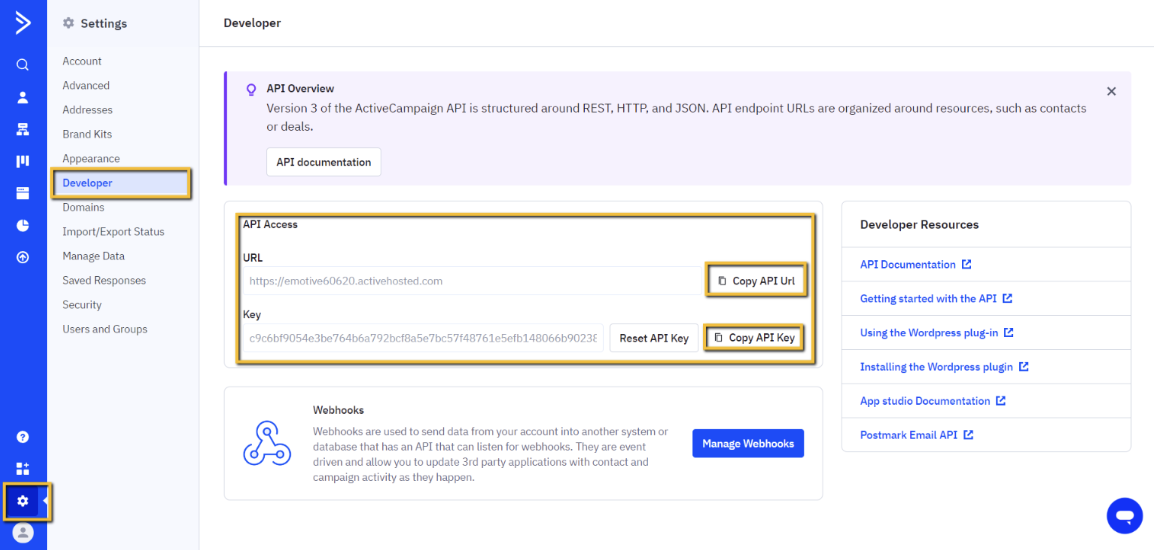
Before installing ActiveCampaign into Emotive, you’ll need to access both your API Key and your List ID in your ActiveCampaign account. Finding your API Key:- Log into ActiveCampaign and navigate to your Settings.
- Click on Developer in the left menu.
- Copy your API URL and API Key from this page.
- Head to your Contacts page in your ActiveCampaign dashboard.
- Select Lists.
- If needed, create a new list (e.g., “Emotive List”).
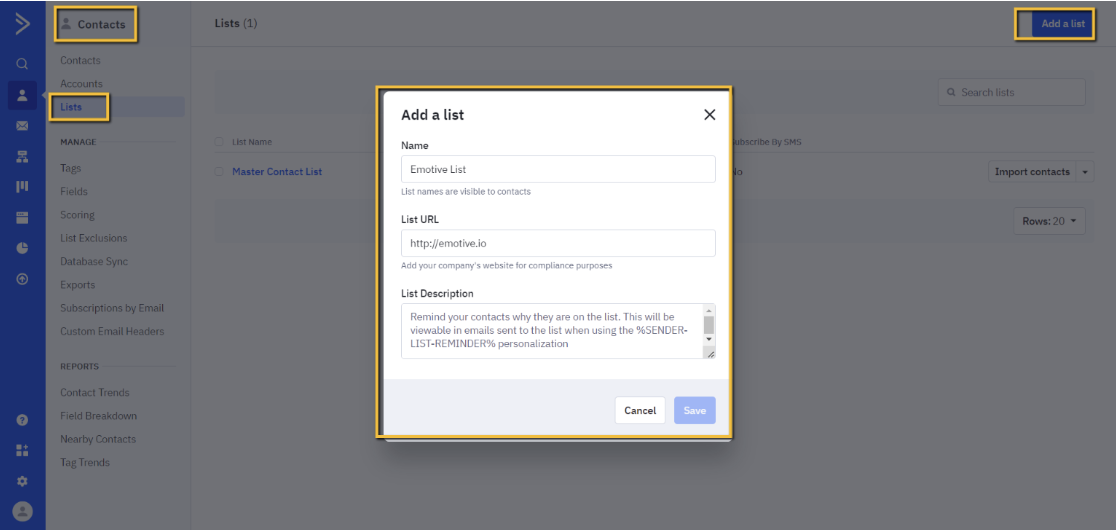
- Once you’ve located or created a list, check your browser’s URL for the List ID.
- Copy the List ID number from the URL.
Connect your ActiveCampaign Account
Now that you have your credentials handy, it’s time to install ActiveCampaign into Emotive:- Navigate to Integrations in your Emotive dashboard.
- Locate ActiveCampaign and select Add Integration.
- Select Install.
- Input your API URL, API Key, and List ID, and Tag ID.
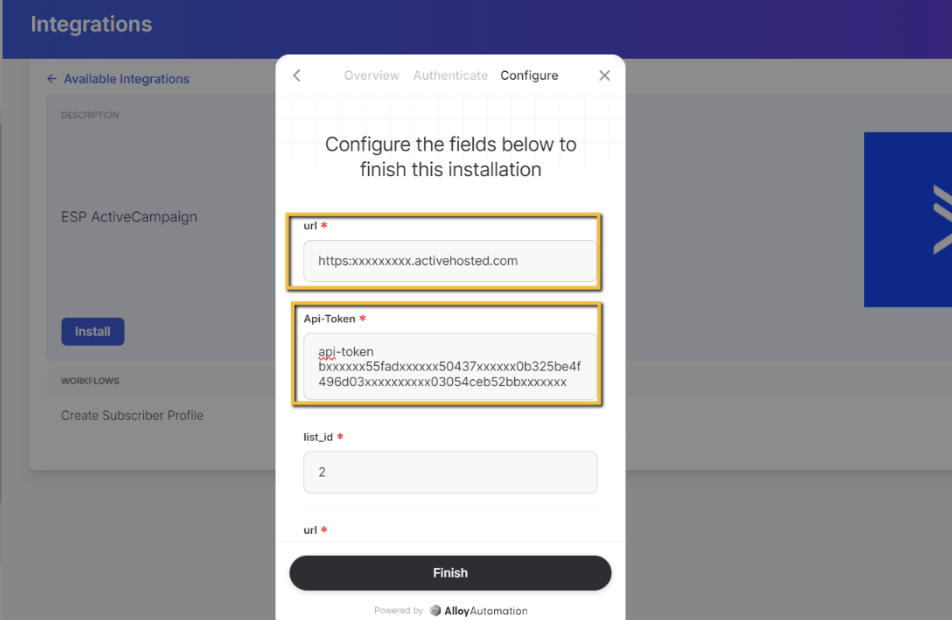
- Click Finish to complete the installation.
Sync Signups to ActiveCampaign
To sync new signups to ActiveCampaign:- Navigate to your Popups in your Emotive dashboard.
- Head to the Configure step of the desired popup.
- Select ActiveCampaign from your integrations and Save.