- Navigate to Integrations in your Emotive dashboard.
- Locate GetResponse and select Add Integration.
- Select Install on the following prompts.
- Click Continue when prompted.
Generating your GetResponse API Key
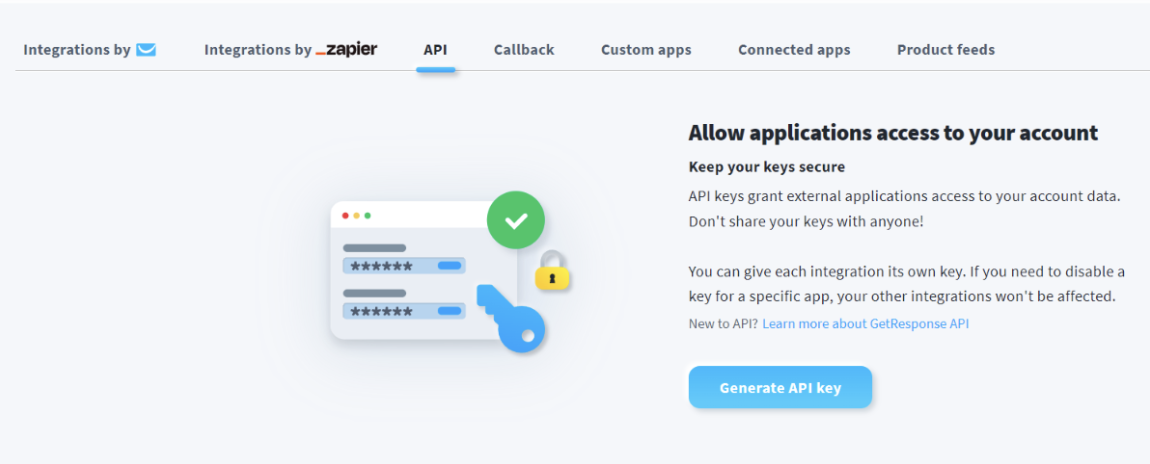
- Log in to your GetResponse account and navigate to Menu > Integrations & API > API.
- Click Generate API Key (if it’s your first time) and name it “Emotive” to help you identify it later.
- Copy the API Key.
Complete your Installation
Once you’ve generated and copied your API Key from GetResponse, you’ll need to complete your installation in Emotive.- Head back to your Emotive dashboard.
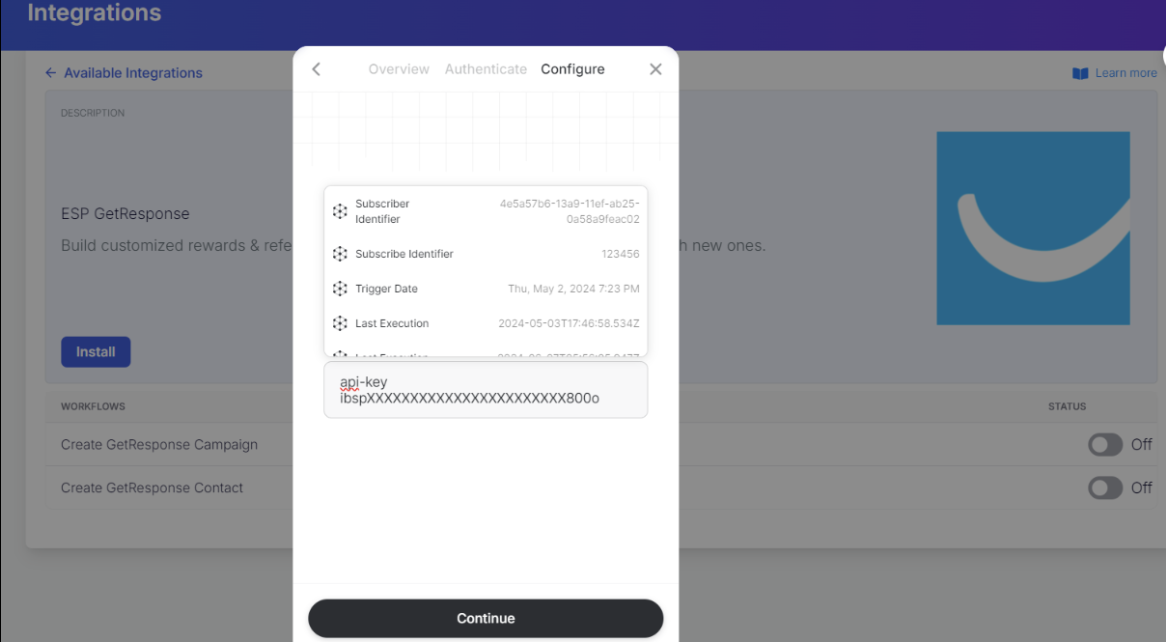
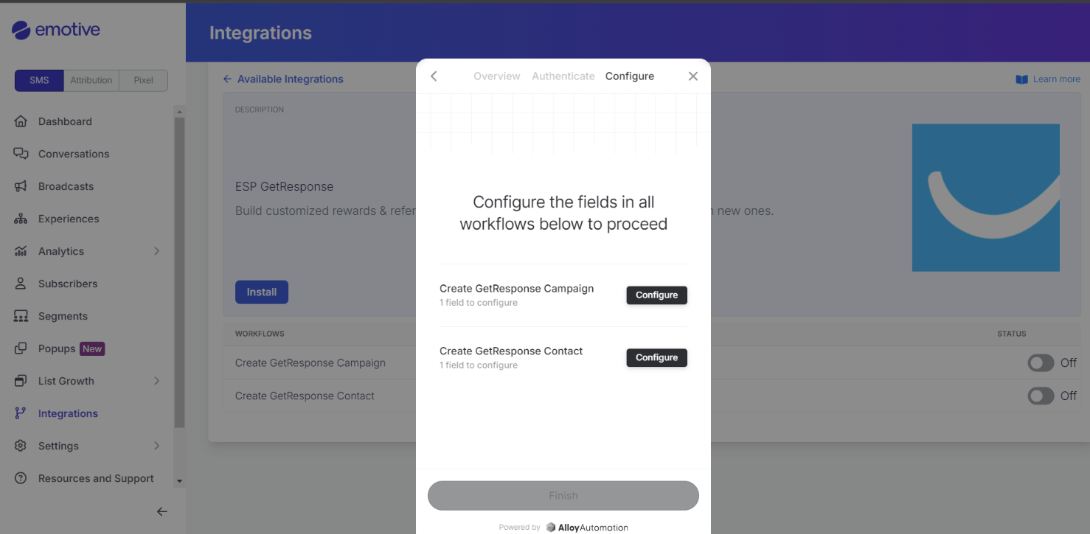
- Click Configure for each field and paste your API key in the format api-key <your-api-key> as shown in the image below.