

Create a List Growth API
- Navigate to List Growth in your Emotive dashboard.
- Head to your List Growth Integrations page.
- Click Add New.
- Click to add a new List Growth API.
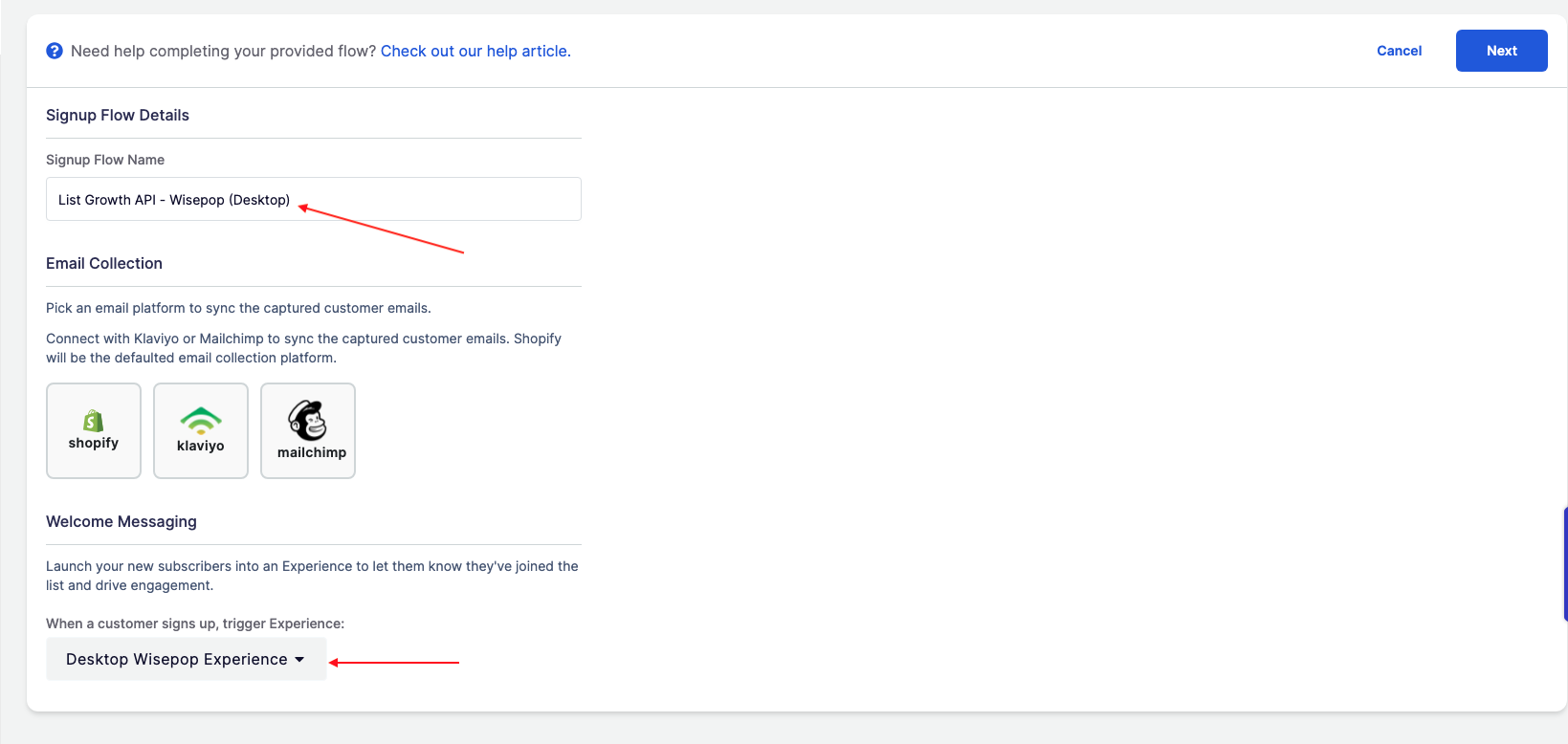
- Input a name for your List Growth API.
- Choose a Flow to connect the List Growth API to.
- Select Next to Save.
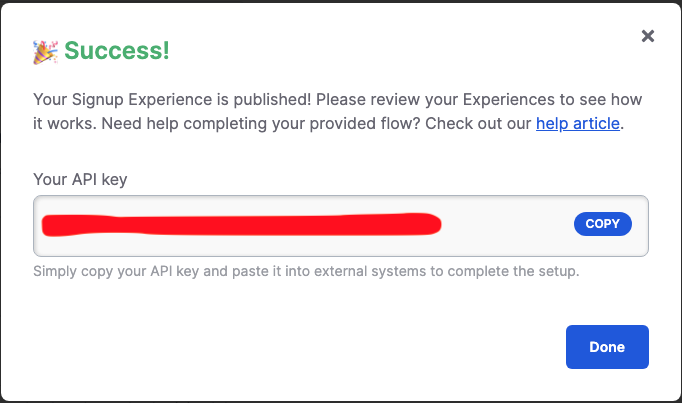
- Copy the API Key.
Connect your Wisepop Popup
Now that you’ve created your Emotive List Growth API, let’s make sure the phone numbers collected on your popup will sync over to Emotive.- Log into your Wisepop dashboard and navigate to Popups.
- Select the popup you’d like to sync with Emotive.
- Select the Phone Field on your popup.
- Click to Connect the Phone Field and select Emotive.
- Input your Emotive API key from your new List Growth API.
- Select Submit.
- Select the Emotive List that you’d like your popup to sync to.
The Emotive list name will be displayed as the same name you chose for your List Growth API.
Wisepop List API Migration Guide
For migrating existing Wisepops, you need to have the following information handy: From Wisepop:- Popup Name
- API Key (from the api_key field)
- Klaviyo / Mailchimp List name
- Signup Flow name (use the api_key from Wisepops to find this)
- Signup Experience name (use the Signup Flow to find this information)
- Klaviyo/Mailchimp API Key (can be pulled from the Integrations page)
- Head to your List Growth Integrations in Emotive.
- Create a new List Growth API — choose a name that is easy to identify.
- Choose the Flow that is already being used with the existing Wisepop popup.
- Setup your email provider integration (Klaviyo/Mailchimp).
- Save to publish the Signup flow
- Next, log into Wisepop.
- Add the Emotive Integration.
- Select the List Growth API that you just created.
- Remove the API Key hidden field, and is_mobile hidden field (if present).
- Save the changes in Wisepops, and Publish.