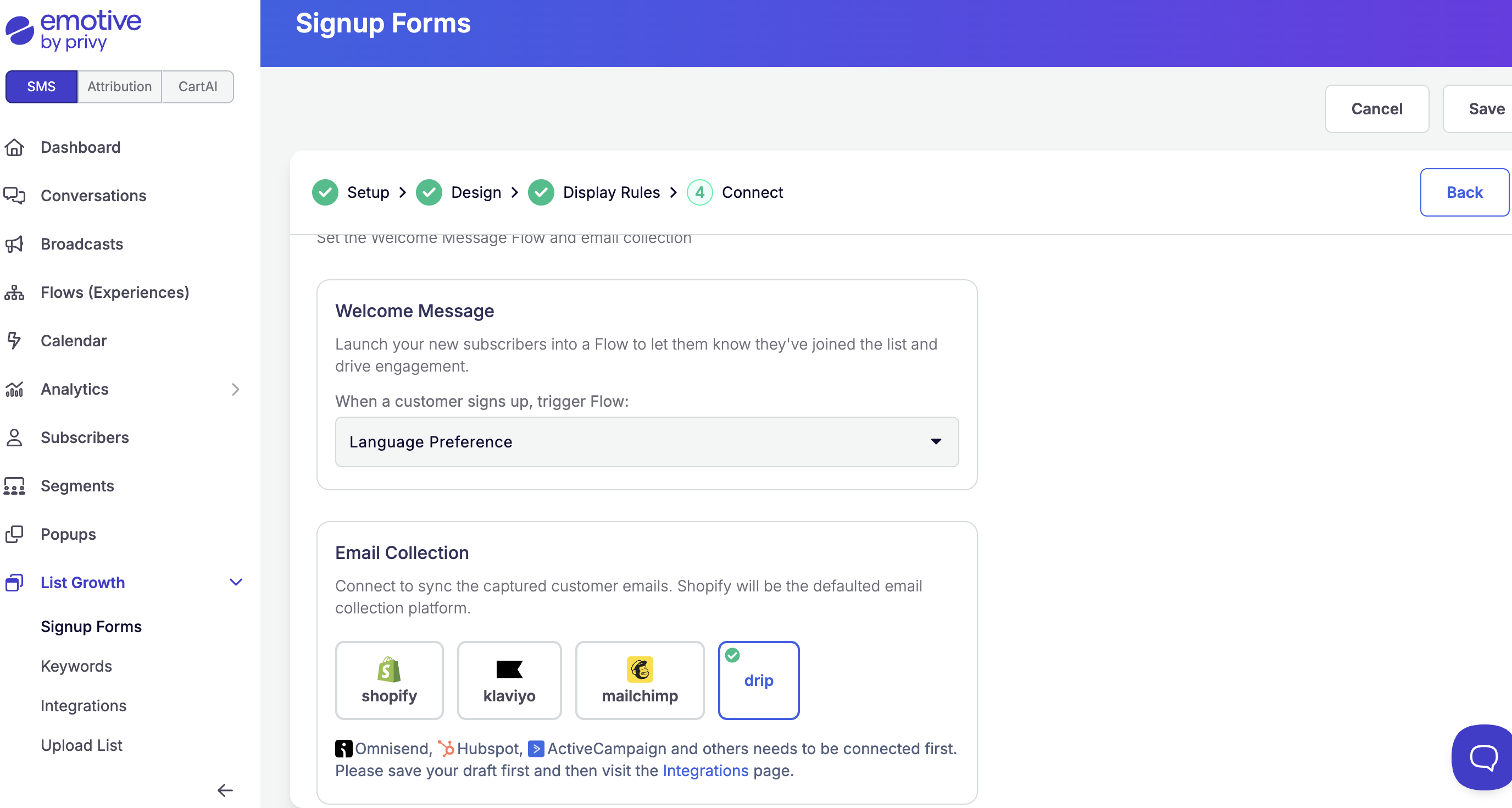
Accessing your Drip Credentials
Before you install Drip into Emotive, you’ll need to grab your Drip Account ID and API Token. To find your Account ID:- Log into your Drip account.
- In your browser’s URL, you will find the Account_ID.
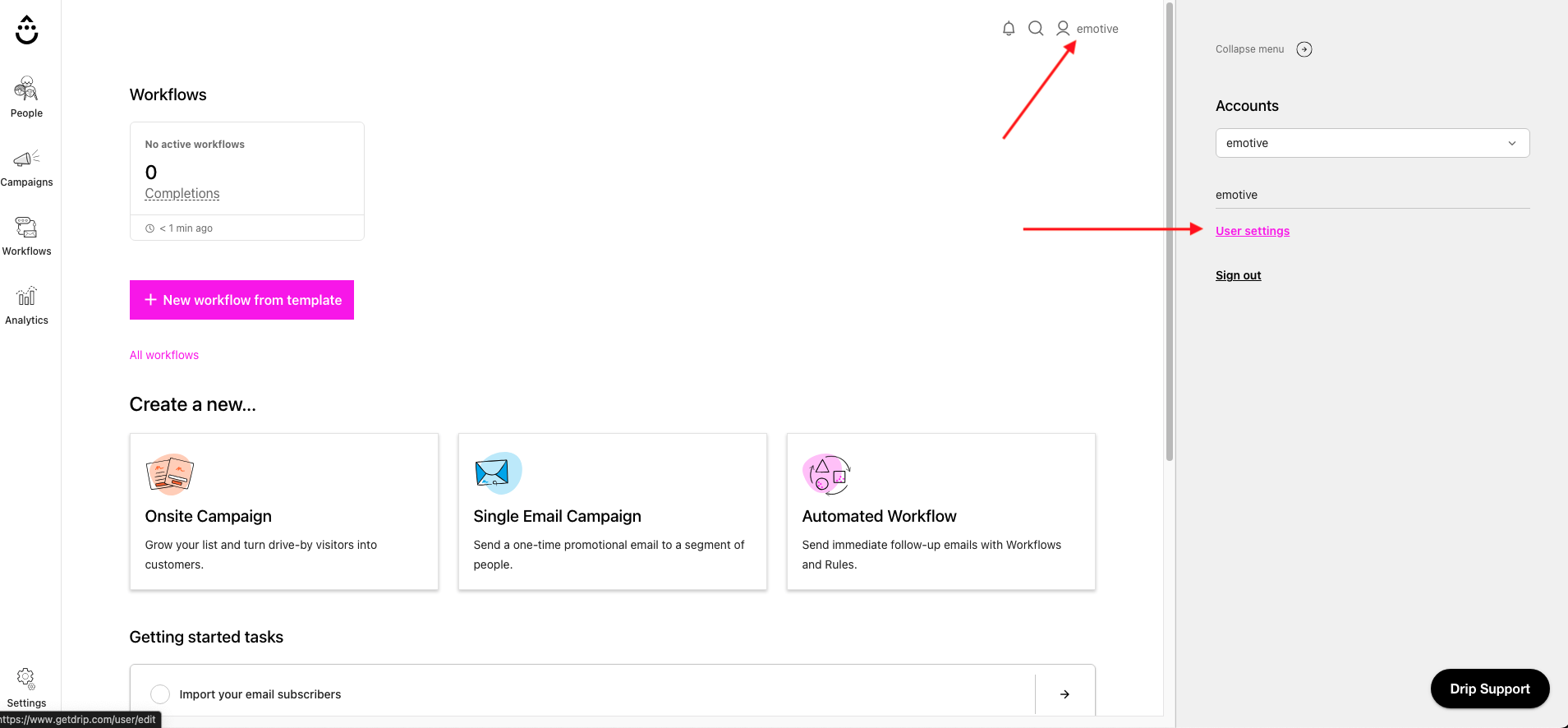
- Select your Profile icon in Drip.
- Navigate to your User settings.
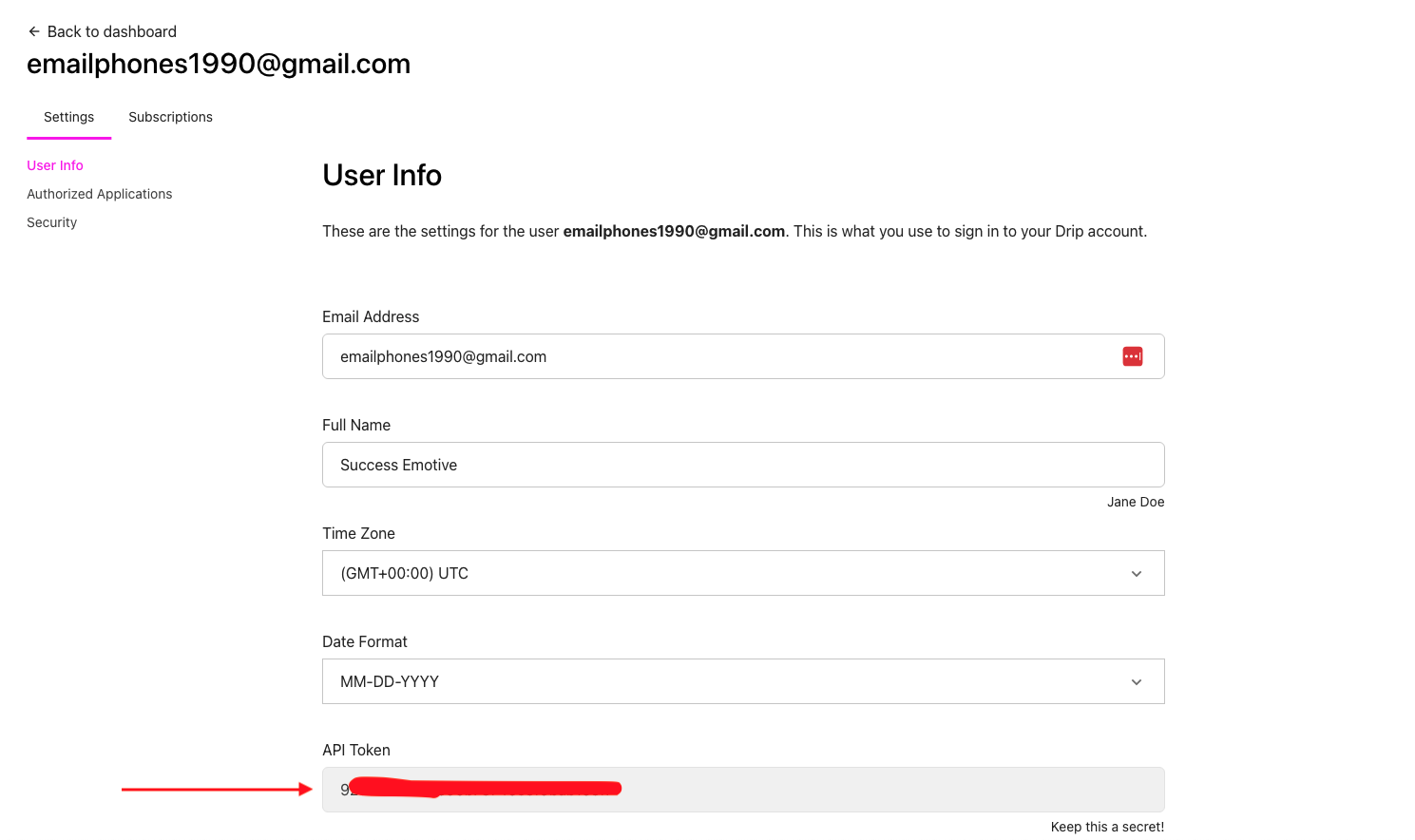
- Navigate to User info and locate your API Token near the bottom of your screen.
- Copy your API Token.
- Head to https://www.base64encode.org/.
- Paste your Drip API Token and select Encode.
- Copy your new Token.
Connect your Drip Account
Now that you’ve obtained both your Account ID and your API Token, it’s time to install Drip in Emotive.- Navigate to Integrations in your Emotive dashboard.
- Locate Drip and select Add Integration.
- Select Install.
- Input your Account ID and API Token.
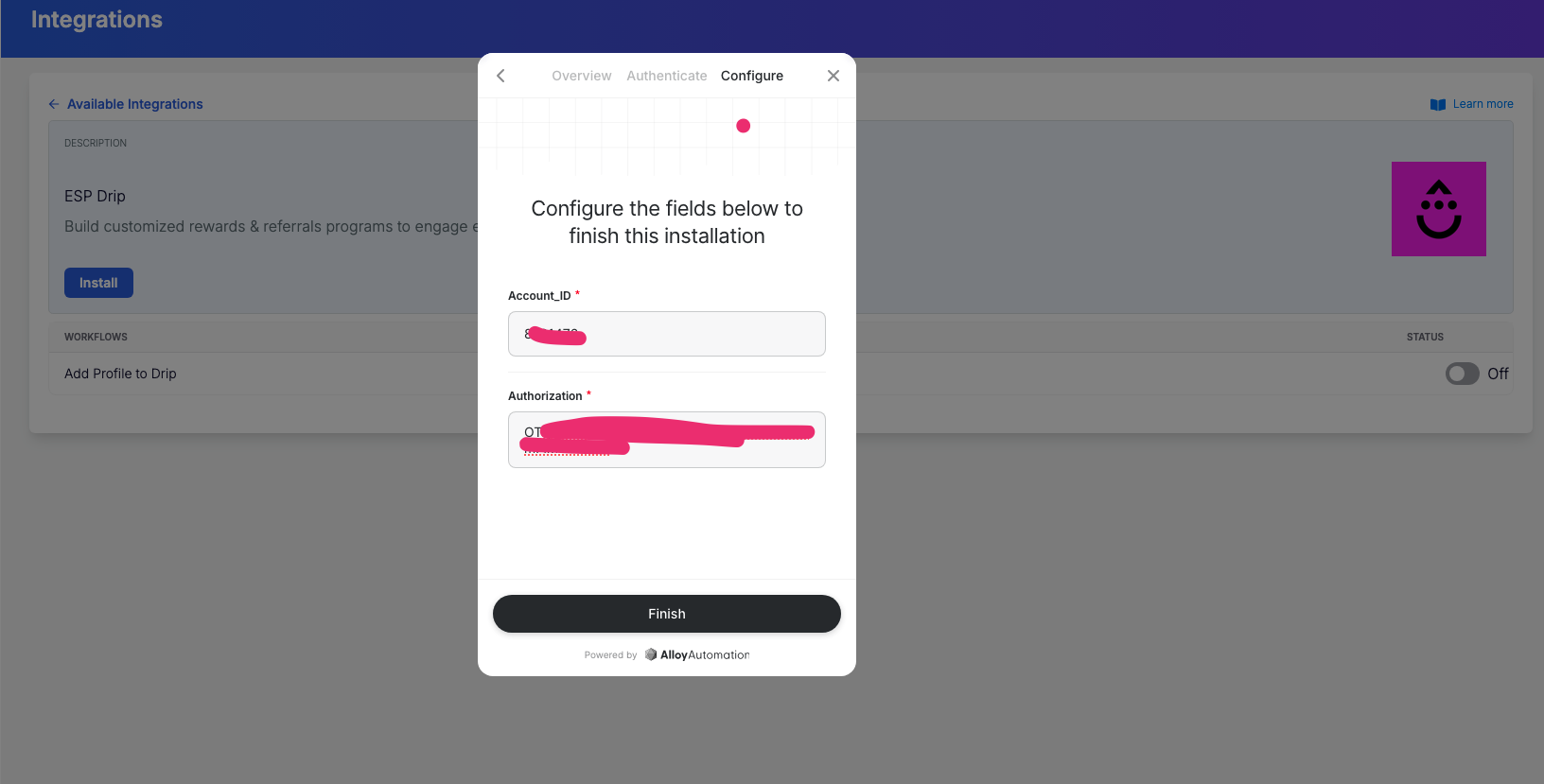
- Select Finish to complete the installation.
Sync Signups to Drip
To sync new signups to Drip:- Navigate to your Popups in your Emotive dashboard.
- Head to the Configure step of the desired popup.
- Select Drip from your integrations and Save.